Pläne ansehen

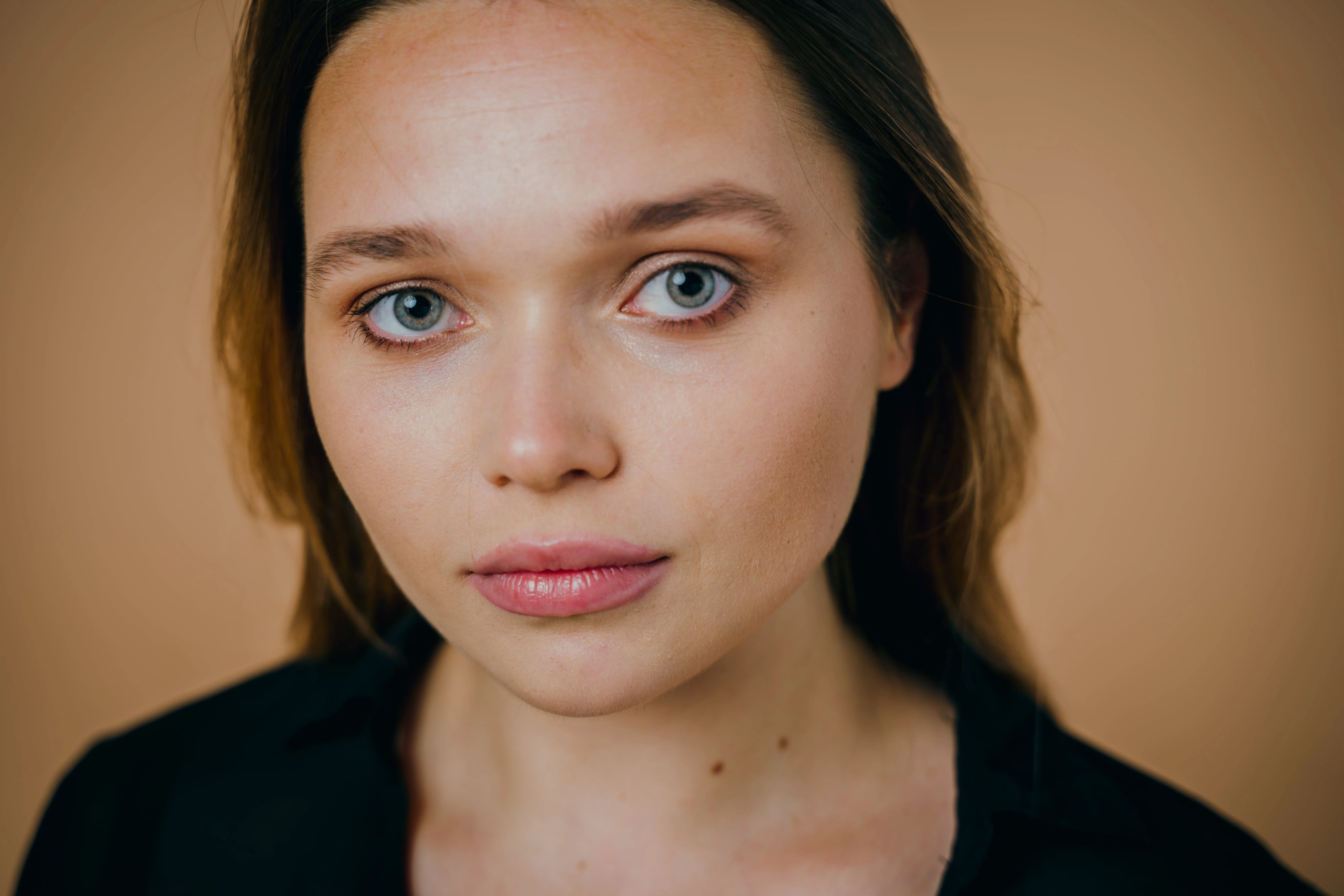
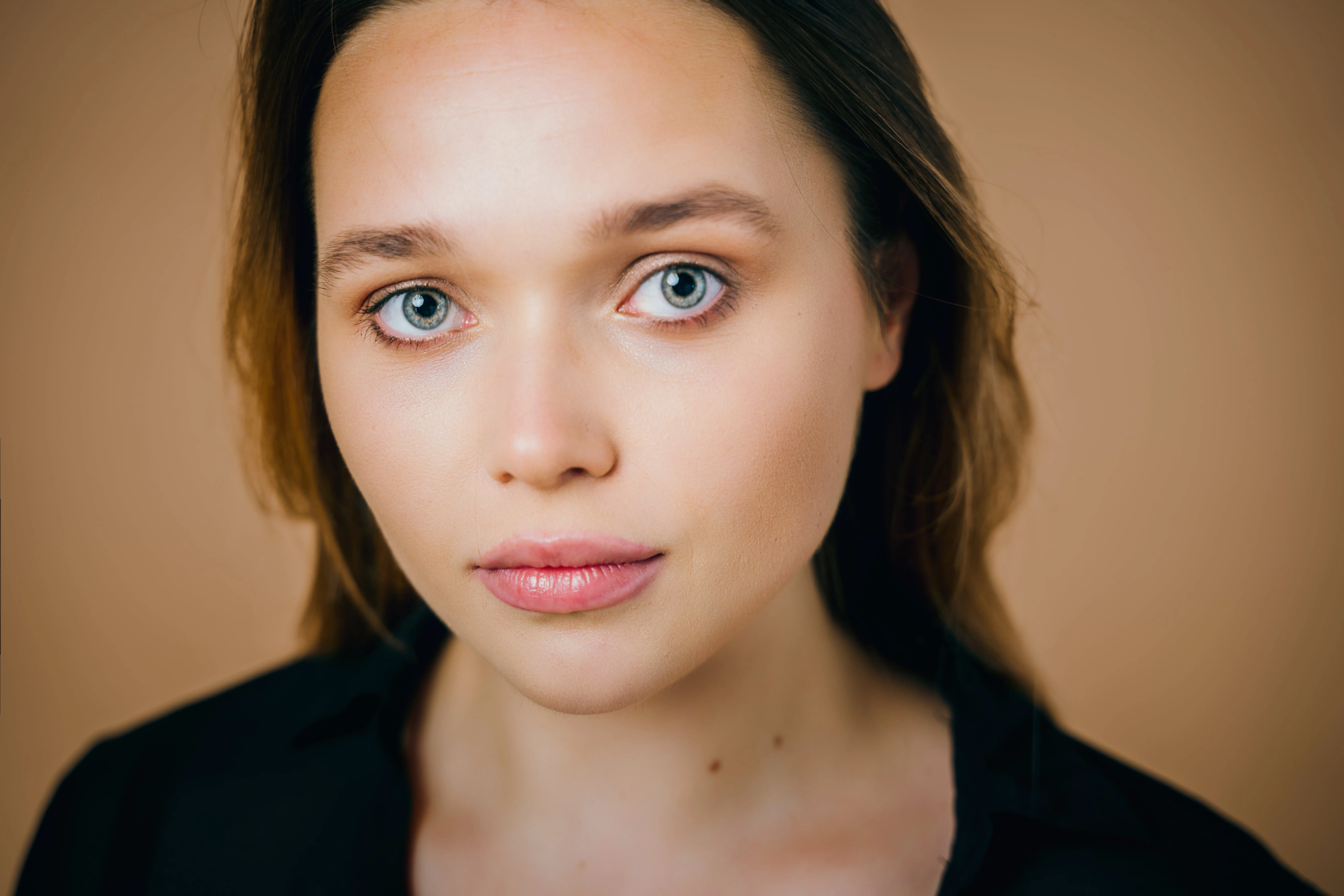
Blemish Remover to Erase Flaws

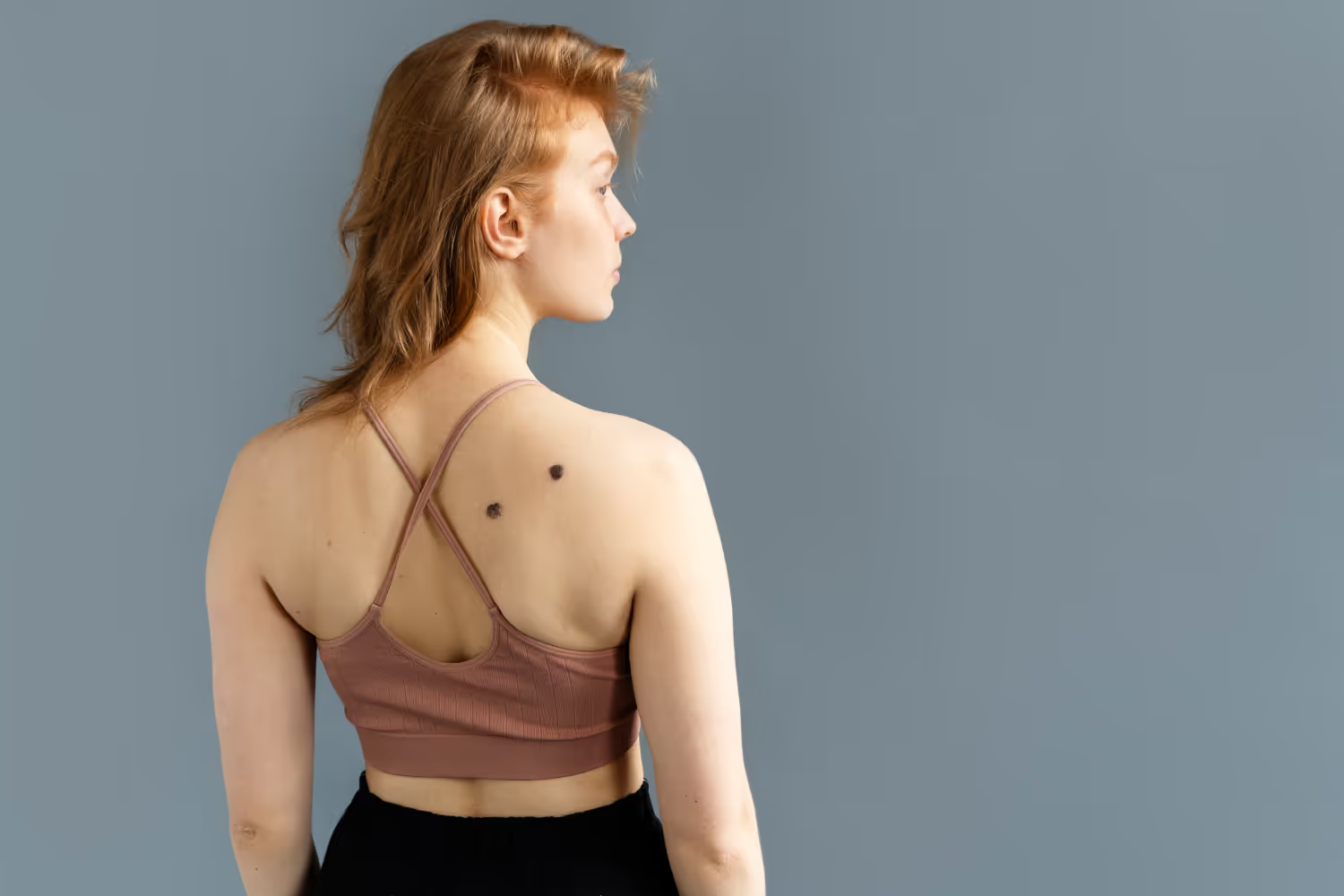
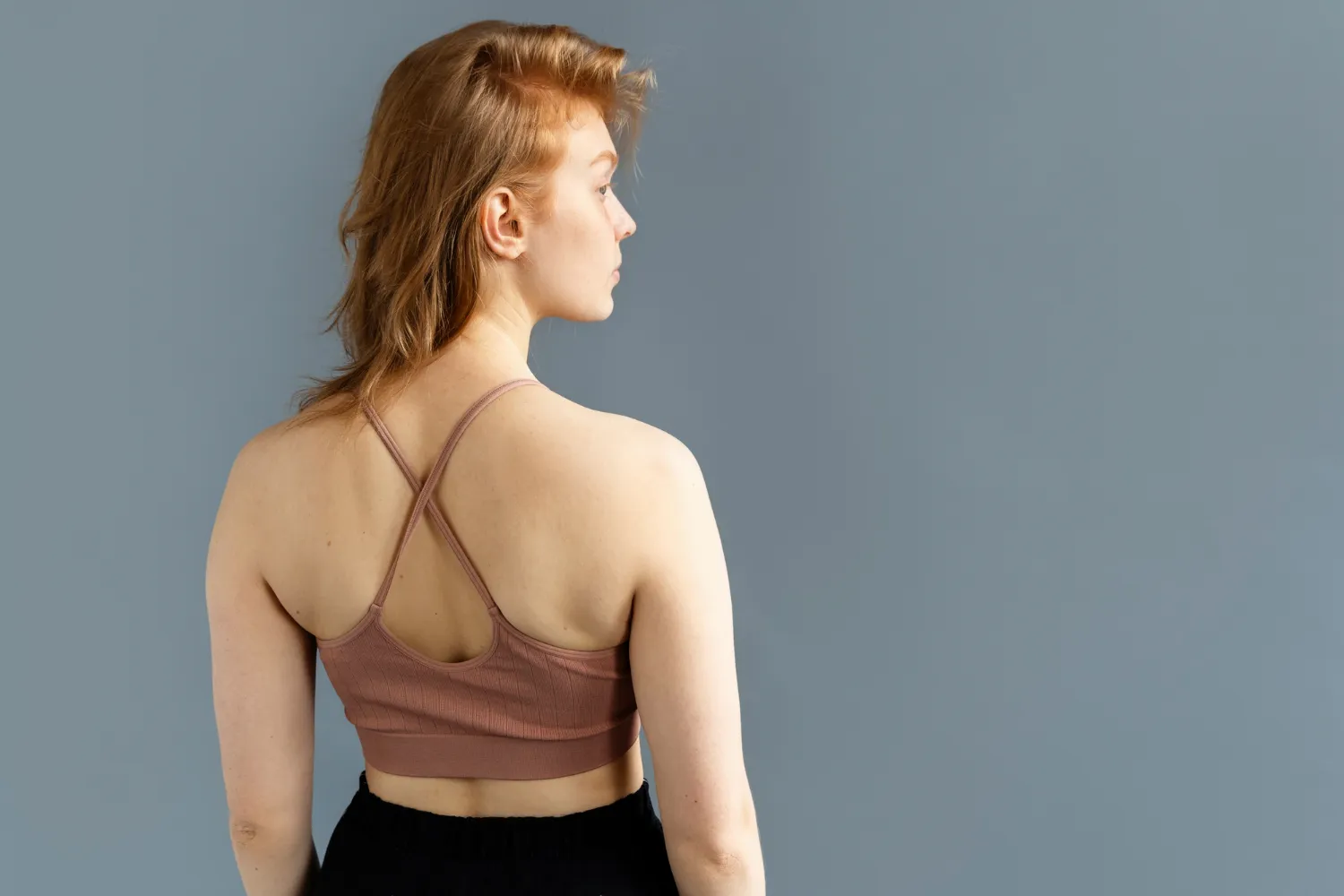
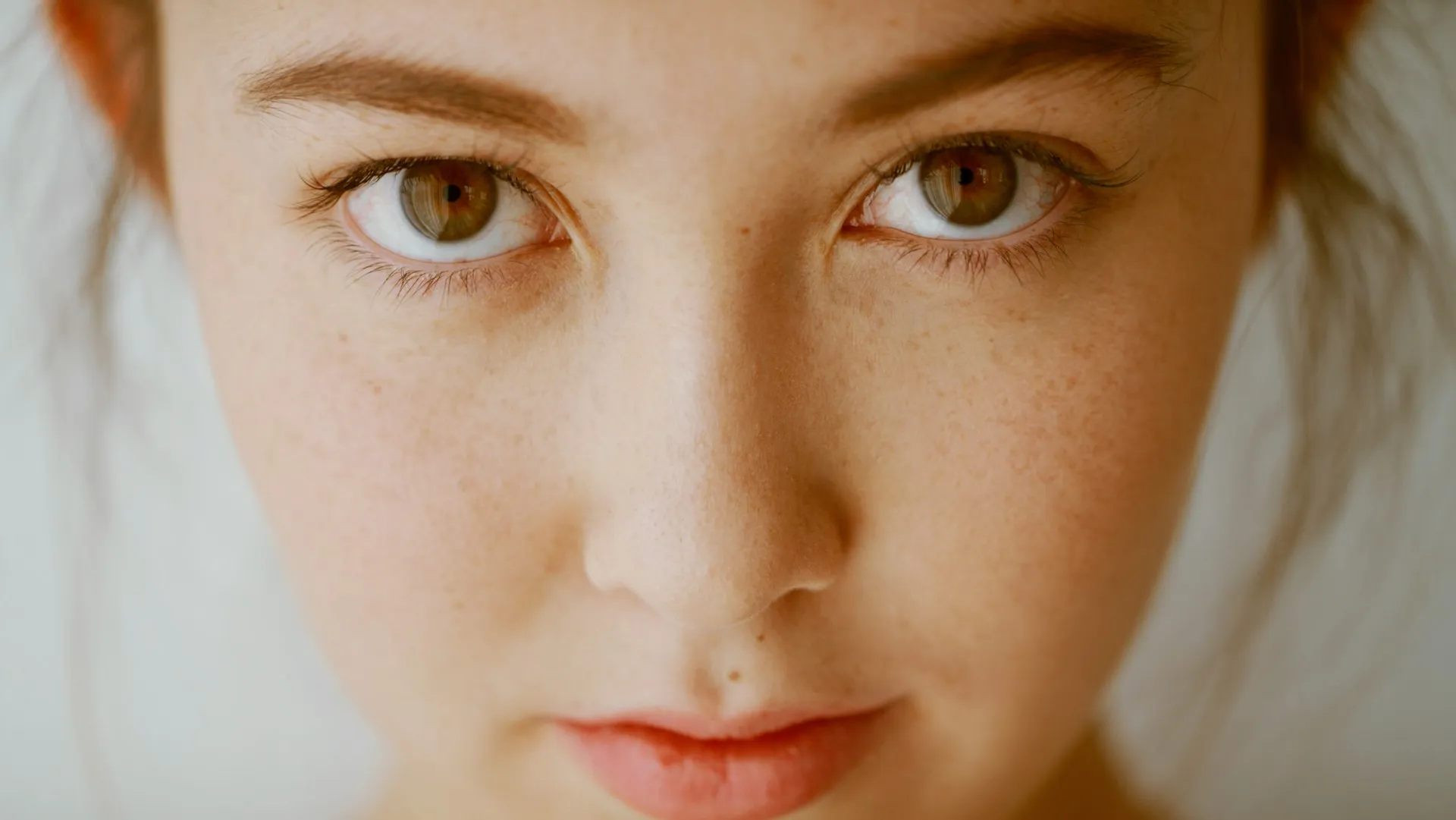
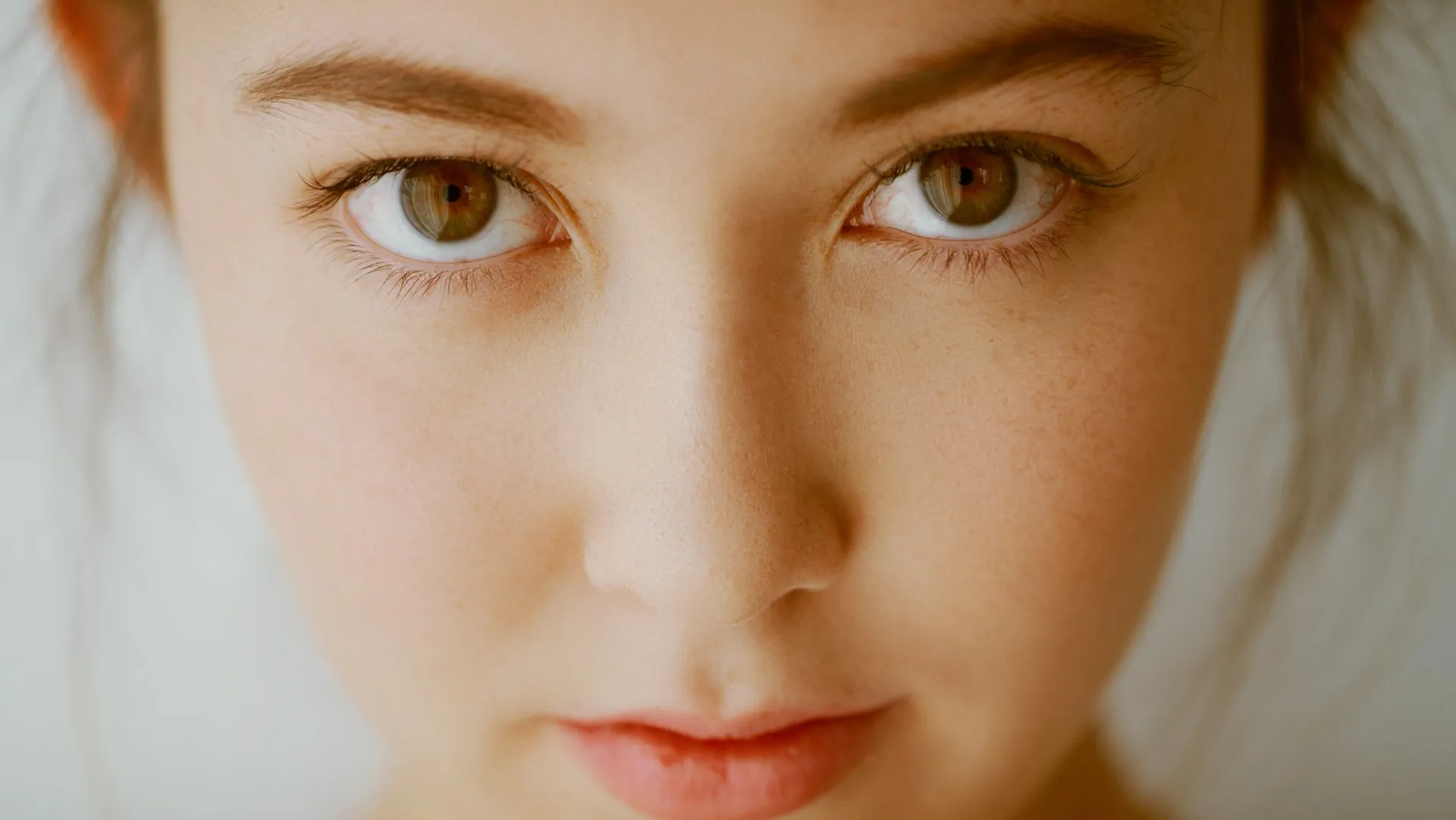
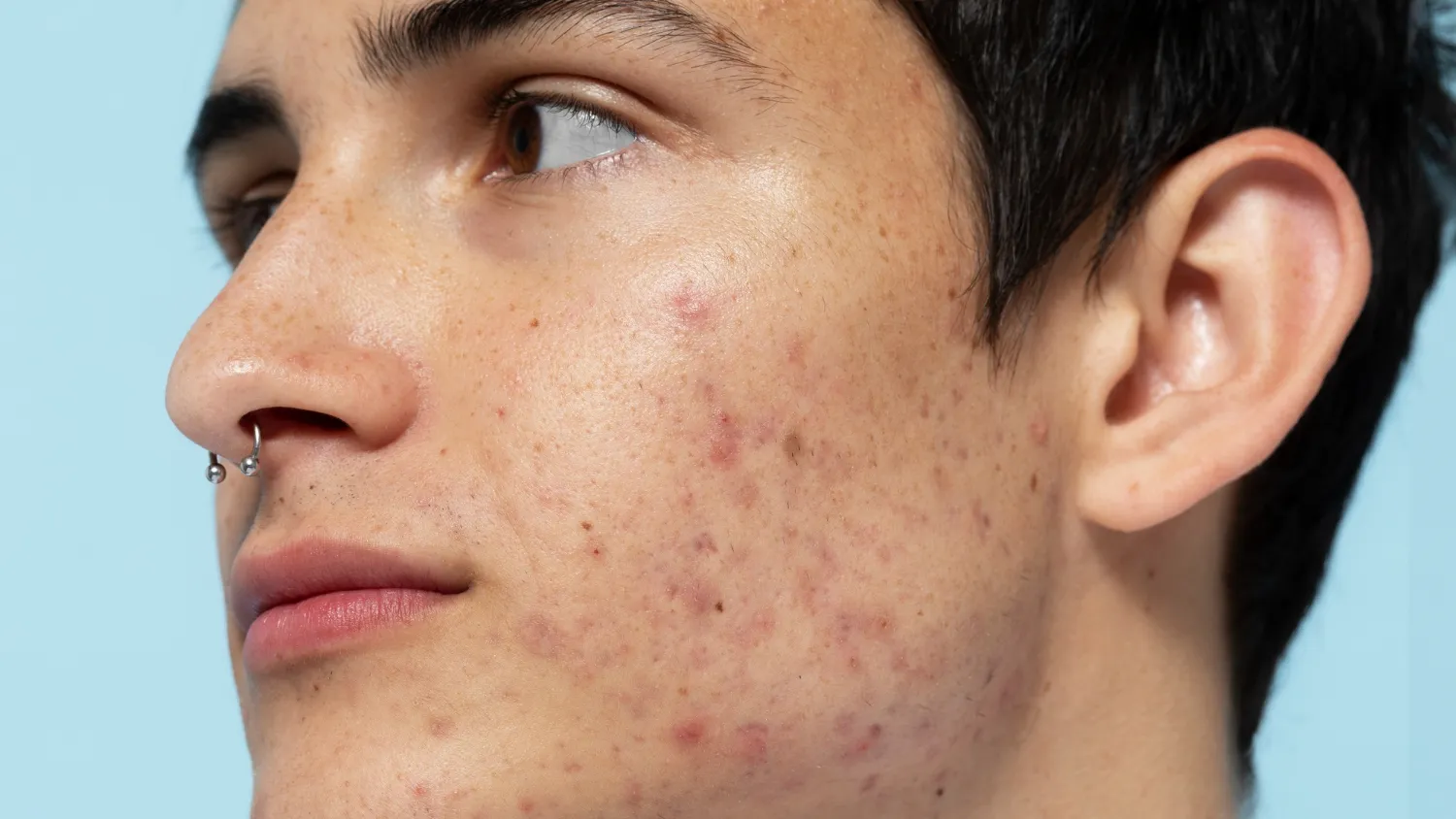
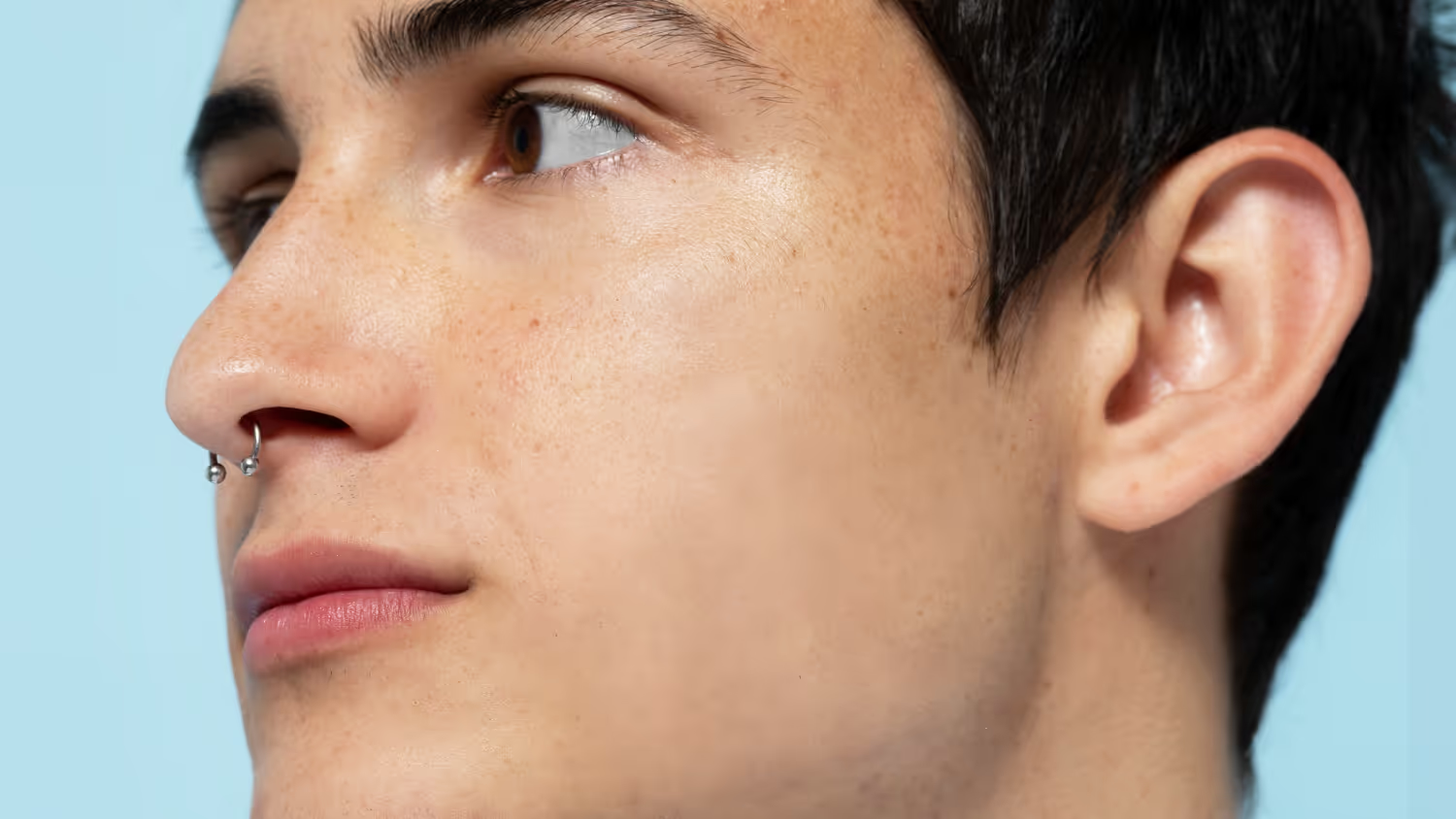
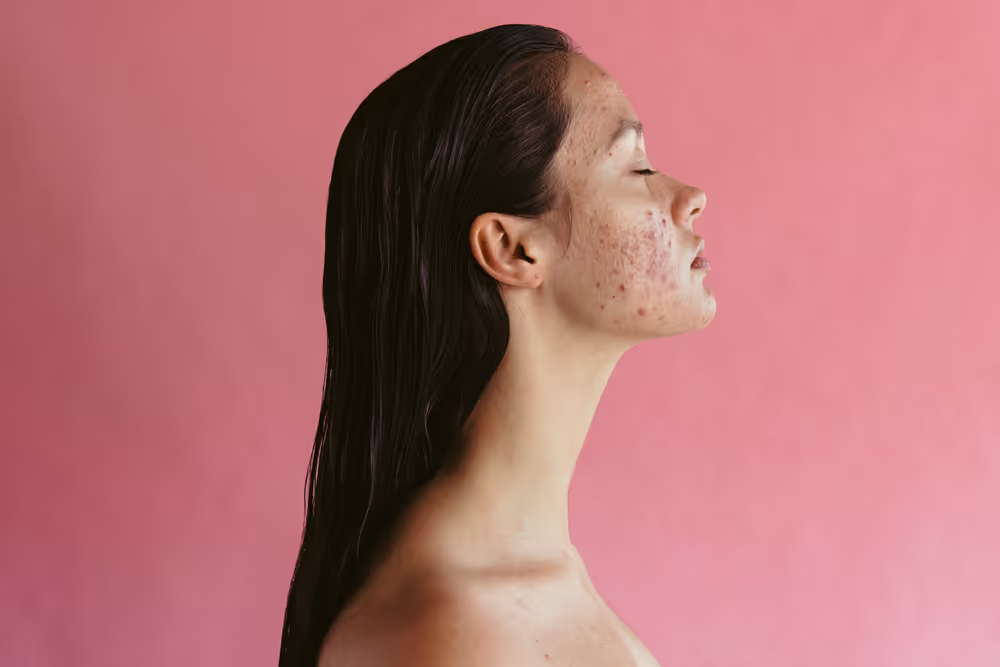
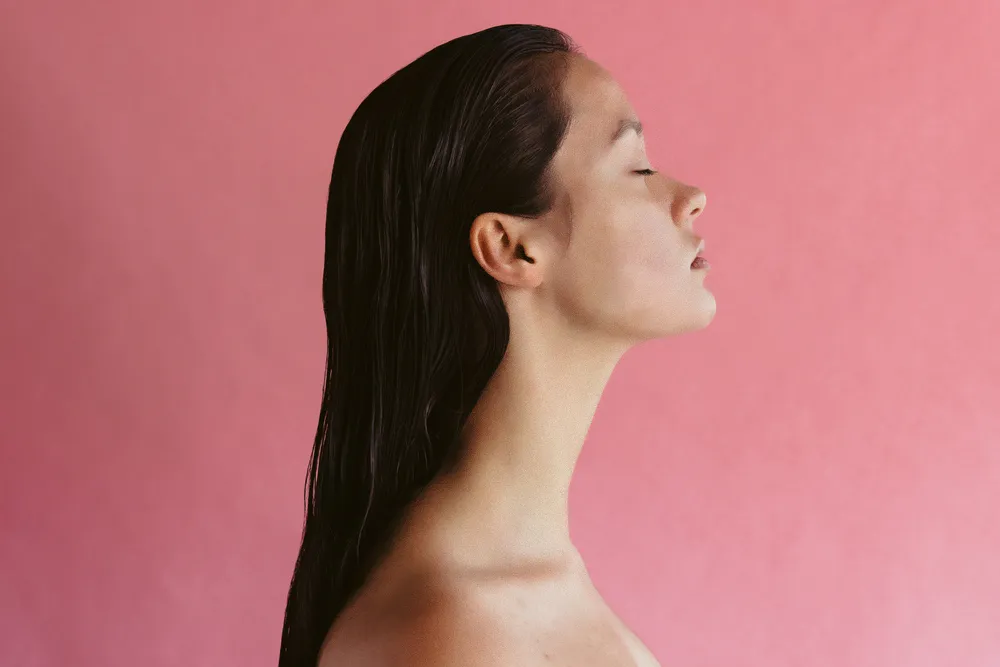
Small skin imperfections can distract from an otherwise strong portrait. A blemish photo editor helps create a cleaner, more polished image while keeping the focus on the subject—not the flaws.

Pläne ansehen

How to Use Blemish Removal in Photos?

Fixing blemishes on photos doesn’t have to be complicated. With Luminar Neo, you can clean up skin imperfections in just a few clicks while keeping the texture natural.

(2)

Step 1. Open your photo. Launch Luminar Neo and open the portrait you want to retouch.

(3)

Step 2. Enable Skin AI. Go to Portrait tools and select Skin AI. Turn on Skin Defects Removal AI to automatically detect and remove blemishes.

(4)

Step 3. Adjust and refine. Fine-tune the effect strength to keep skin texture natural. If needed, use Edit Mask to restore details like hair, eyelashes, or freckles.

(5)

Step 4. Review and export. Zoom in to check the result, then export your photo with clean, natural-looking skin.

What Other Tools Can You Use?

To remove blemishes from photos, Luminar Neo offers a complete set of retouching tools.

(6)
(7)
(8)
Vorher
Nachher
© rushay

Glanzentfernung

Übermäßiger Glanz auf der Stirn oder den Wangen ruiniert ein ansonsten perfektes Foto. Das Tool Glanzentfernung erzeugt realistisch aussehende Haut, um Gesichtspartien wiederherzustellen, die durch übermäßiges Licht verwaschen wurden.
(6)
(10)
(11)
Vorher
Nachher
© freepik

Essentials (Erase Tool)

Allows you to manually remove unwanted details or remaining imperfections when extra precision is needed.
(6)
(13)
(14)
Vorher
Nachher
© unsplash

Maske bearbeiten

Lets you manually restore or protect details you want to keep, giving you full control over where the effect is applied.
Glanzentfernung
Essentials (Erase Tool)
Maske bearbeiten

What Other Tools Can You Use?

To remove blemishes from photos, Luminar Neo offers a complete set of retouching tools.

(15)
(16)
(17)
Vorher
Nachher
© Shutterstock

Portrait Photography

Remove temporary skin imperfections while preserving natural texture and facial details. Ideal for close-ups and expressive portraits.

Professional Headshots

Clean, refined skin helps create a confident first impression for LinkedIn profiles, portfolios, and company websites.
(15)
(19)
(20)
Vorher
Nachher
© Jim Nix
(15)
(22)
(23)
Vorher
Nachher
© Shutterstock

Lifestyle & Social Media Photos

Quickly polish everyday images so they look intentional, clean, and camera-ready without over-retouching.

Beauty & Fashion Photography

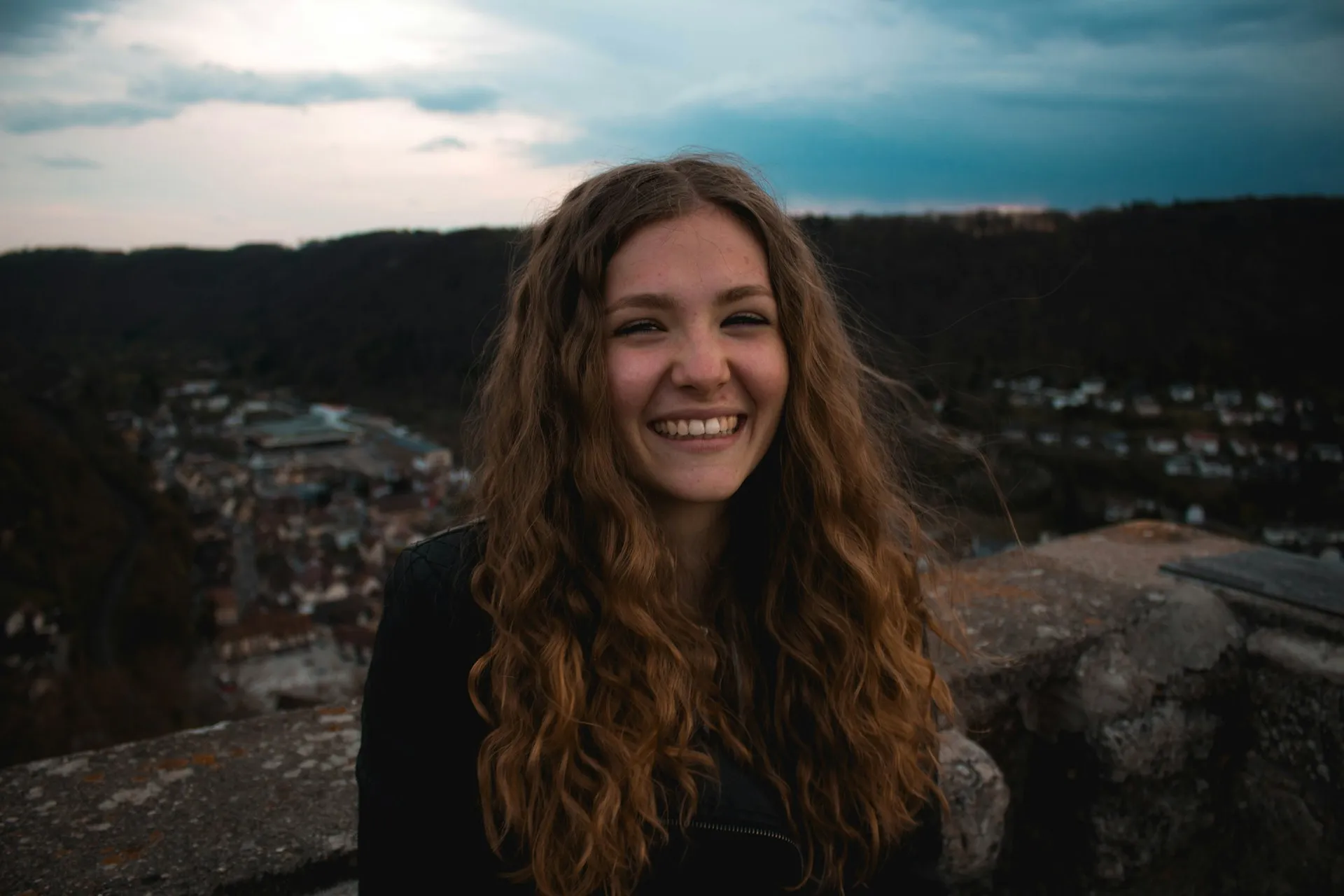
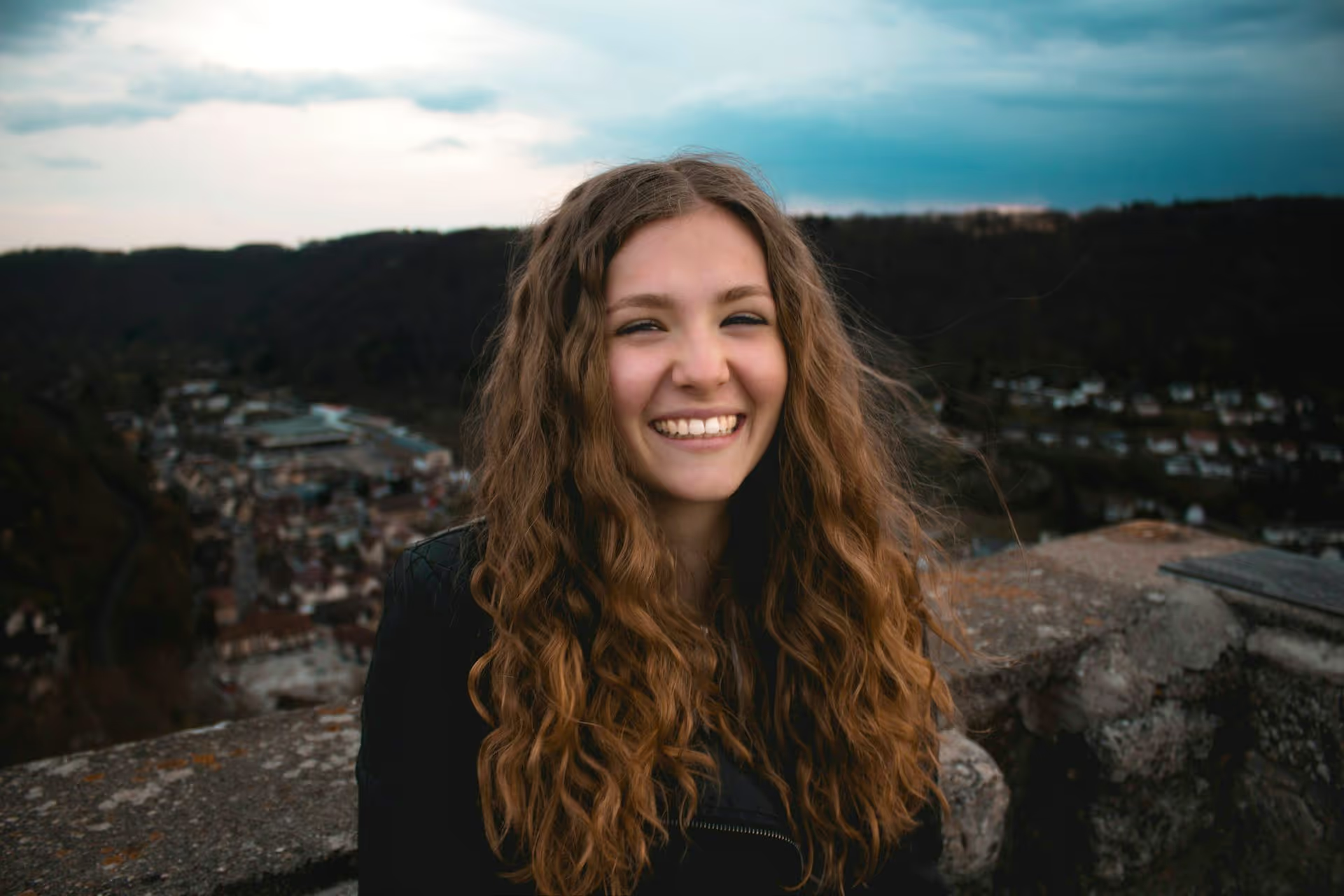
Subtle blemish removal enhances skin tone consistency while keeping makeup, freckles, and texture intact.
(15)
(25)
(26)
Vorher
Nachher
© Jim Nix
(15)
(28)
(29)
Vorher
Nachher
© Shutterstock

Personal Photos

Improve casual photos by removing pimples with AI or other small distractions from the photo, helping the subject stand out naturally.

Entdecke weitere Funktionen

Luminar Neo verfügt über zahlreiche weitere Funktionen, mit denen du deine Fotos schneller und einfacher bearbeiten kannst
(31)
(32)
Vorher
Nachher
© marcel-strauss
Face AI
Experience the magic of AI with Face AI Editor—effortlessly enhance, retouch, and beautify!
(33)
Whiten Teeth
(34)
(35)
Vorher
Nachher
© Ksenia Kazak
Whiten Teeth
Transform your smile with Luminar Neo! Brighten your teeth and achieve a flawless, picture-perfect grin.
(36)
Portrait Bokeh Effect
(37)
(38)
Vorher
Nachher
© theshots.contributor
Portrait Bokeh Effect
Discover how to transform the background into a mesmerizing blur with our Portrait Bokeh Effect tool.
(39)
Body Editor
(40)
(41)
Vorher
Nachher
© HayDmitriy
Body Editor
Transform your body's appearance naturally with our advanced body editor. Try it now!
(42)
HautAI
(43)
(44)
Vorher
Nachher
© unsplash
HautAI
Transform your skin with Skin AI — achieve flawless, imperfection-free beauty today!
(45)
Skinny Face
(46)
(47)
Vorher
Nachher
© Ksusha Kazak
Skinny Face
Discover Luminar Neo's Slim Face feature and revolutionize your photos with just a slide! Try it now!

Anwendung & Plugin
Für Mac & Windows

  • Leistungsstarker AI-Editor
  • technische Unterstützung 24 Stunden / 7 Tage die Woche

  • 30 Tage Geld-zurück-Garantie

  • Join our communities

Die am häufigst gestellten Fragen

How to get rid of acne in photos?

Open your photo in Luminar Neo, go to Portrait tools → Skin AI, and enable Skin Defects Removal AI. The tool automatically removes acne from a photo while preserving natural skin texture. If you want to keep certain details, use Edit Mask to restore them selectively.

Hinterlässt die Entfernung sichtbare Spuren oder Flecken?

No. Luminar Neo’s AI blemish remover is designed to deliver natural-looking results, preserving skin texture without leaving visible smudges or artificial artifacts.

Kann ich die Intensität des Makel-Entferners einstellen?

Blemish removal is applied automatically for realistic results. If you want to keep certain imperfections or details, you can use the Edit Mask tool to restore them selectively.

Wie kann ich Änderungen, die der Entferner vorgenommen hat, bei Bedarf rückgängig machen?

All edits in Luminar Neo are non-destructive. You can undo changes using Ctrl/Cmd + Z, redo them with Ctrl/Cmd + Y, or simply disable Skin Defects Removal AI at any time.

Why Luminar Neo is the best photo editor to remove blemishes?

Luminar Neo combines AI-powered blemish removal with manual control tools like masking and erase options. This allows you to remove pimples from a photo quickly while keeping skin texture natural. When more precision is needed, you can fine-tune the result for clean, realistic retouching.
(49)