プランを見る

Blemish Remover to Erase Flaws

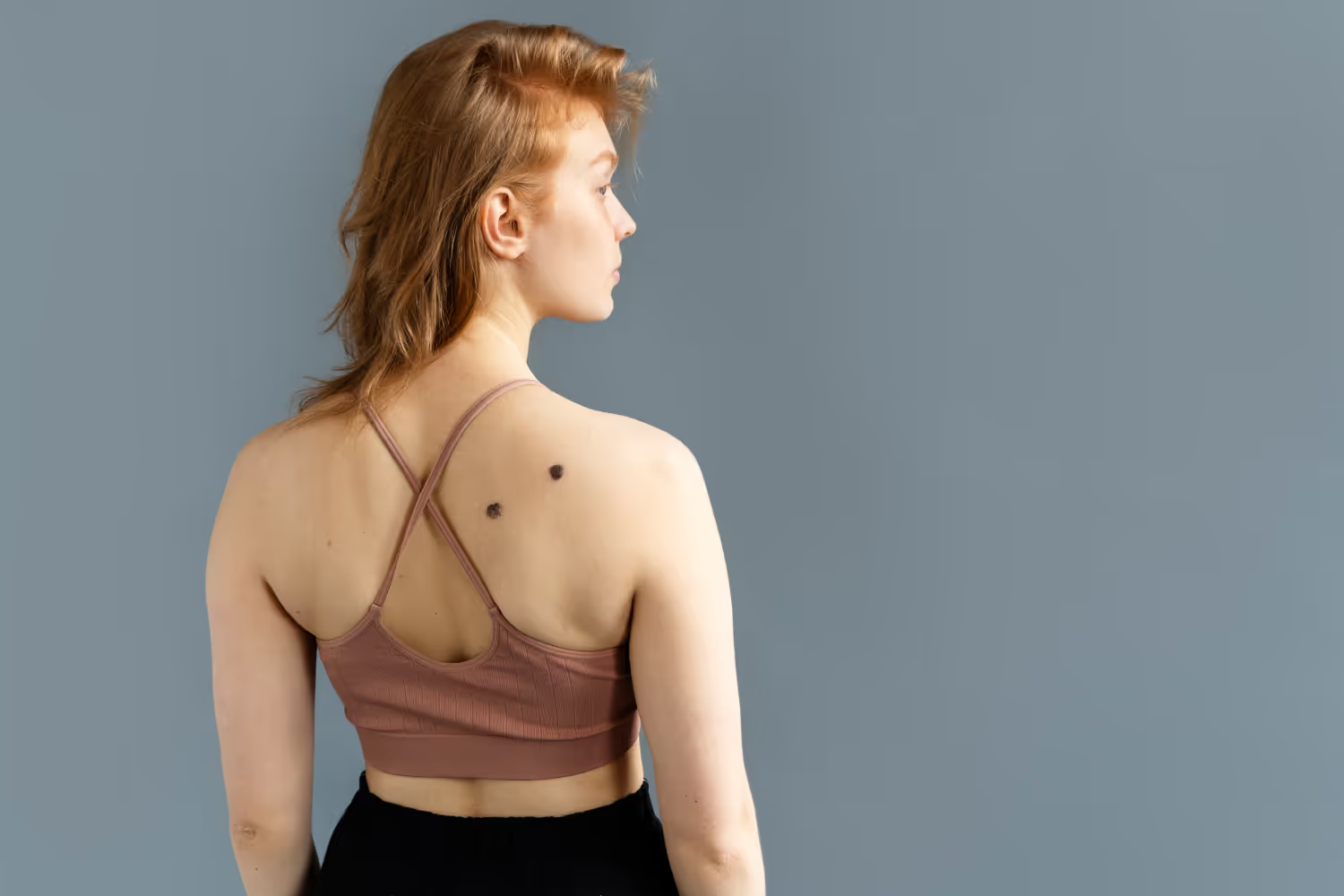
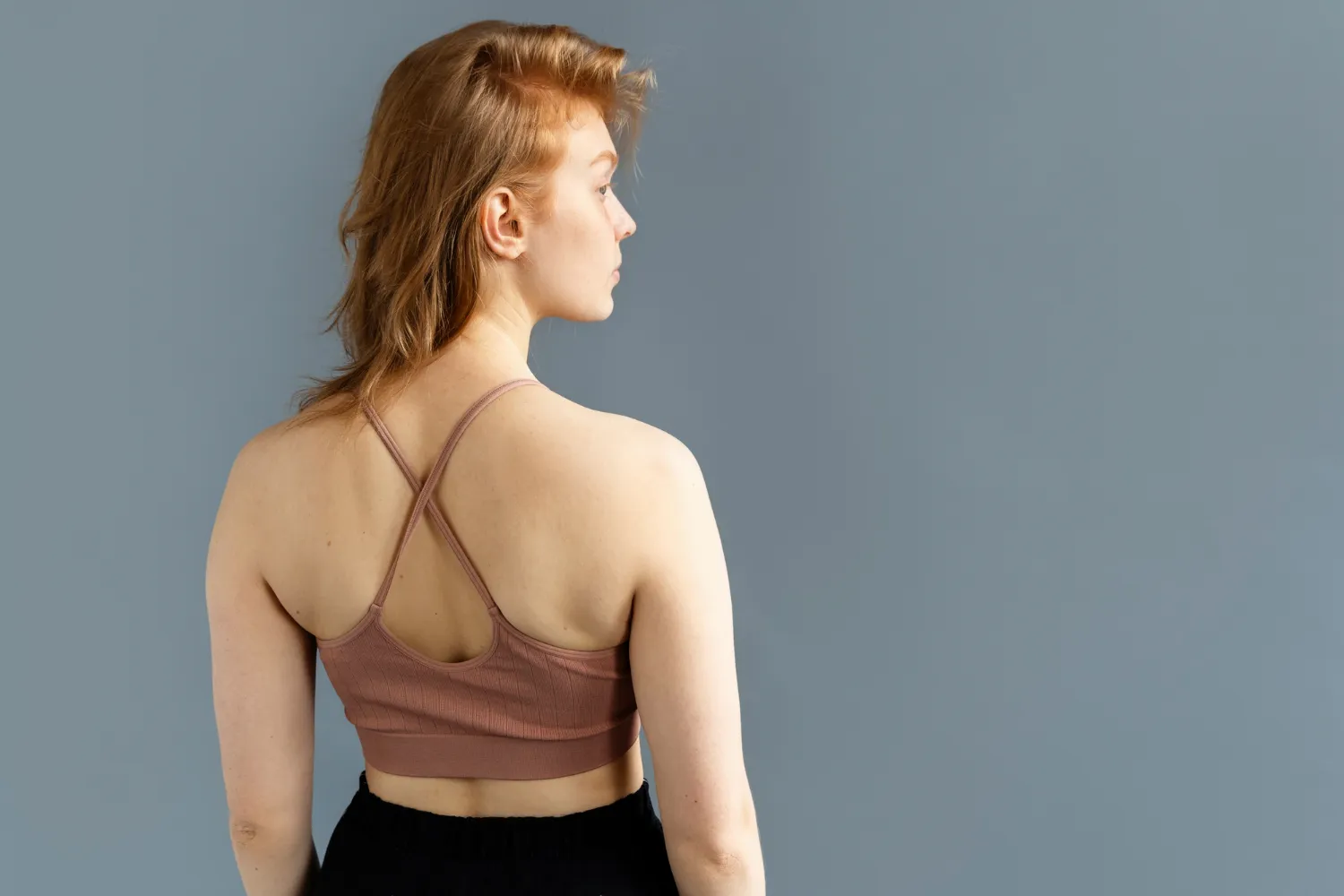
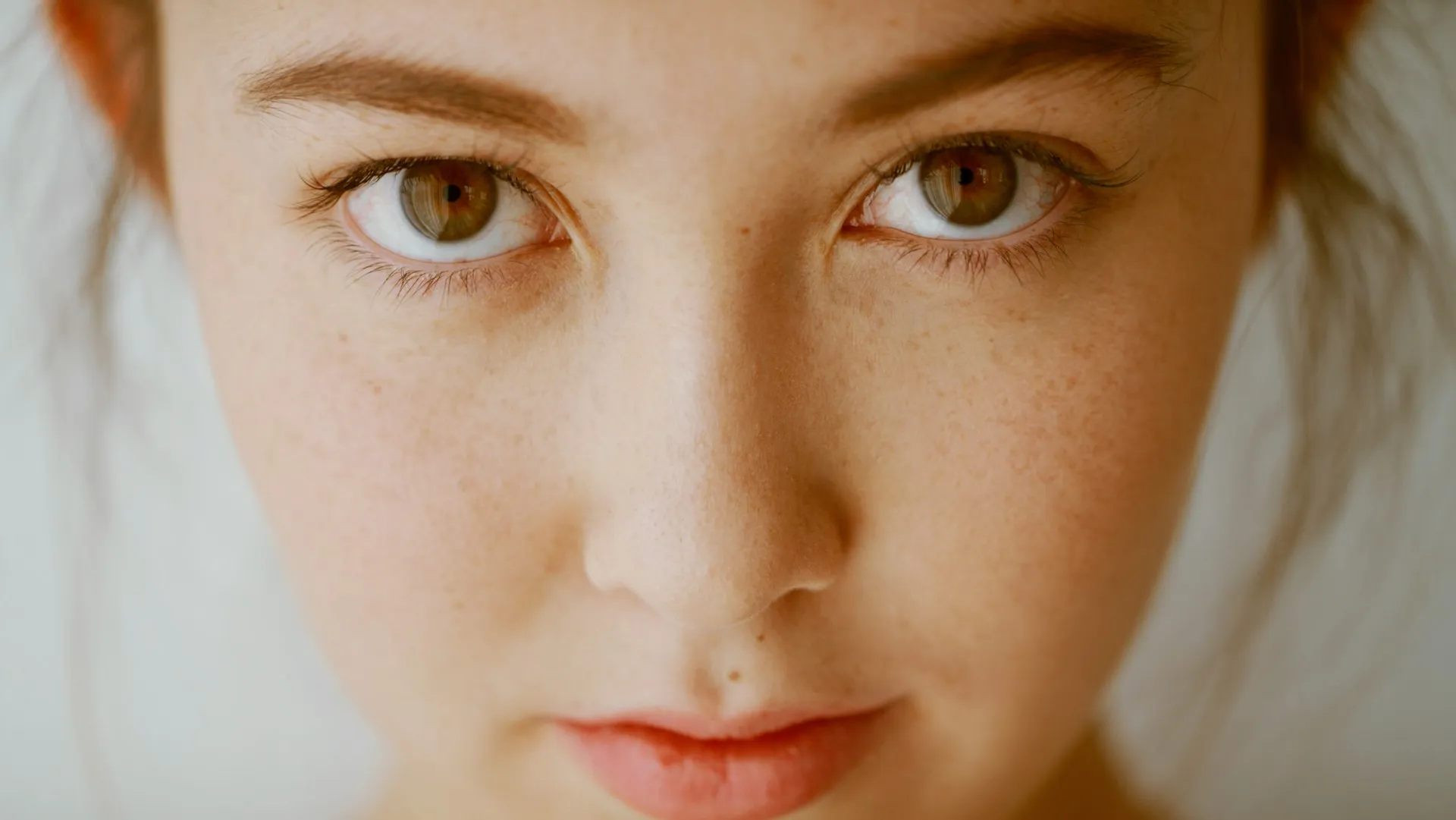
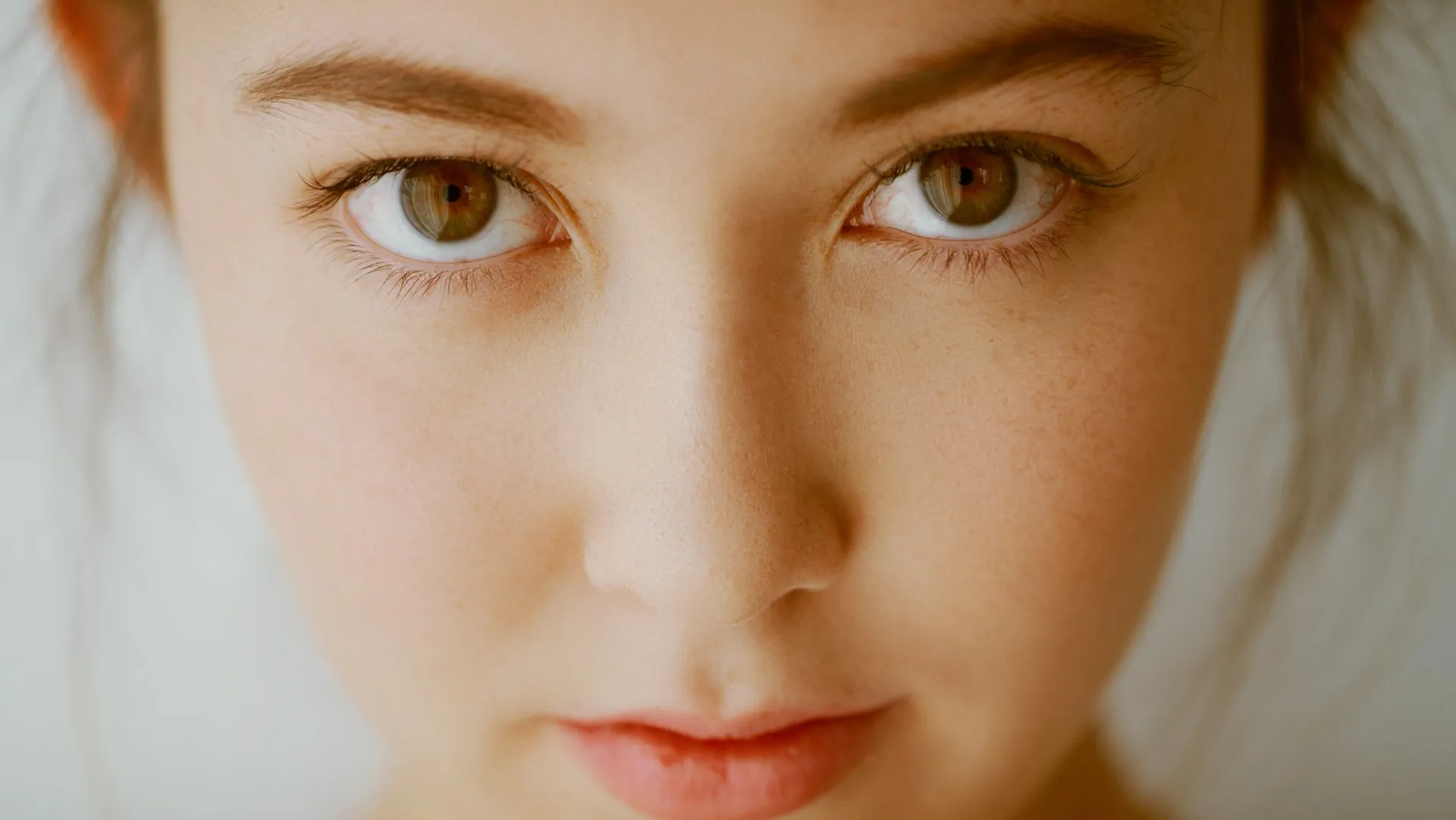
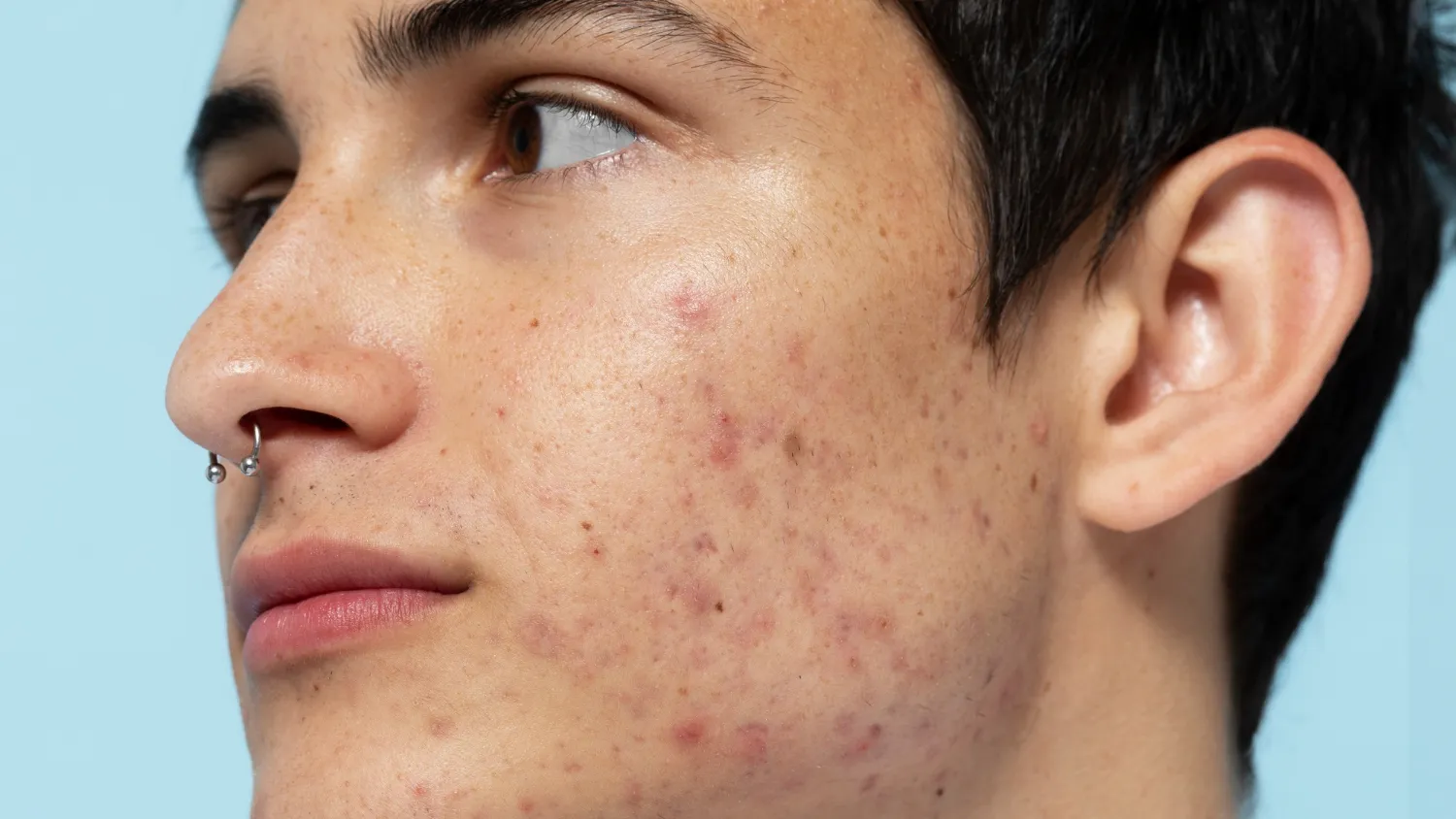
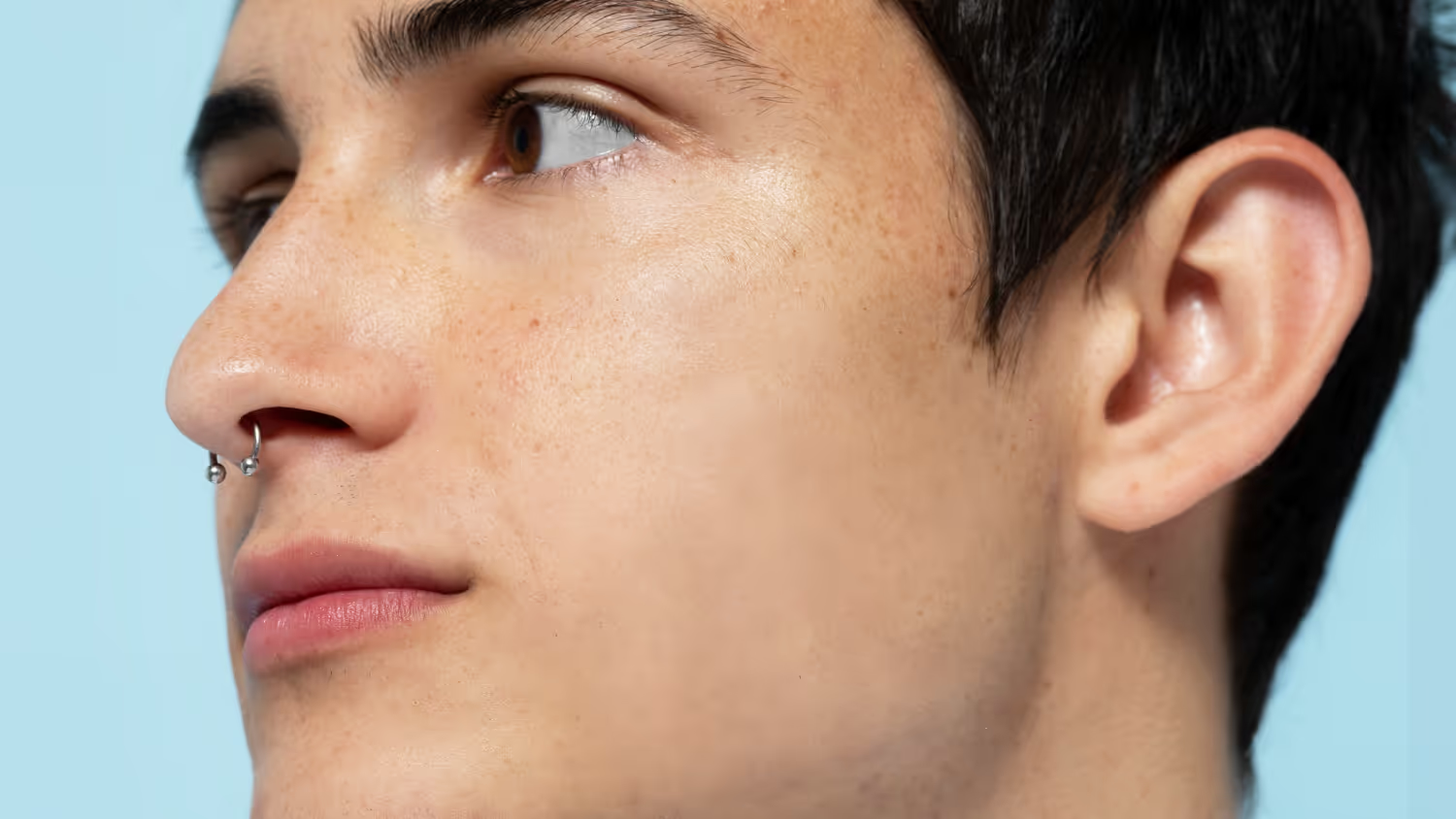
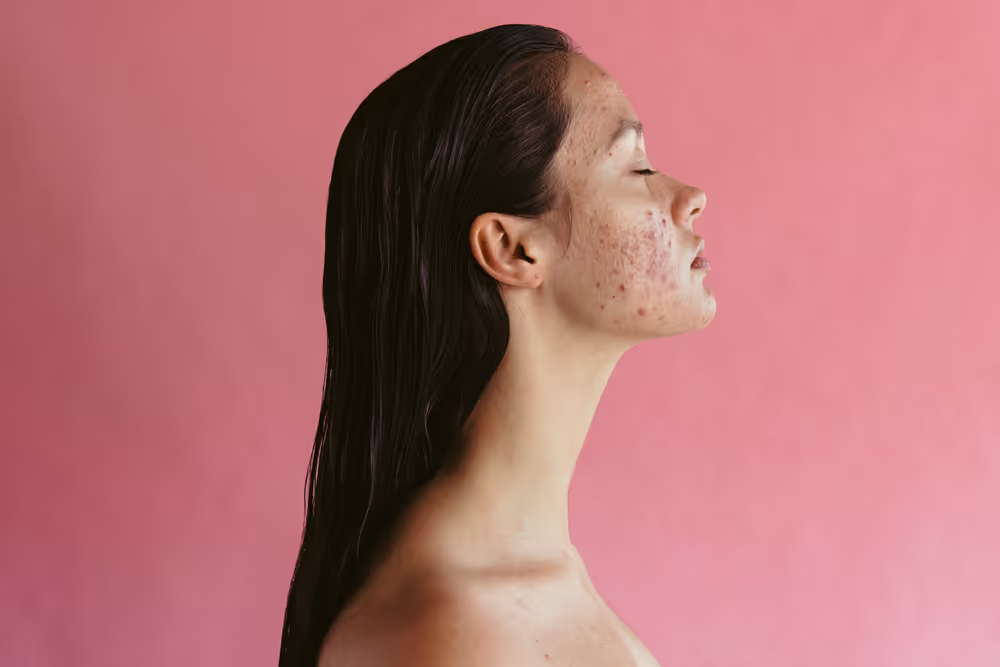
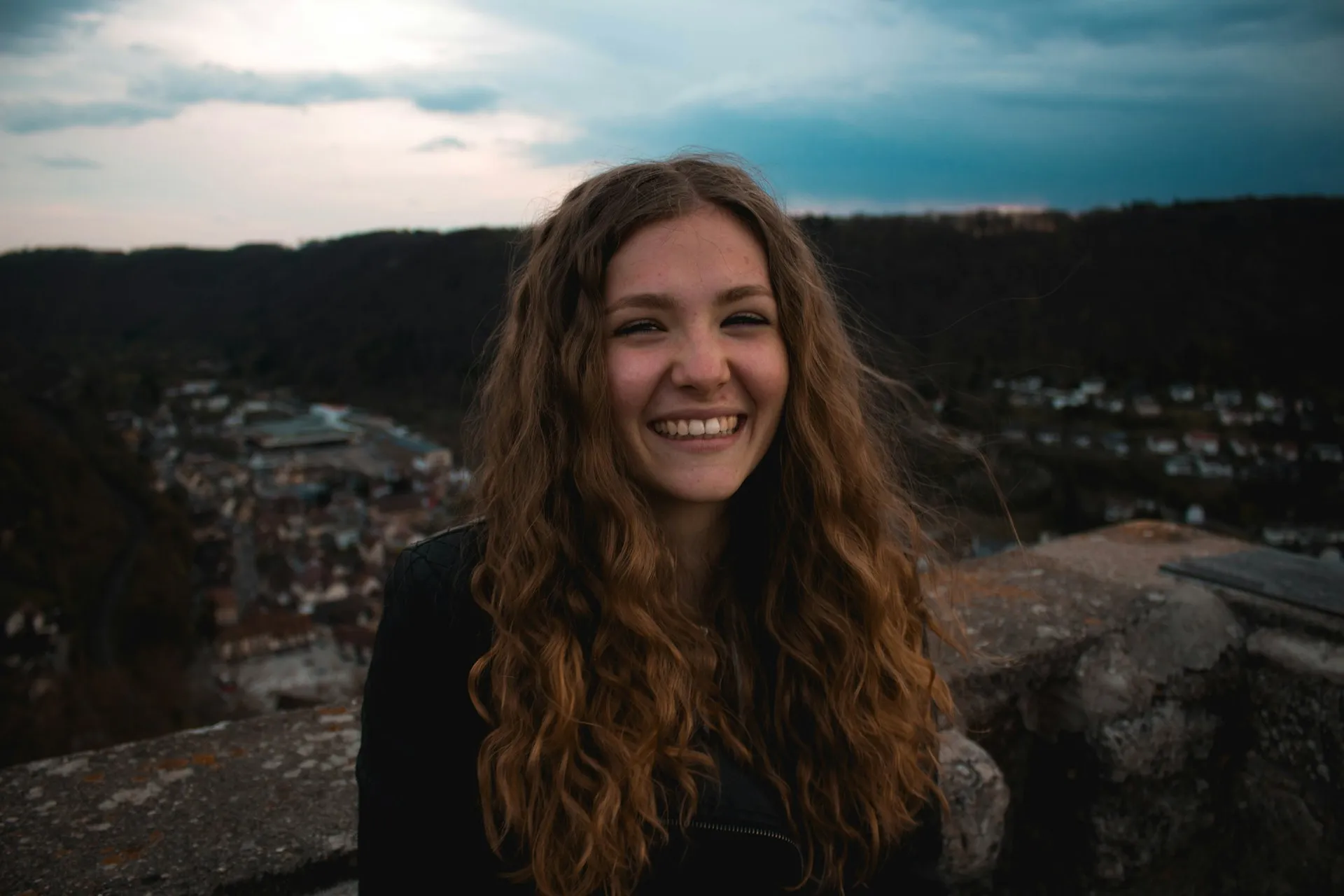
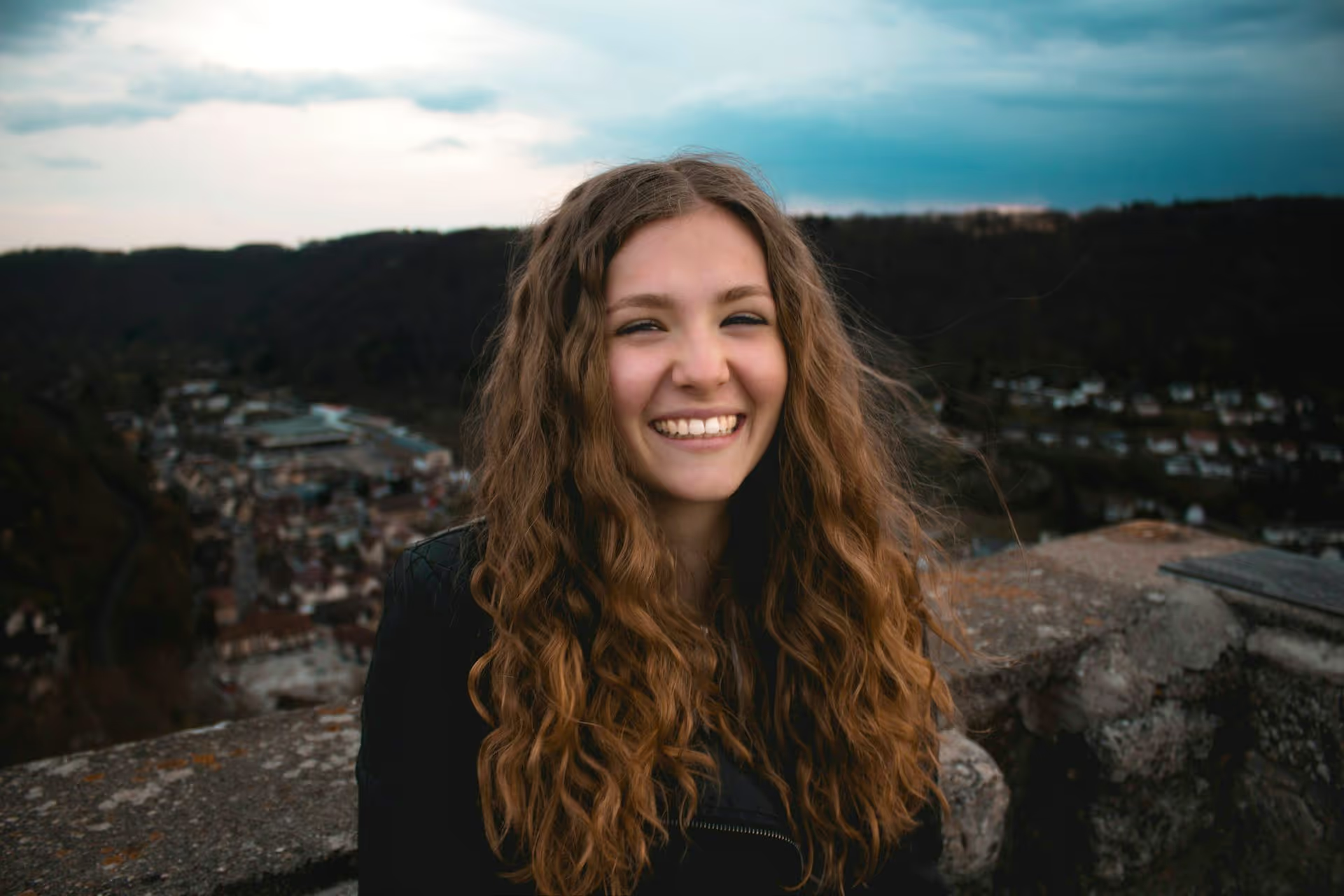
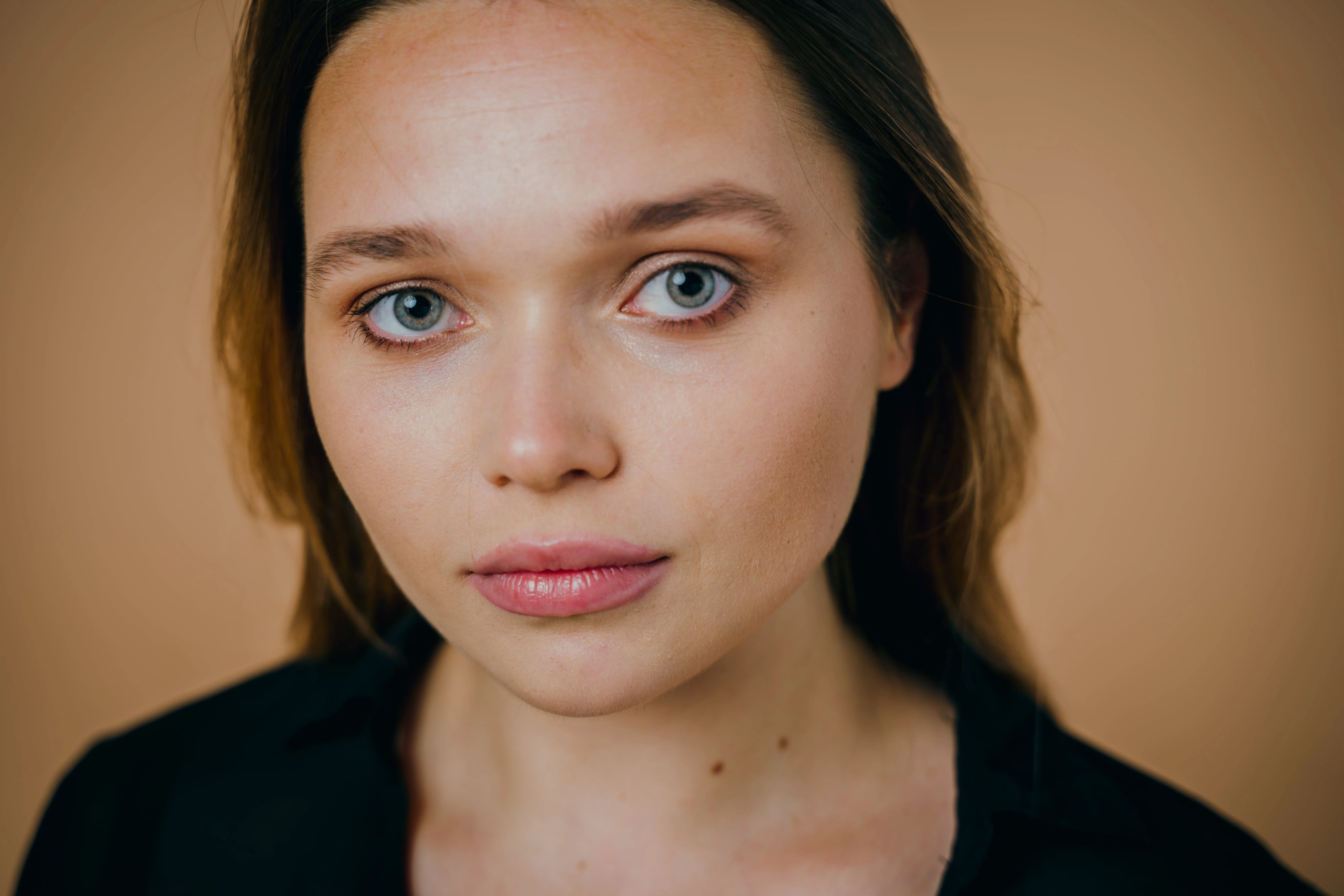
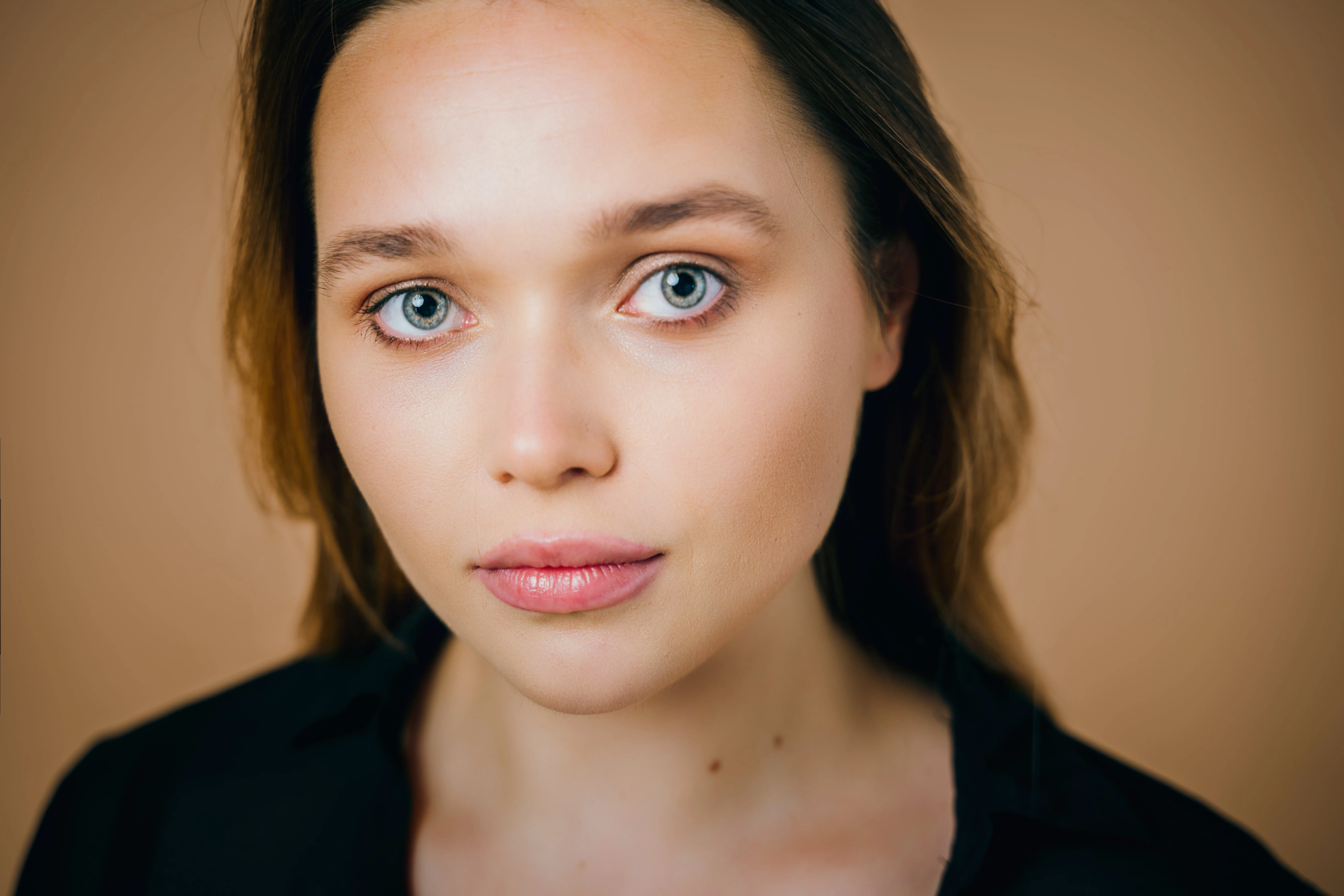
Small skin imperfections can distract from an otherwise strong portrait. A blemish photo editor helps create a cleaner, more polished image while keeping the focus on the subject—not the flaws.

プランを見る

How to Use Blemish Removal in Photos?

Fixing blemishes on photos doesn’t have to be complicated. With Luminar Neo, you can clean up skin imperfections in just a few clicks while keeping the texture natural.

(2)

Step 1. Open your photo. Launch Luminar Neo and open the portrait you want to retouch.

(3)

Step 2. Enable Skin AI. Go to Portrait tools and select Skin AI. Turn on Skin Defects Removal AI to automatically detect and remove blemishes.

(4)

Step 3. Adjust and refine. Fine-tune the effect strength to keep skin texture natural. If needed, use Edit Mask to restore details like hair, eyelashes, or freckles.

(5)

Step 4. Review and export. Zoom in to check the result, then export your photo with clean, natural-looking skin.

What Other Tools Can You Use?

To remove blemishes from photos, Luminar Neo offers a complete set of retouching tools.

(6)
(7)
(8)
編集前
編集後
© rushay

光沢を除去

額や頬に過度のテカリがあると、完璧な写真が台無しに。光沢除去 ツールは、過剰な光によって質感の無くなった部分にリアルな質感の肌を生成し復元します。
(6)
(10)
(11)
編集前
編集後
© freepik

Essentials (Erase Tool)

Allows you to manually remove unwanted details or remaining imperfections when extra precision is needed.
(6)
(13)
(14)
編集前
編集後
© unsplash

マスクの編集

Lets you manually restore or protect details you want to keep, giving you full control over where the effect is applied.
光沢を除去
Essentials (Erase Tool)
マスクの編集

What Other Tools Can You Use?

To remove blemishes from photos, Luminar Neo offers a complete set of retouching tools.

(15)
(16)
(17)
編集前
編集後
© Shutterstock

Portrait Photography

Remove temporary skin imperfections while preserving natural texture and facial details. Ideal for close-ups and expressive portraits.

Professional Headshots

Clean, refined skin helps create a confident first impression for LinkedIn profiles, portfolios, and company websites.
(15)
(19)
(20)
編集前
編集後
© Jim Nix
(15)
(22)
(23)
編集前
編集後
© Shutterstock

Lifestyle & Social Media Photos

Quickly polish everyday images so they look intentional, clean, and camera-ready without over-retouching.

Beauty & Fashion Photography

Subtle blemish removal enhances skin tone consistency while keeping makeup, freckles, and texture intact.
(15)
(25)
(26)
編集前
編集後
© Jim Nix
(15)
(28)
(29)
編集前
編集後
© Shutterstock

Personal Photos

Improve casual photos by removing pimples with AI or other small distractions from the photo, helping the subject stand out naturally.

その他の機能を見つける

Luminar Neoには編集をより速く簡単に行うための機能が他にも盛りだくさん。
(31)
(32)
編集前
編集後
© marcel-strauss
Face AI
Experience the magic of AI with Face AI Editor—effortlessly enhance, retouch, and beautify!
(33)
Whiten Teeth
(34)
(35)
編集前
編集後
© Ksenia Kazak
Whiten Teeth
Transform your smile with Luminar Neo! Brighten your teeth and achieve a flawless, picture-perfect grin.
(36)
Portrait Bokeh Effect
(37)
(38)
編集前
編集後
© theshots.contributor
Portrait Bokeh Effect
Discover how to transform the background into a mesmerizing blur with our Portrait Bokeh Effect tool.
(39)
Body Editor
(40)
(41)
編集前
編集後
© HayDmitriy
Body Editor
Transform your body's appearance naturally with our advanced body editor. Try it now!
(42)
スキンAI
(43)
(44)
編集前
編集後
© unsplash
スキンAI
Transform your skin with Skin AI — achieve flawless, imperfection-free beauty today!
(45)
Skinny Face
(46)
(47)
編集前
編集後
© Ksusha Kazak
Skinny Face
Discover Luminar Neo's Slim Face feature and revolutionize your photos with just a slide! Try it now!

アプリケーション&プラグイン
macOS と Windows 対応

  • 高性能なAI編集ソフト
  • 24時間のテクニカルサポート

  • 30日間の返金保証

  • Join our communities

よくある質問

How to get rid of acne in photos?

Open your photo in Luminar Neo, go to Portrait tools → Skin AI, and enable Skin Defects Removal AI. The tool automatically removes acne from a photo while preserving natural skin texture. If you want to keep certain details, use Edit Mask to restore them selectively.

シミの除去ツールは目立った跡やにじみを残しますか?

No. Luminar Neo’s AI blemish remover is designed to deliver natural-looking results, preserving skin texture without leaving visible smudges or artificial artifacts.

シミ取りの強度を調節できますか?

Blemish removal is applied automatically for realistic results. If you want to keep certain imperfections or details, you can use the Edit Mask tool to restore them selectively.

必要に応じて、肌荒れ除去ツールによる変更を元に戻す方法は?

All edits in Luminar Neo are non-destructive. You can undo changes using Ctrl/Cmd + Z, redo them with Ctrl/Cmd + Y, or simply disable Skin Defects Removal AI at any time.

Why Luminar Neo is the best photo editor to remove blemishes?

Luminar Neo combines AI-powered blemish removal with manual control tools like masking and erase options. This allows you to remove pimples from a photo quickly while keeping skin texture natural. When more precision is needed, you can fine-tune the result for clean, realistic retouching.
(49)