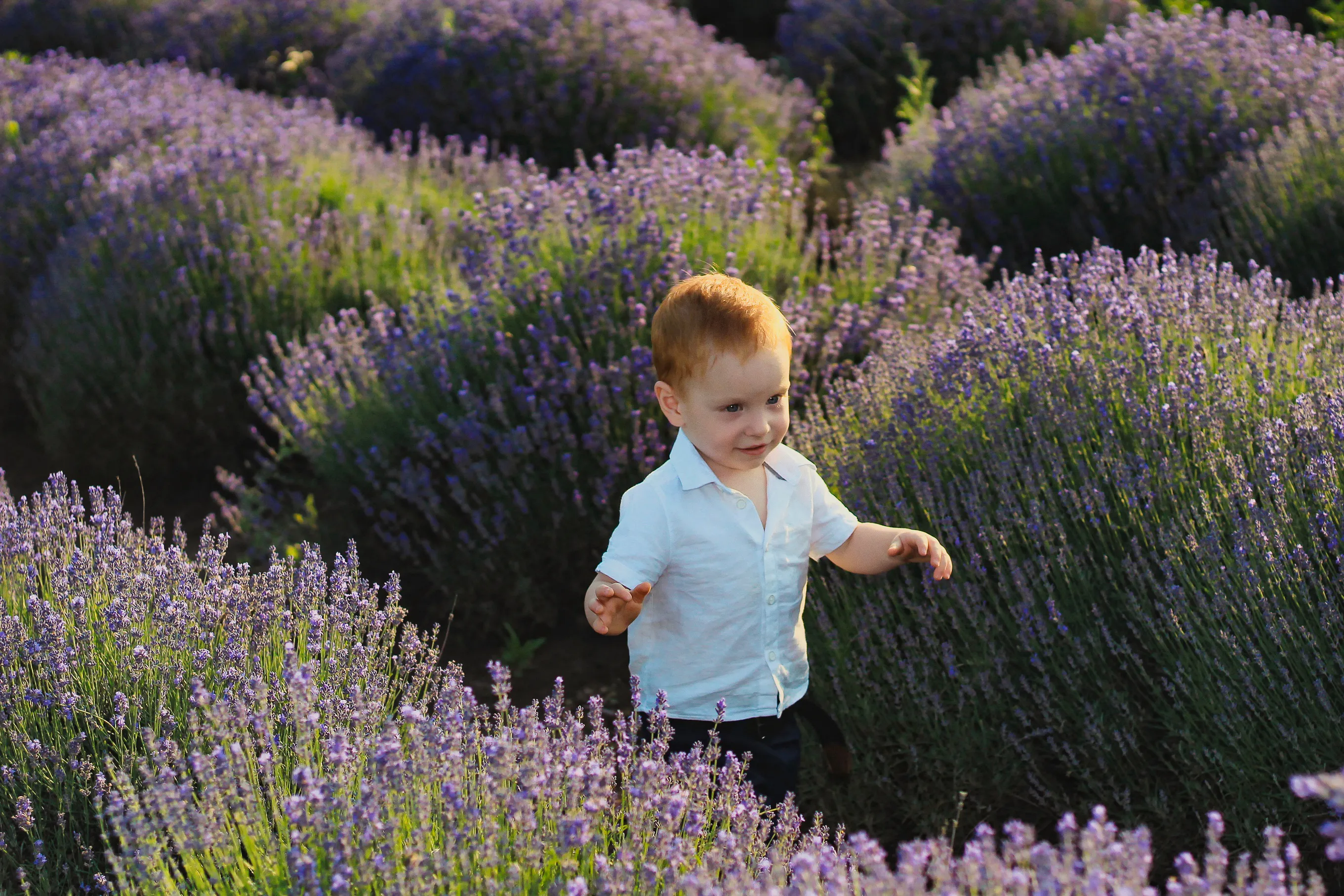
Voir les forfaits

Blur Background of a Photo to Add Depth and Focus

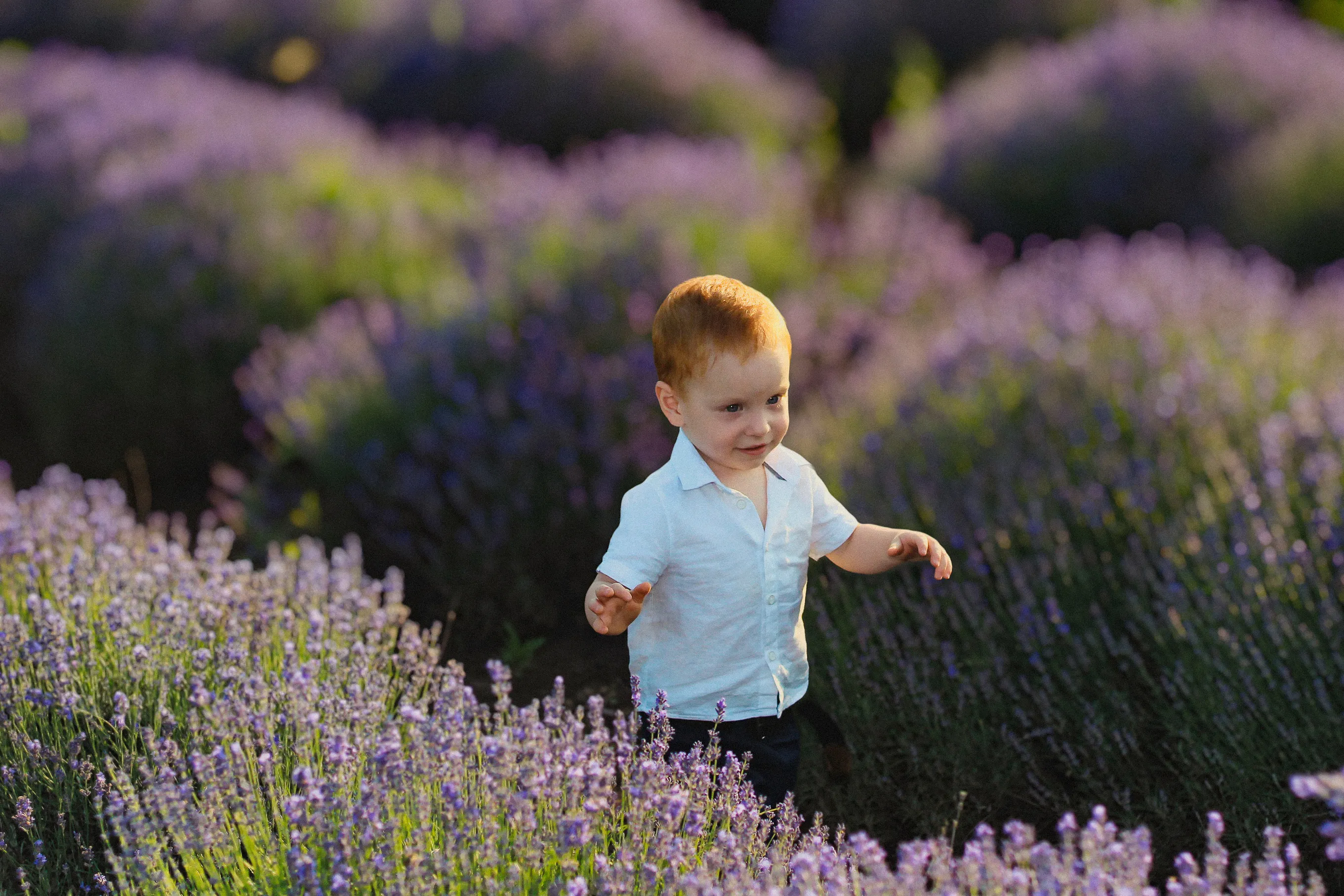
Enhance the visual aesthetics of your images and guide the viewer’s attention exactly where you want it. With Luminar Neo, you can blur the picture background in just a few clicks.

Voir les forfaits

AI Photo Background Blur vs Manual Blur

In Luminar Neo, you can blur the background using either AI or manual image background blur. Both options work reliably but are designed for different visual styles. 

AI blur is fast and automatic, ideal for clean, natural-looking results, while manual blur gives you full control for more precise or stylized edits. You choose how hands-on you want the editing process to be.
(2)

How to Blur the Background in a Photo

With Luminar Neo, you can create a blurred background effect after the photo is taken—and fine-tune it until it looks exactly right.

(3)

Step 1. Open your photo. Launch Luminar Neo and open the image you want to edit.

(4)

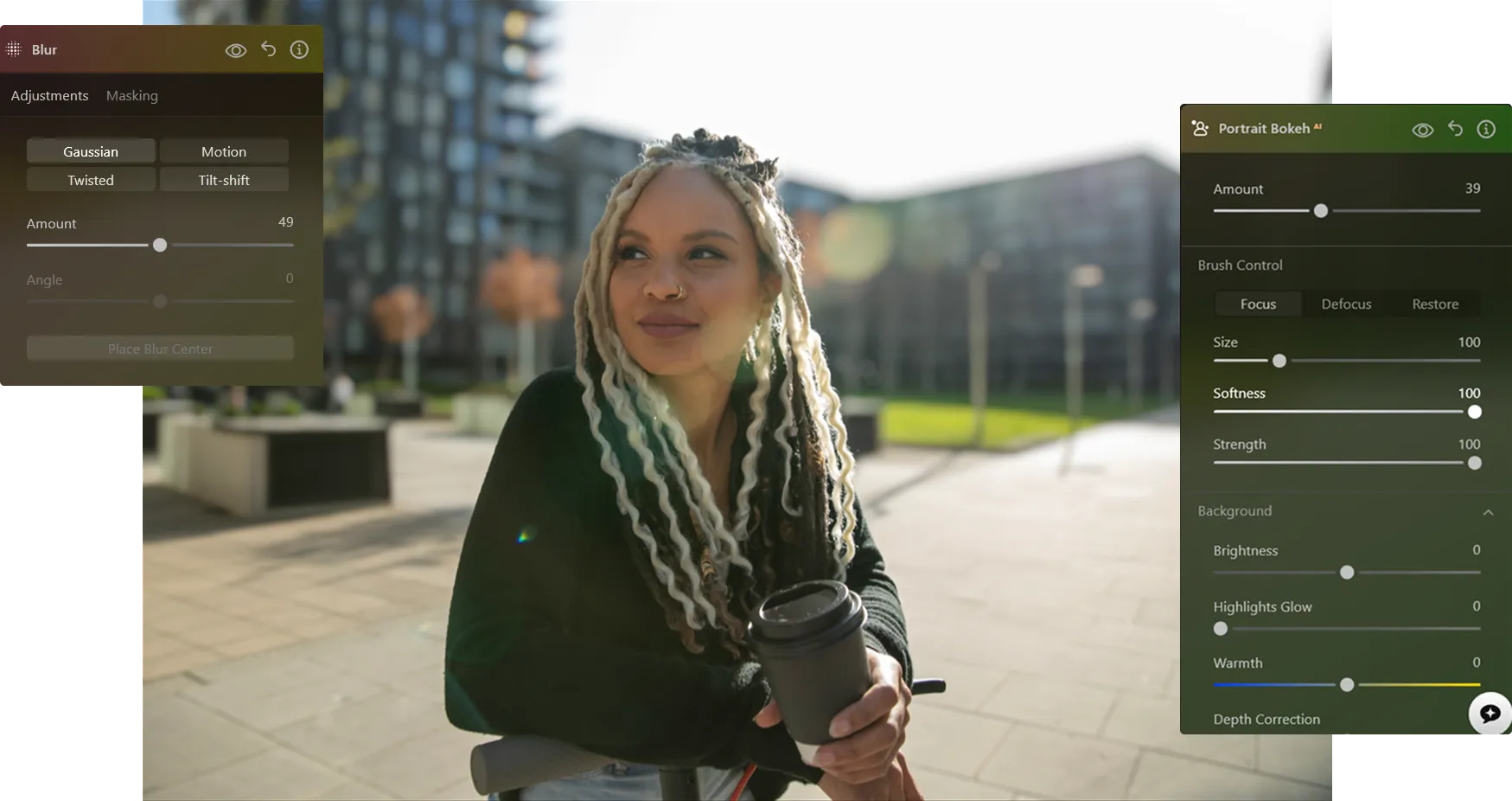
Step 2. Blur the background. Go to Portrait Bokeh AI or the Blur Tool. Luminar Neo automatically detects the subject and separates it from the background.

(5)

Step 3. Adjust the blur. Control the blur intensity to create a natural blurred background effect. Fine-tune depth and transitions for a realistic look.

(6)

Step 4. Refine and export. Refine edges if needed, then export your photo with a clean, professional background blur.

Where Background Blur Works Best

Using a photo editor to blur the background is a versatile technique that works across many photography genres, helping you guide attention, reduce distractions, and create a more polished look.

(7)
(8)
(9)
Antes de
Después
©  Maryna Yurlovska

Portrait Photography

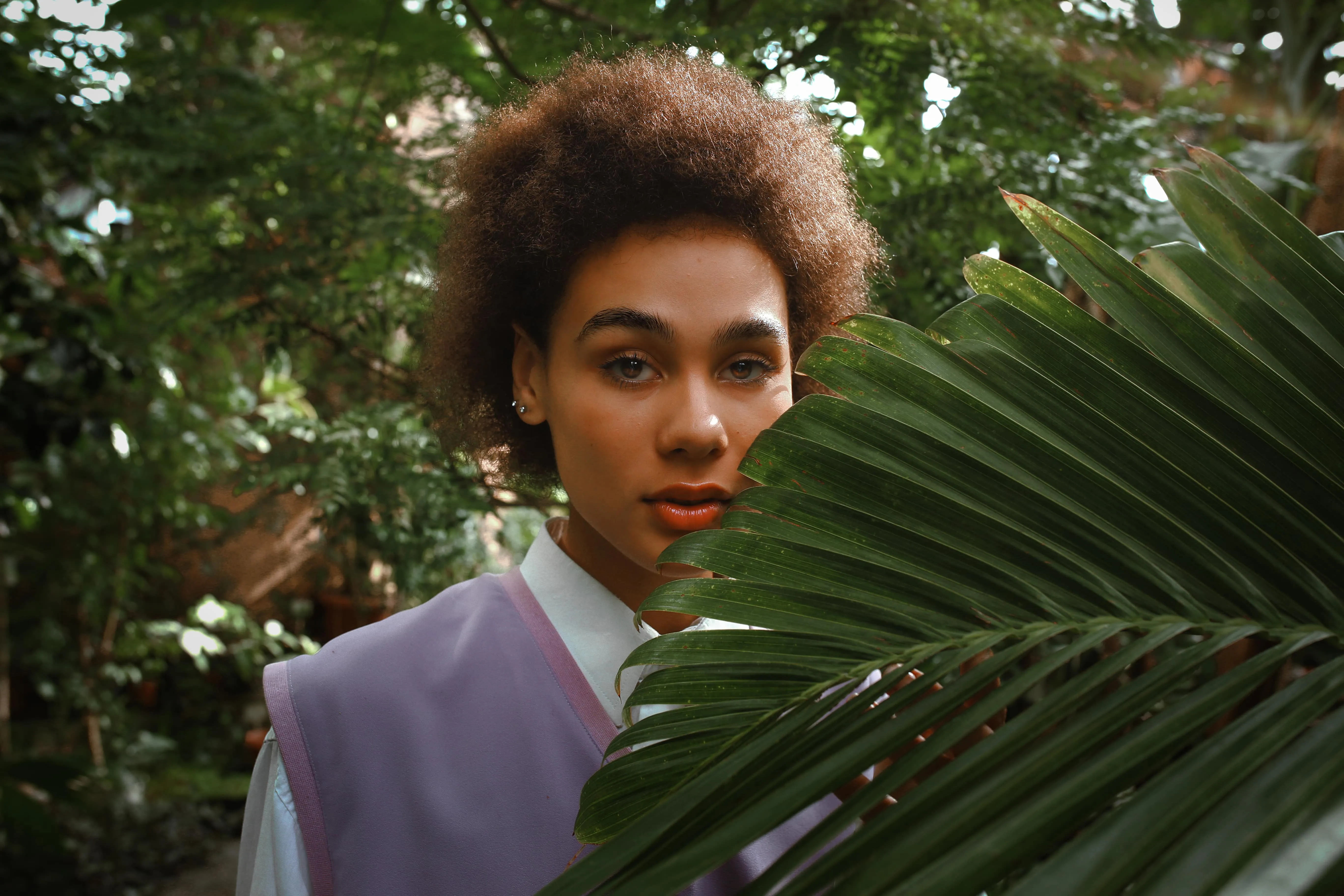
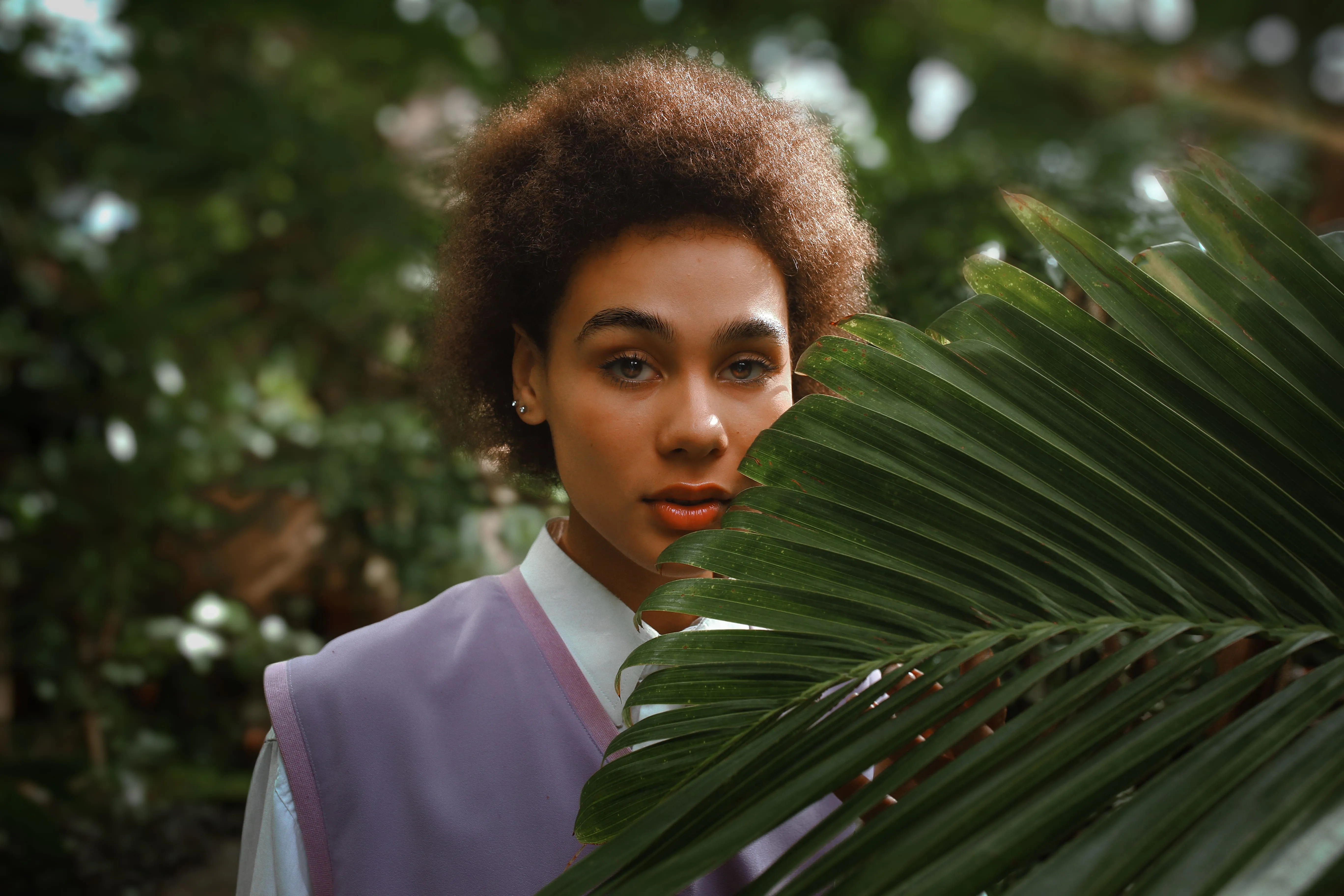
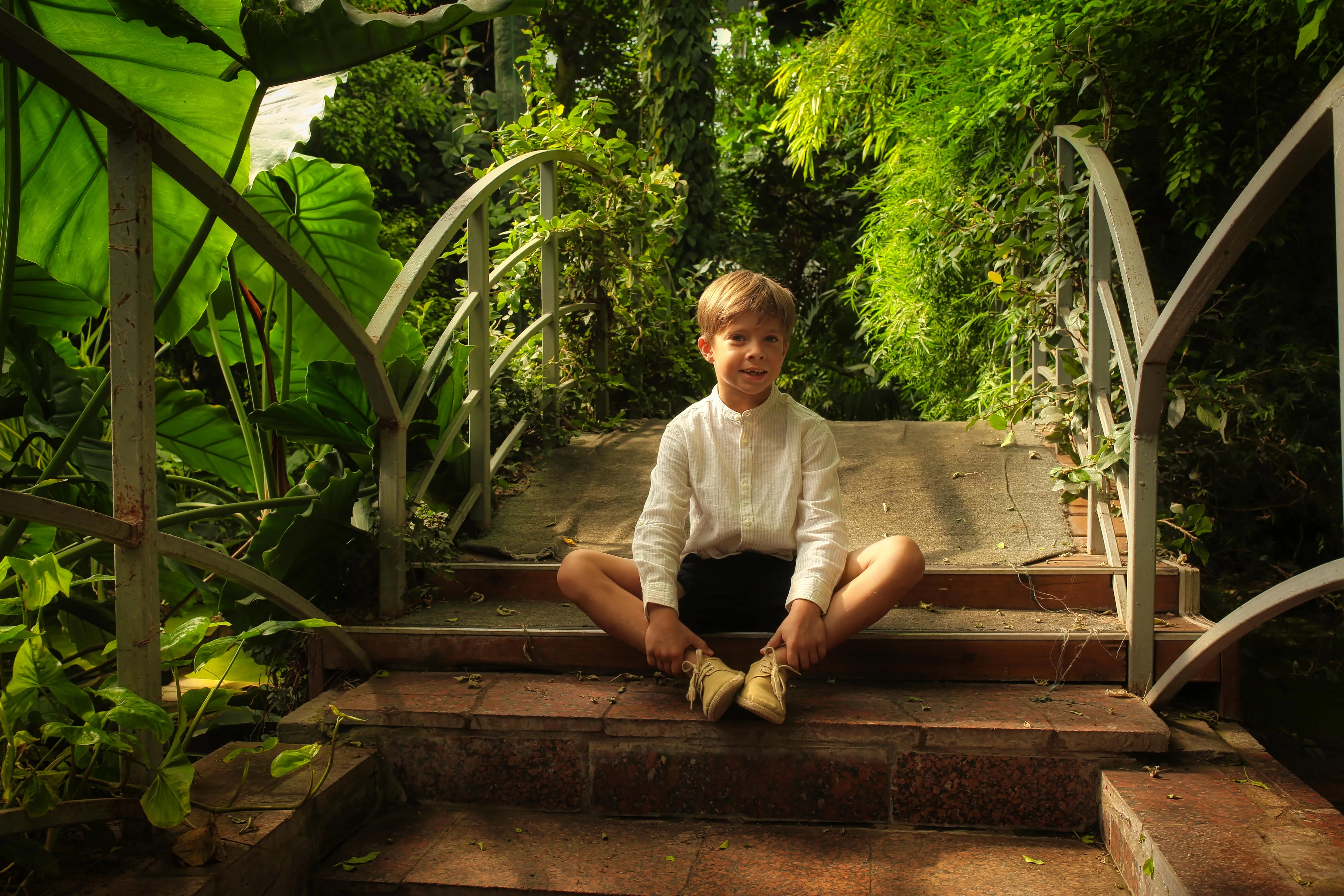
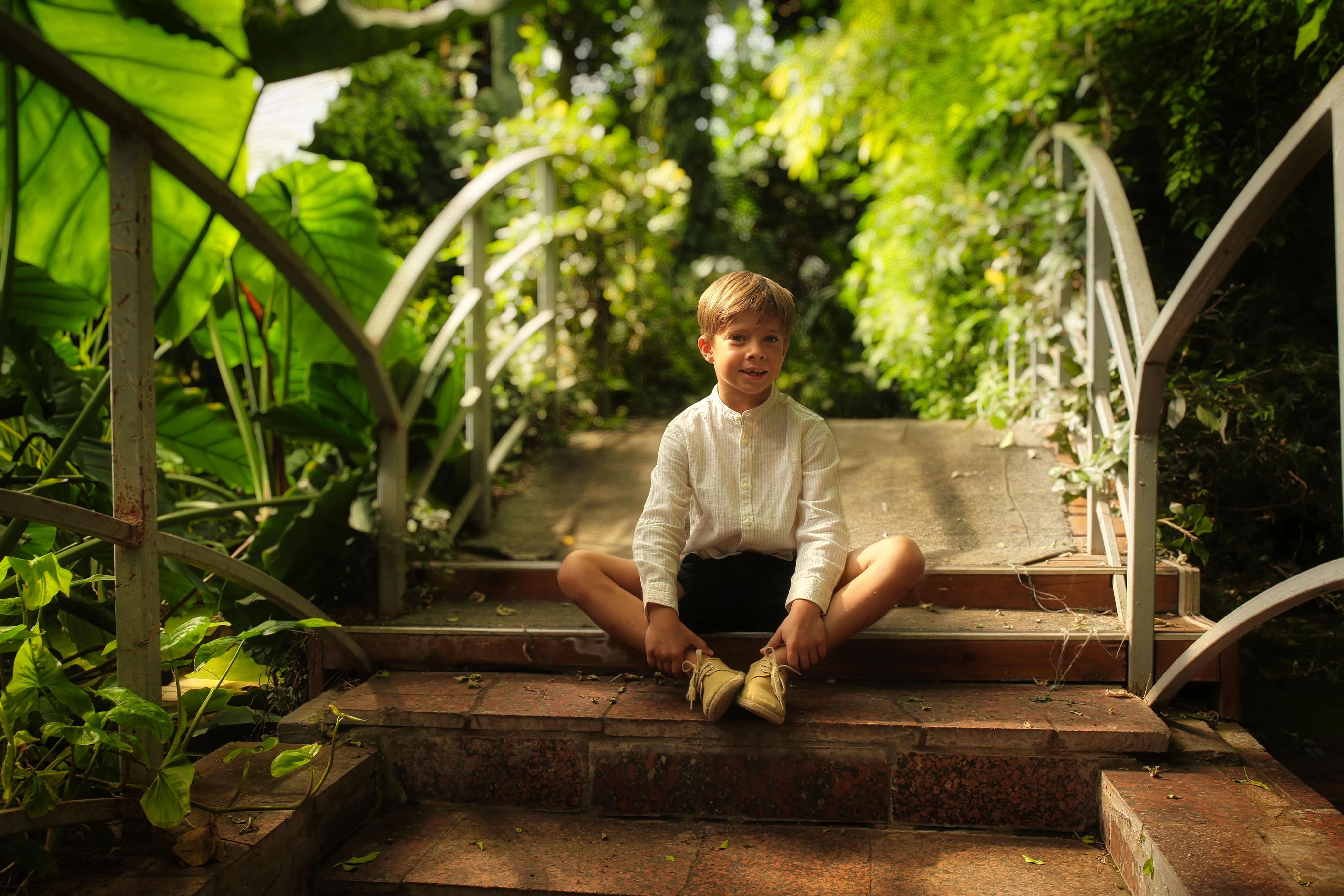
Blurring the background creates clean subject separation and a soft bokeh effect. It removes visual noise and keeps the viewer focused on facial features, expressions, and emotions — perfect for professional portraits, lifestyle shots, and personal branding photos.
(7)
(11)
(12)
Antes de
Después
© derepente

Commercial & Product Photography

A blurred background helps products stand out clearly against a distraction-free backdrop. This technique highlights key details, improves visual clarity, and gives product images a more professional, high-quality feel — ideal for e-commerce listings and promotional visuals.
(7)
(14)
(15)
Antes de
Después
©  Maryna Yurlovska

Personal Photos

Even casual photos can benefit from a blur background photo editor. Blurring the picture background improves composition, hides imperfections, and instantly elevates the overall look without reshooting.
(7)
(17)
(18)
Antes de
Después
© monkeybusiness

Travel Photography

Busy locations often come with cluttered backgrounds. Background blur software reduces visual noise and helps emphasize the main subject, mood, or story of the scene without losing atmosphere.
(7)
(20)
(21)
Antes de
Después
© depositphoto

Lifestyle & Social Media Photos

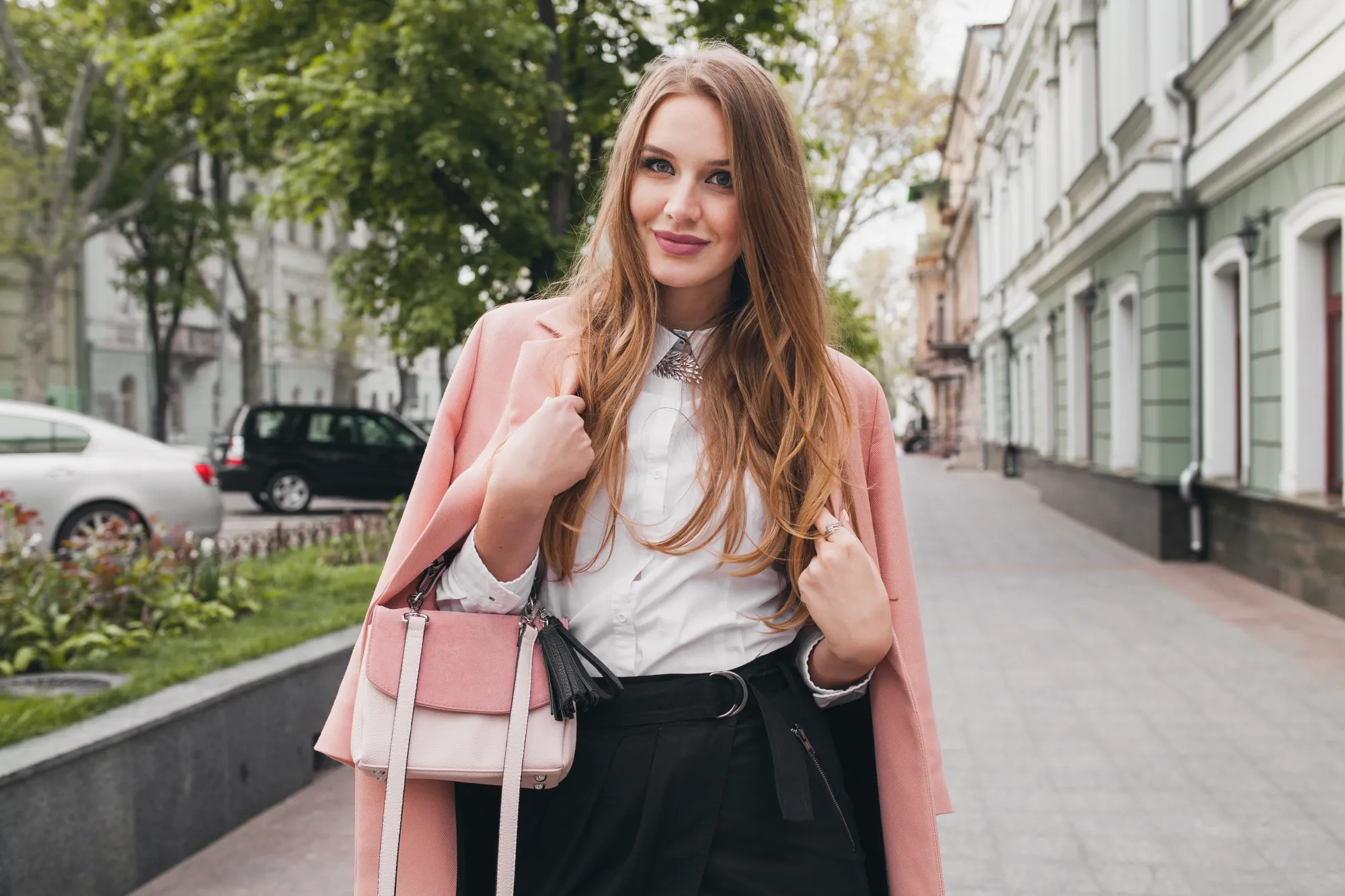
Blur background tool adds depth and a cinematic touch to everyday photos. It helps isolate the main subject while keeping the image visually engaging, making content feel more intentional and scroll-stopping.
Portrait
Commercial & Product
Personal
Travel
Lifestyle & Social Media

Découvrez d'autres fonctionnalités
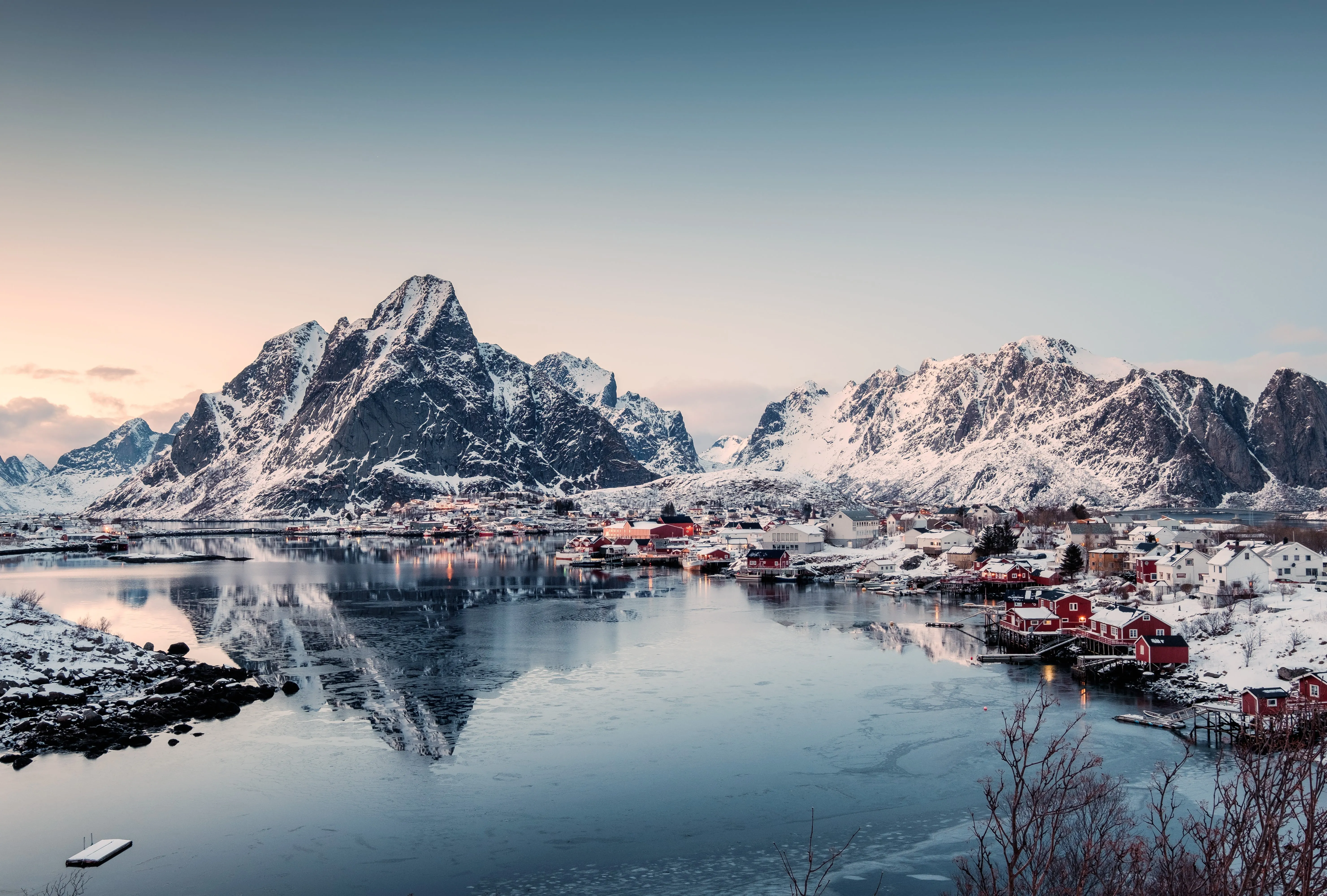
Luminar Neo dispose de nombreuses autres fonctionnalités pour vous aider à éditer plus rapidement et facilement
(22)
Retouche photo
(23)
(24)
Antes de
Después
© Depositphotos

Retouche photo

Make your photos appear their best by removing distracting items
(25)
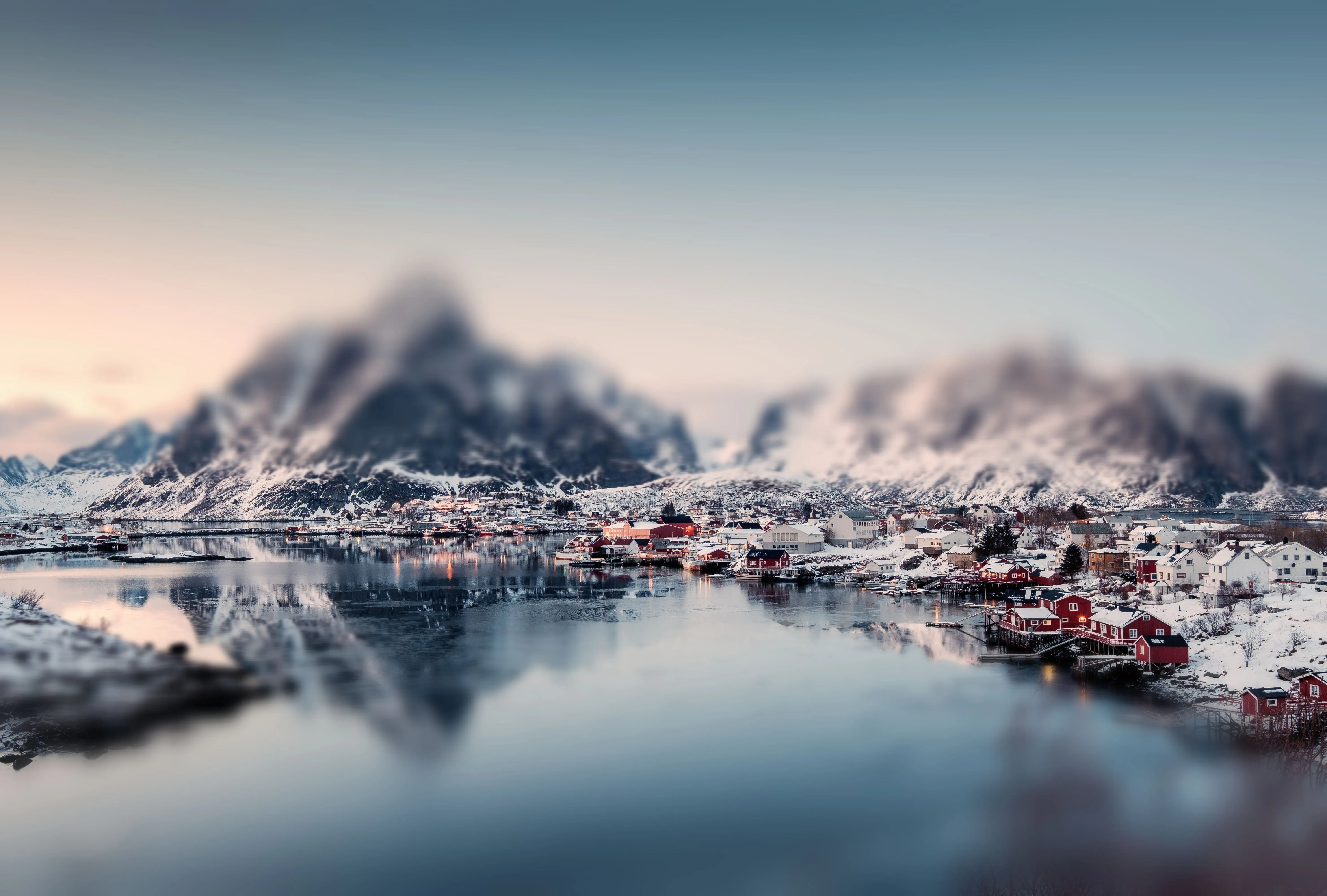
Tilt-Shift Filter
(26)
(27)
Antes de
Después
© Lisa

Tilt-Shift Filter

Blur the ordinary and spotlight the extraordinary with a striking perspective shift.
(28)
4K Image Upscale
(29)
(30)
Antes de
Después
© bloodua

4K Image Upscale

Experience up to 4x better resolution on panoramas, wildlife zoom-ins, macro shots, and old photos
(31)
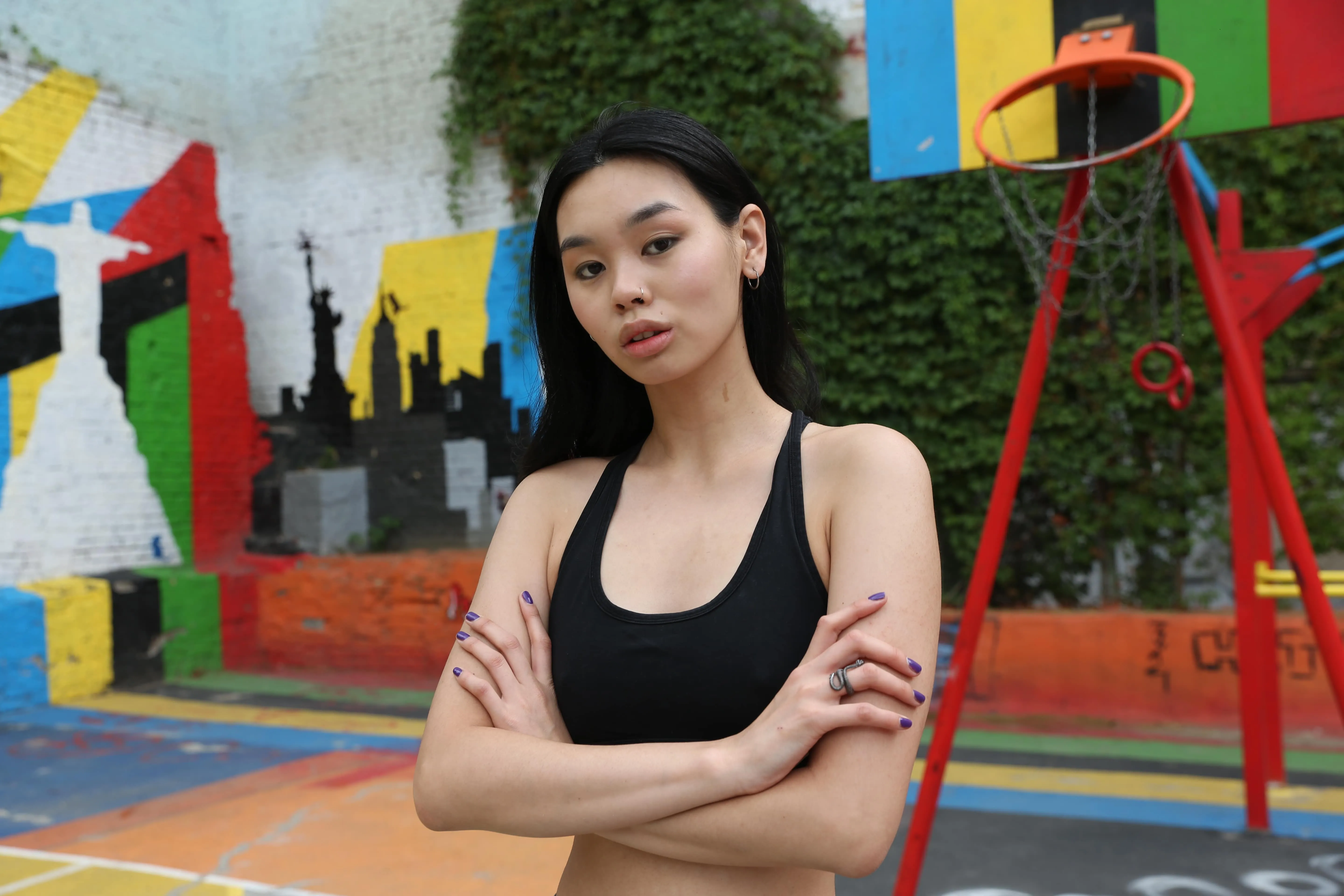
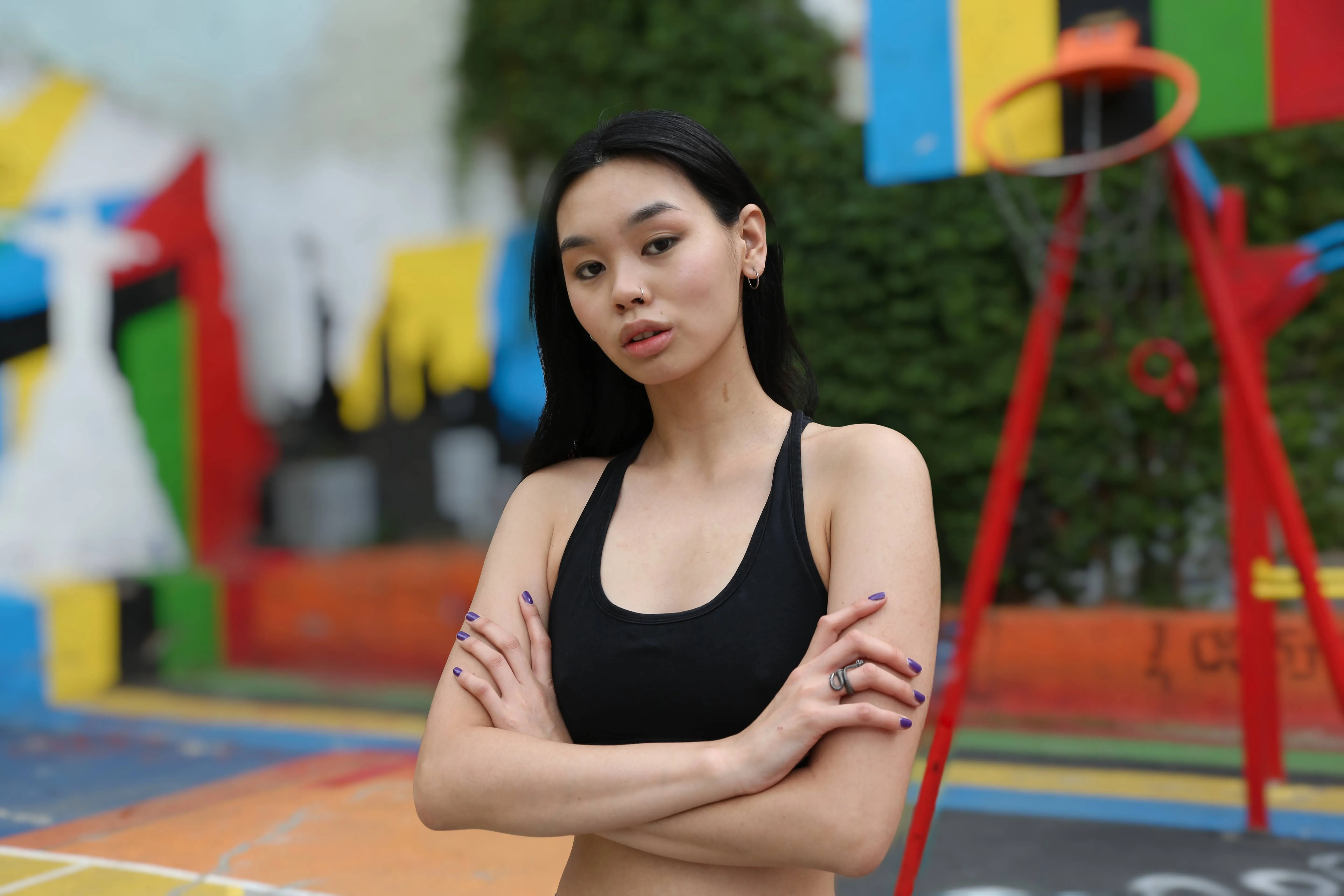
Portrait Bokeh Effect
(32)
(33)
Antes de
Después
© Maryna Yurlovska

Portrait Bokeh Effect

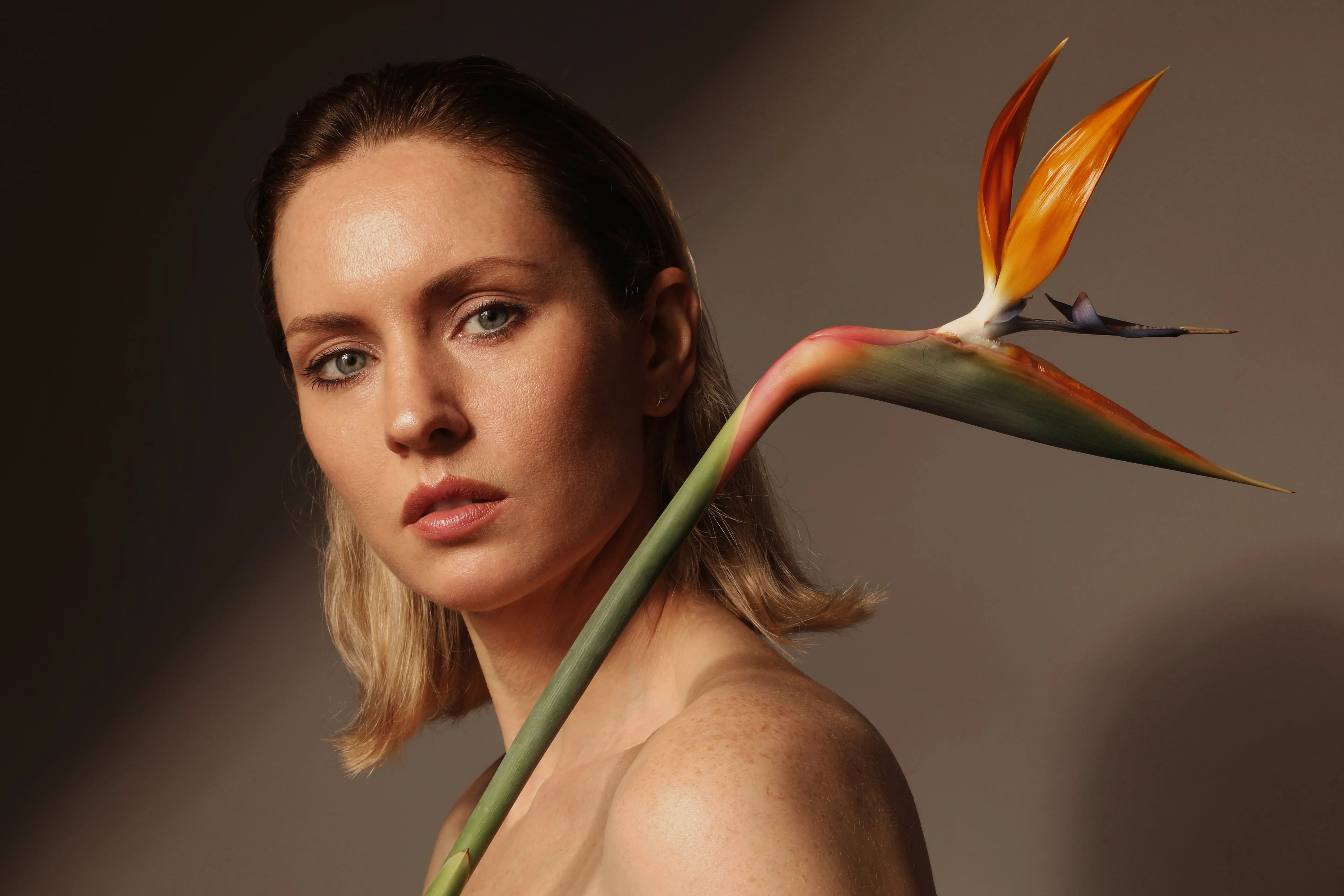
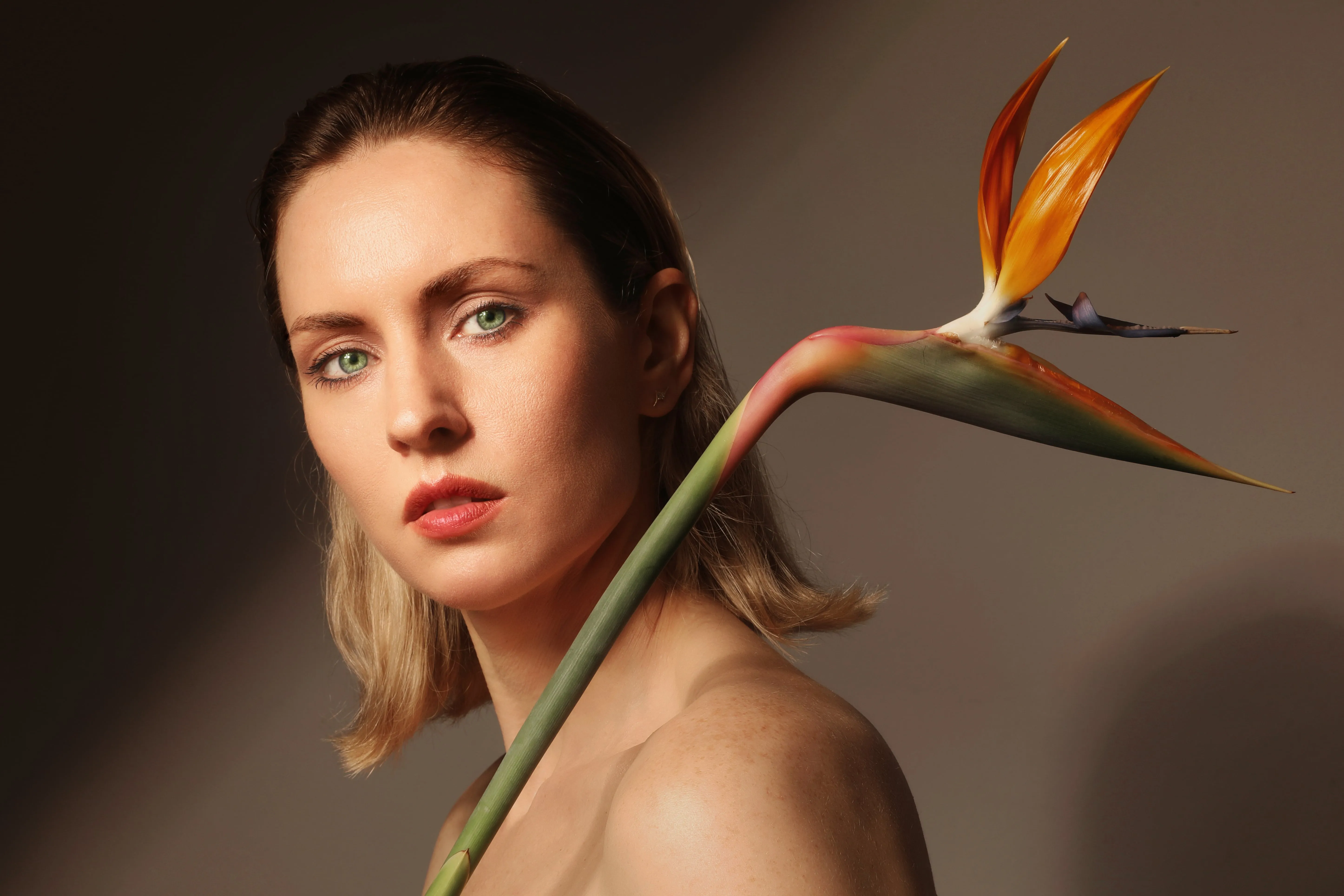
Discover how to transform the background into a mesmerizing blur with our Portrait Bokeh Effect tool
(34)
Blur Face
(35)
(36)
Antes de
Después
© reewungjunerr

Blur Face

Blur what matters, keep what counts—with Luminar Neo.
(37)
Blur Image
(38)
(39)
Antes de
Después
© Depositphotos

Blur Image

Bring your photos to life—discover how easy it is to blur a picture beautifully in just a few clicks!

Application & plugin à la fois
Pour macOS & Windows

  • Éditeur d'images haute performance par l'IA
  • Assistance technique 24h/24 et 7j/7

  • Garantie 30 jours, satisfait(e) ou remboursé(e)

  • Join our communities

Foire aux Questions

Existe-t-il différents niveaux de flou ?

Yes. You can easily adjust the blur intensity, making the blurred background effect subtle or more pronounced, depending on the look you want.

Comment supprimer un arrière-plan flou ?

If you’ve just applied blur, you can undo the action or reduce the blur amount. If the background looks too soft, you can also enhance clarity and detail using tools like Supersharp AI in Luminar Neo.

Puis-je appliquer sélectivement un filtre d'arrière-plan flou ?

Yes. Luminar Neo allows you to selectively blur the background of an image using AI detection or manual masking, so only specific areas of the photo are affected.

Why Luminar Neo is the best photo editor to blur photo background?

Luminar Neo combines AI photo background blur with manual controls in one blur background editor. This lets you achieve clean, natural results quickly or fine-tune the blur for more creative, stylized edits.

How to blur background of a photo already taken?

Simply open your existing photo in Luminar Neo and apply background blur using Portrait Bokeh AI or the Blur tool. You can create a shallow depth of field look in post-processing without reshooting the image.
(41)