
 View plans
Efficient Batch Photo Editor
Batch editing, also known as bulk editing or mass editing, is a technique used in various fields, particularly in photography, graphic design, video editing, and text processing, to save time and streamline the editing process
Try it nowThe Allure of Batch Processing Photo Editors in Modern Content Creation
When using photo editors like Luminar, it’s super easy to achieve a consistent look through all your photos, making them uniform in style and pleasing to the eye, thanks to mass photo editing.

Why our Bulk Image Editor Reigns Supreme?
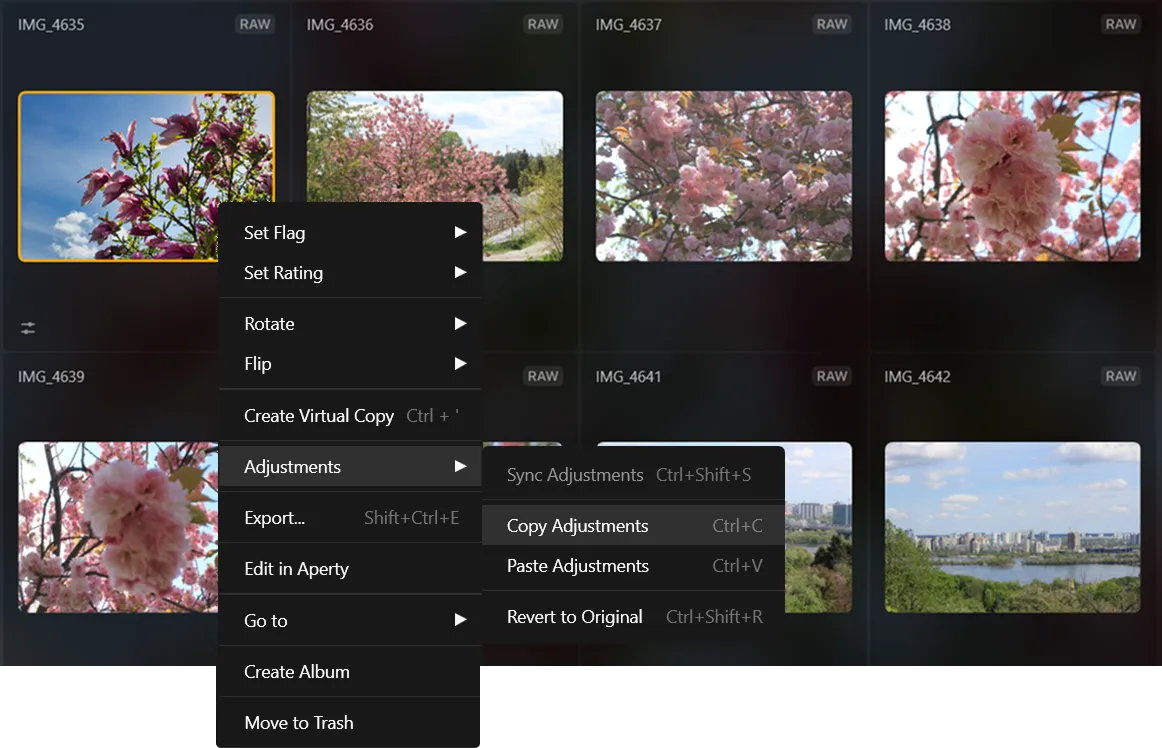
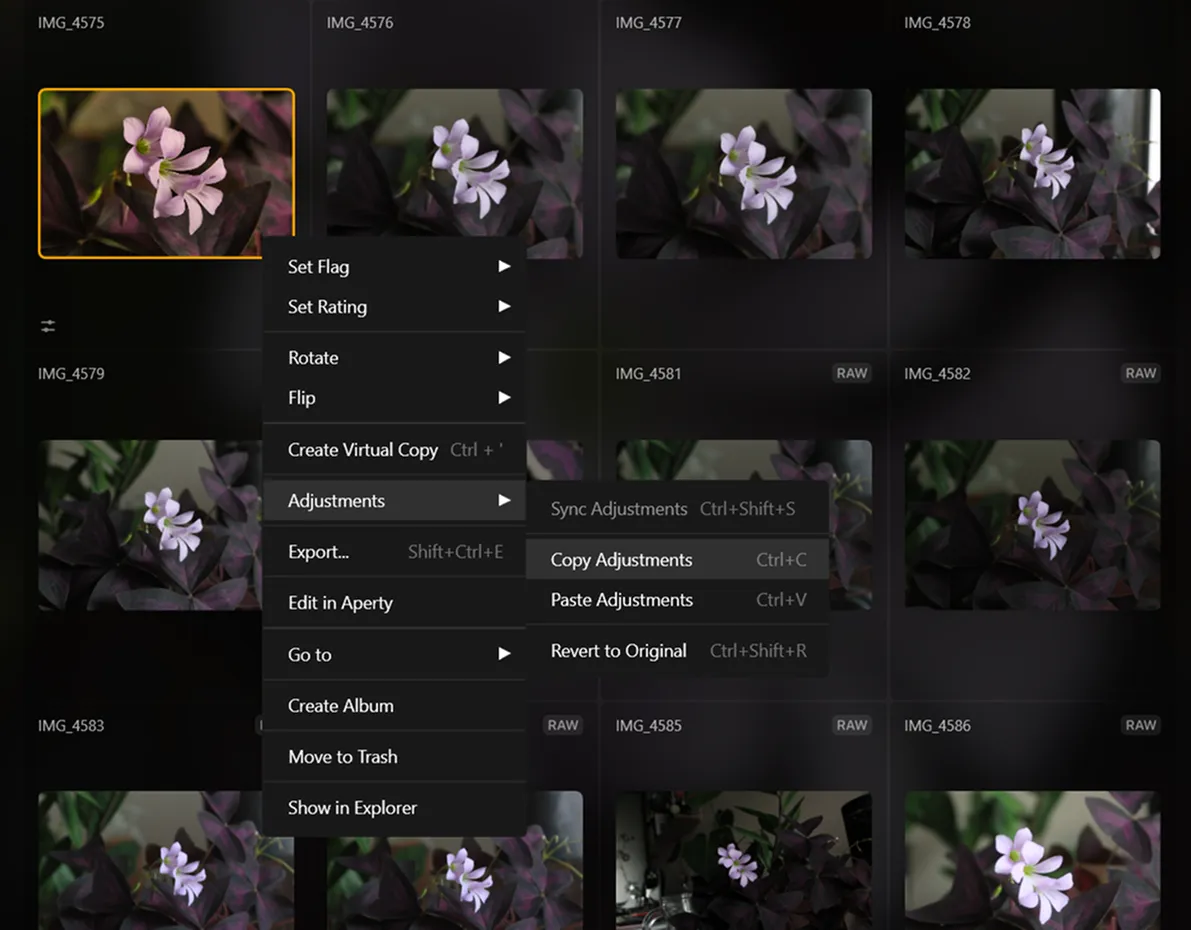
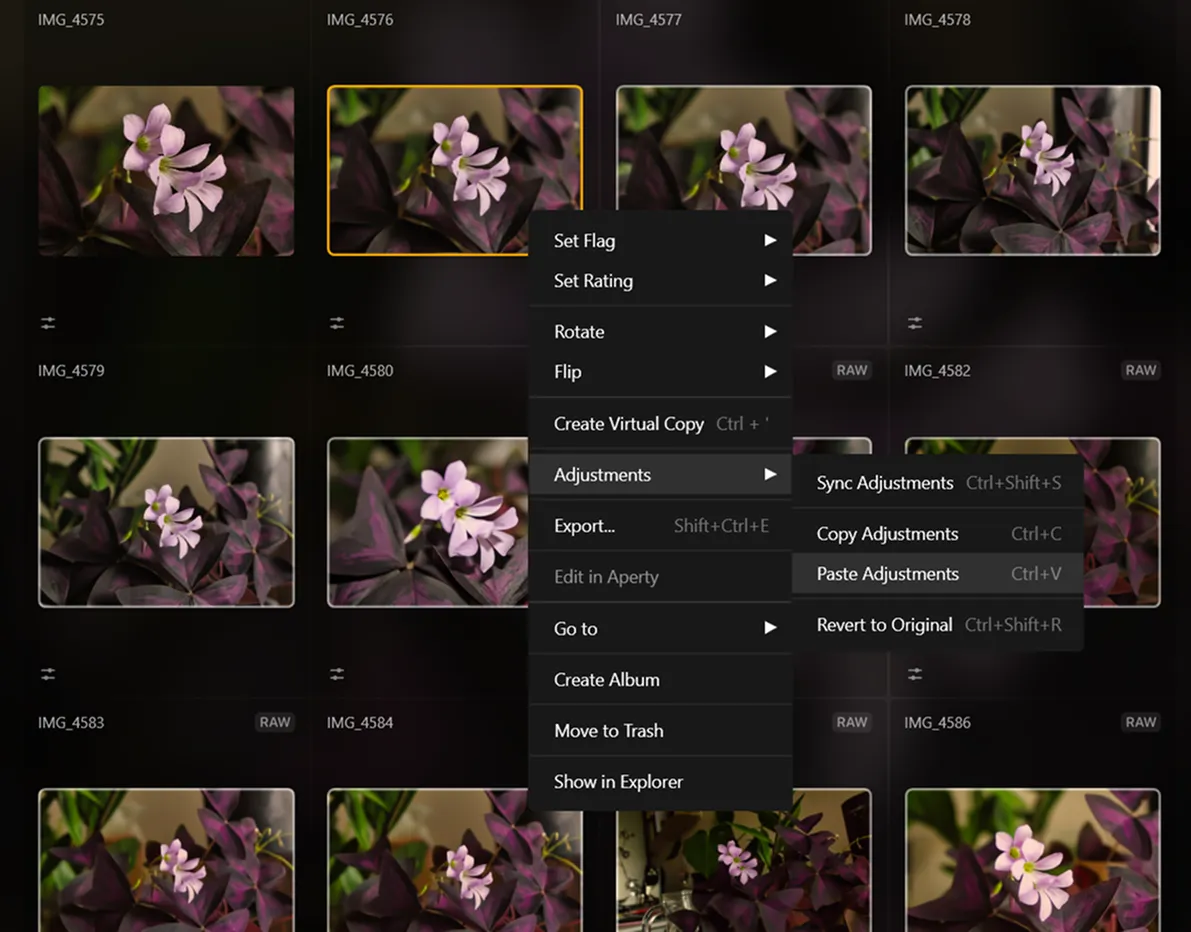
Luminar allows you to sync adjustments across multiple photos in just a few clicks. After you’re done editing one photo, you can easily apply the same adjustments to your entire photo shoot!
Exploring the Versatility of a Batch Photo Editing
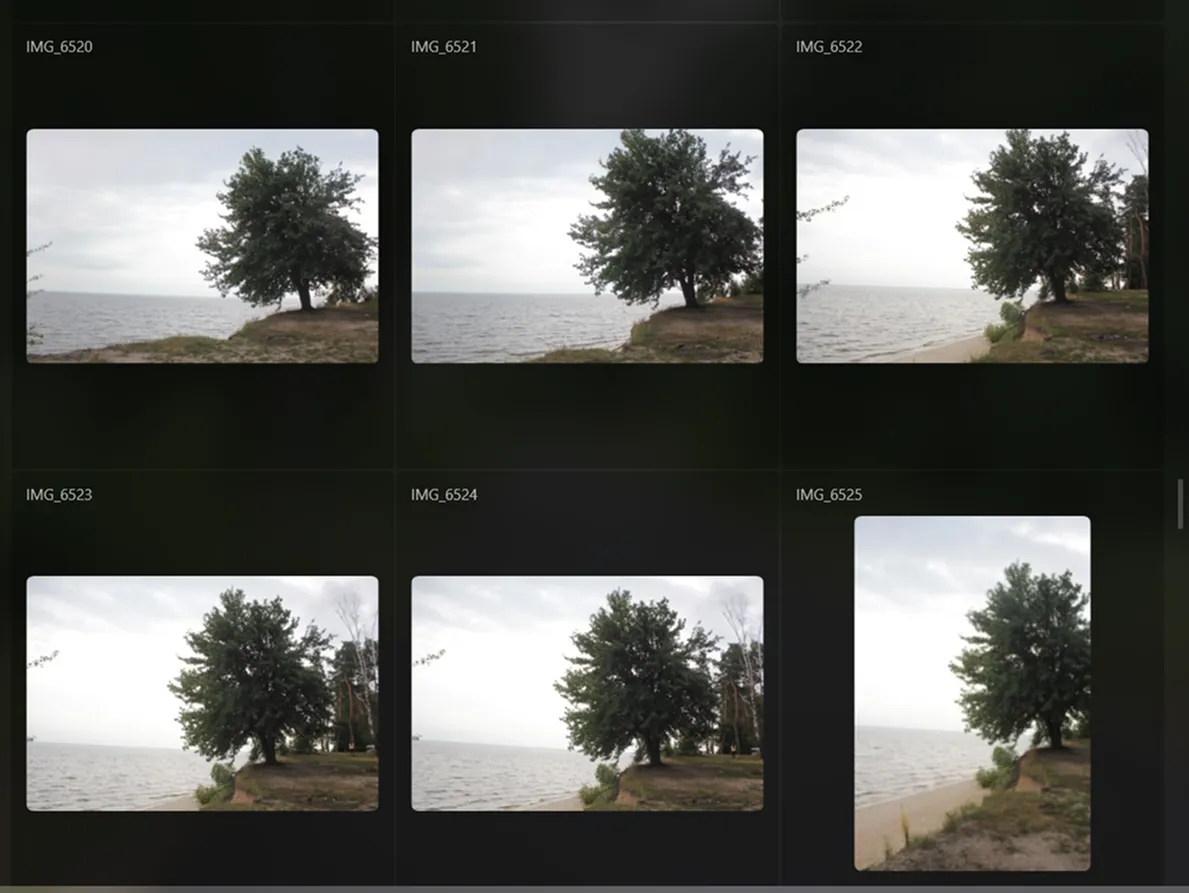
Batch editing is a valuable feature for many photographers, as it enables you to save time, reduce errors, and increase efficiency, allowing you to focus on the aspects of your work that require your unique skills and creativity.
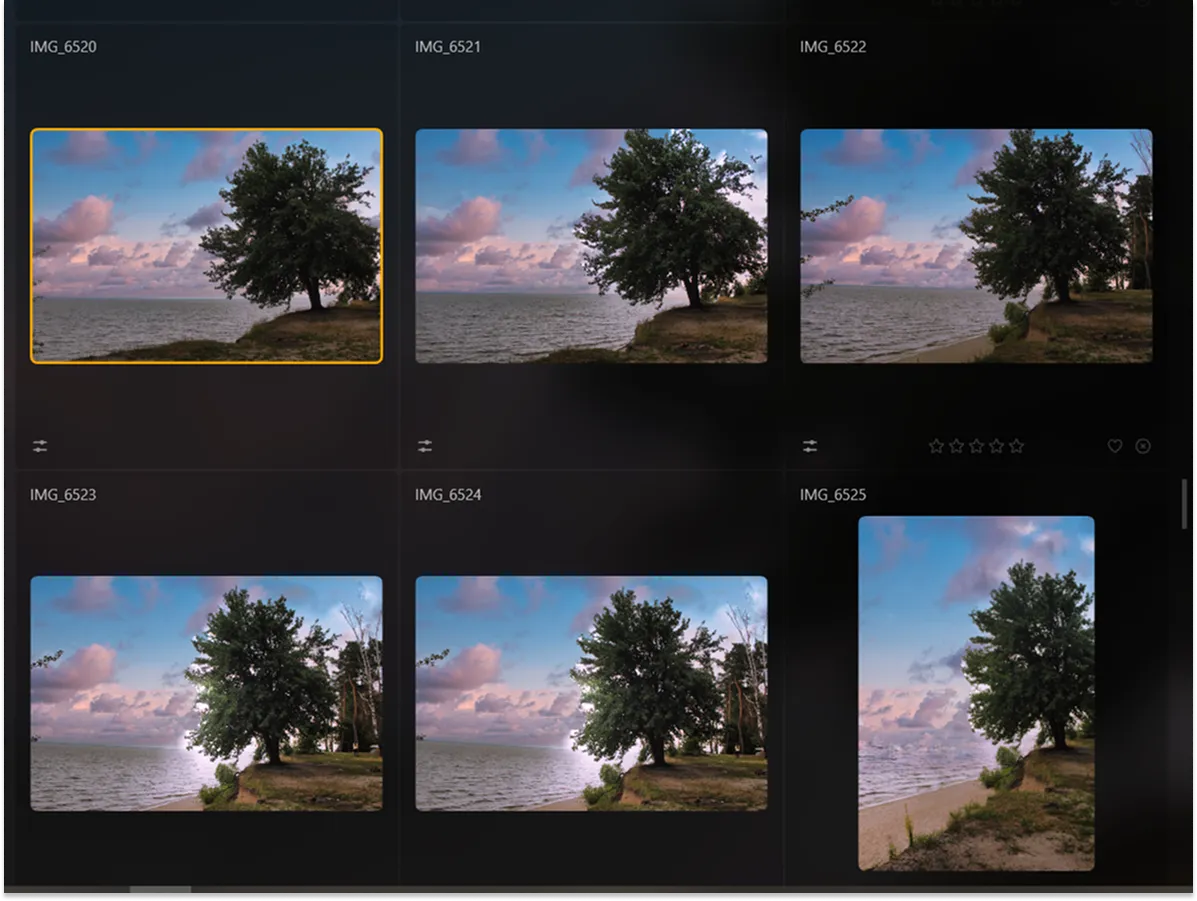
How to Optimize Your Workflow with a Batch Image Enhancer?
If you want to edit multiple photos at once, you can use the Sync Adjustments command to perform a batch process.

Adjust the first photo in a series.

With the first image selected, simply choose the rest of the images.

Right-click on the first image, click Adjustments and then select Sync Adjustments to sync the images with the first image.

Finish by using the Export command to batch export multiple photos
Explore Other Features
Luminar has plenty of other features to help you edit faster and easier

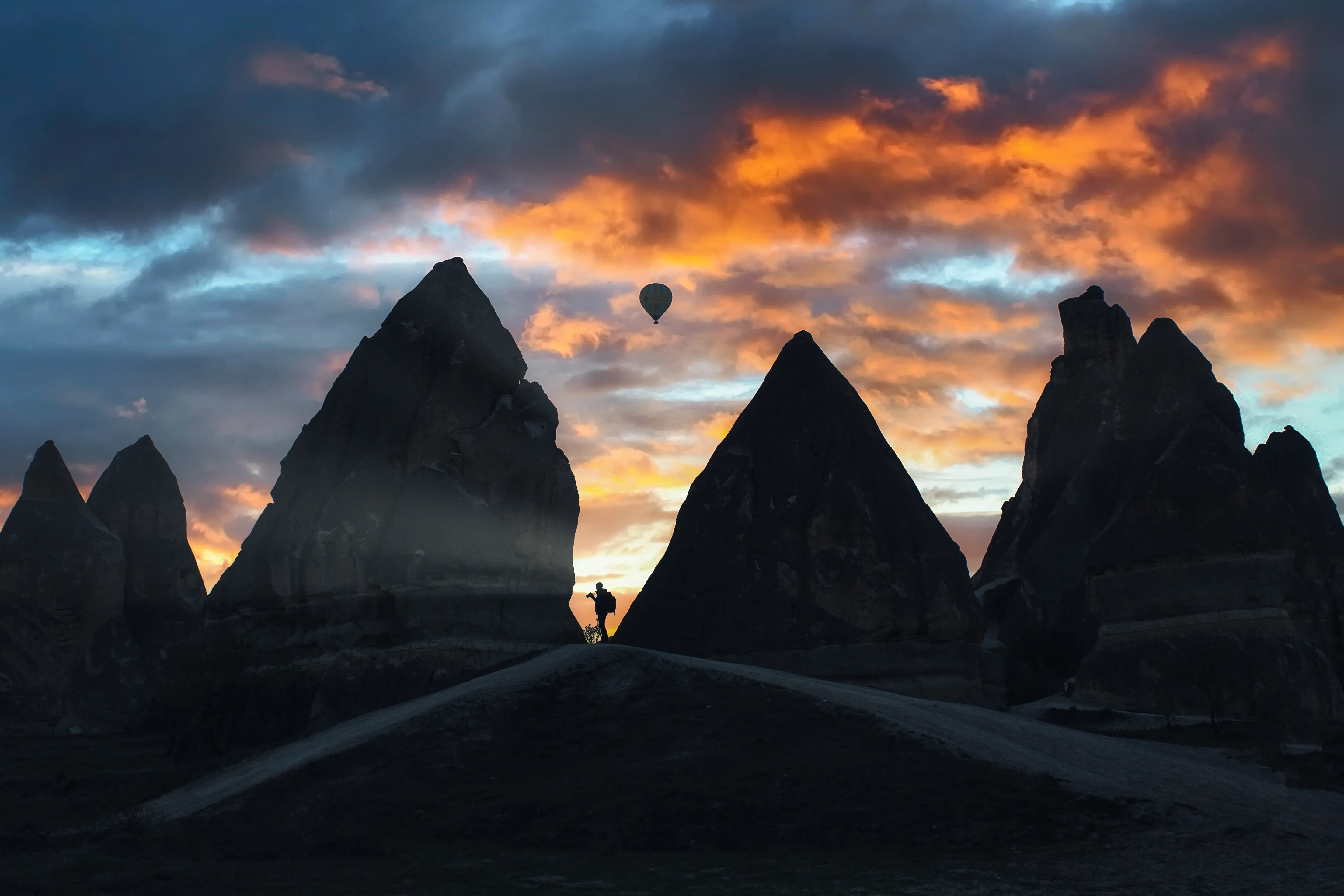
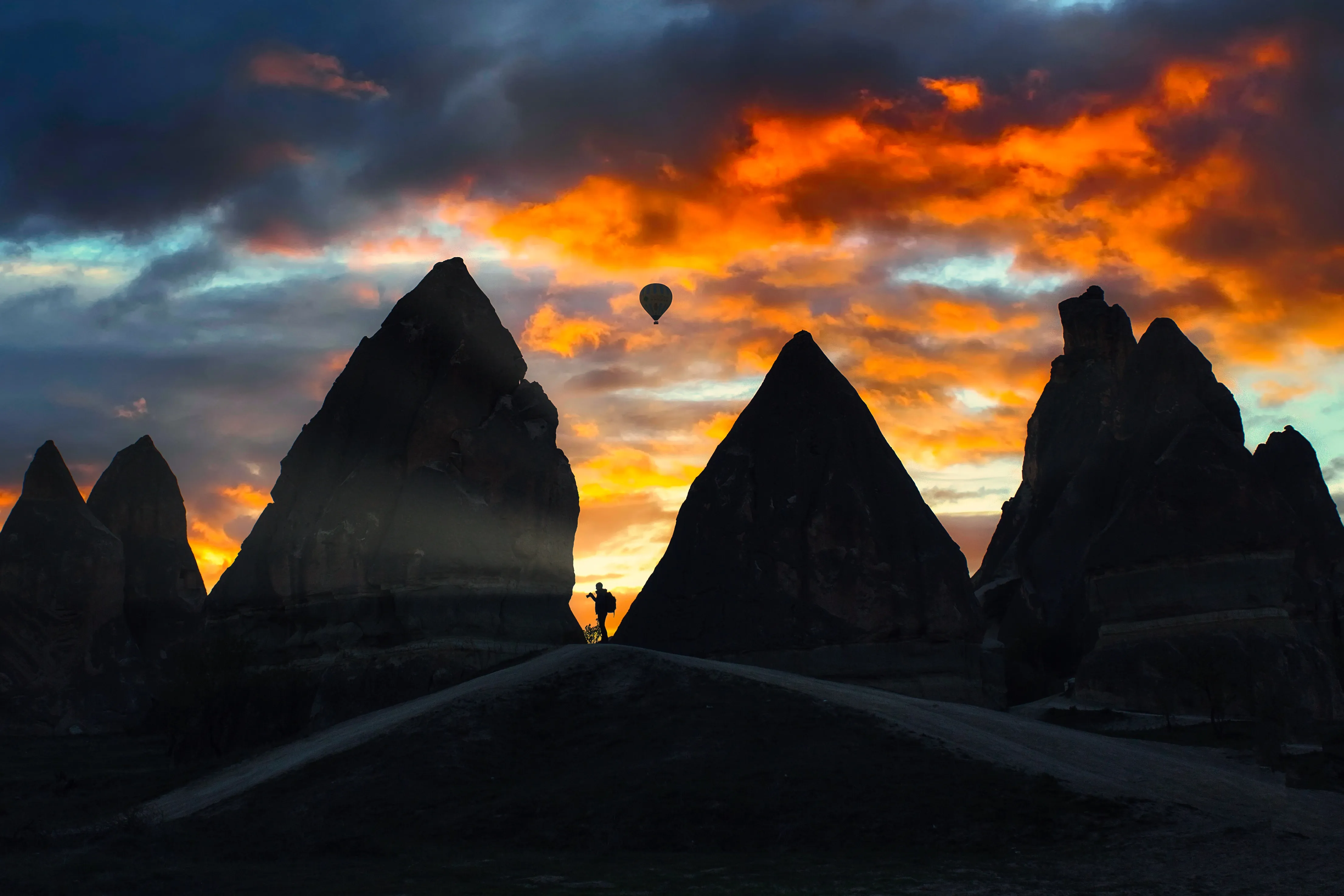
Golden Hour
© shutterstock
Golden Hour
Unlock the warm, soft glow of sunrise and sunset in your photos, regardless of the time you shoot

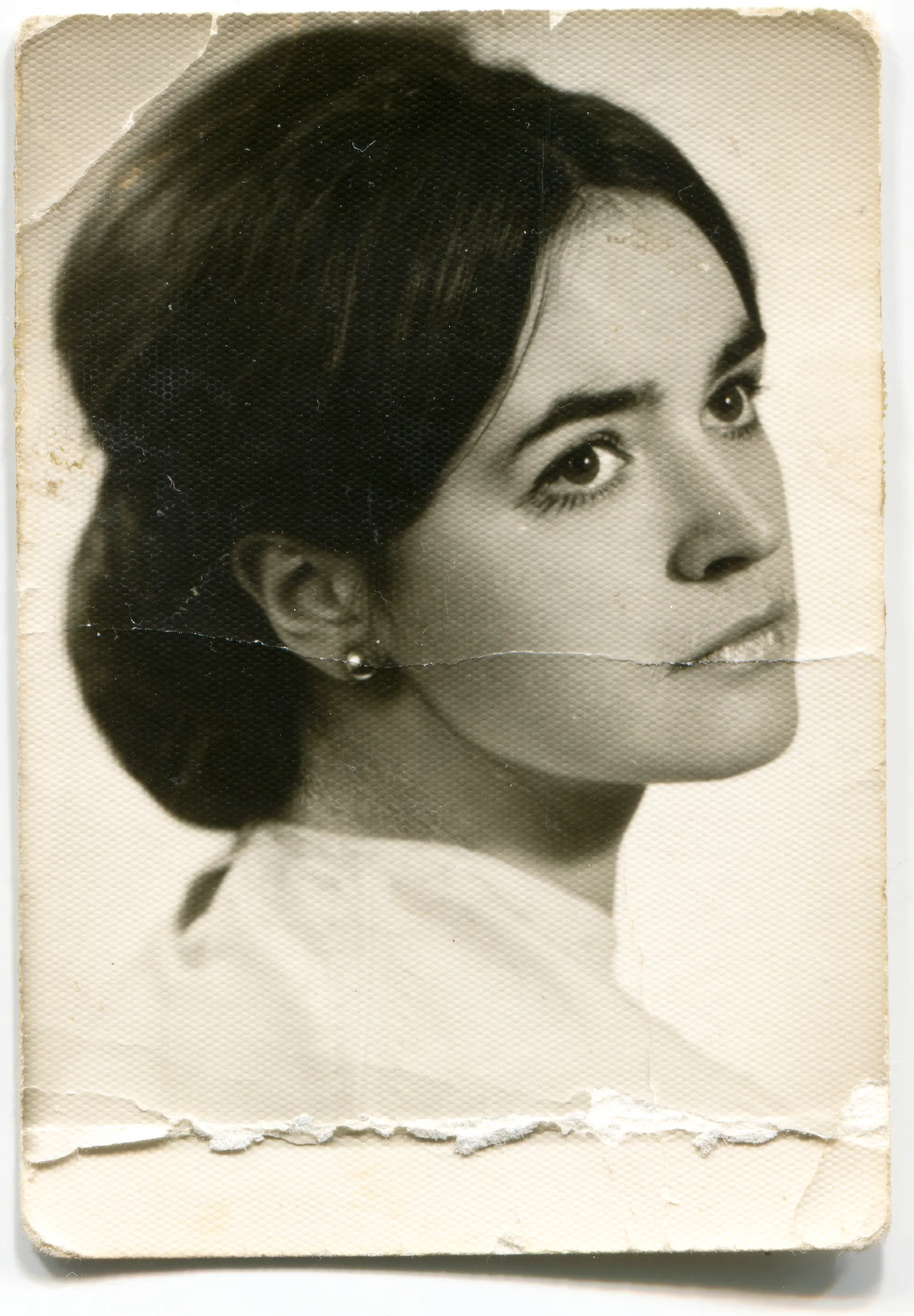
Photo Restoration
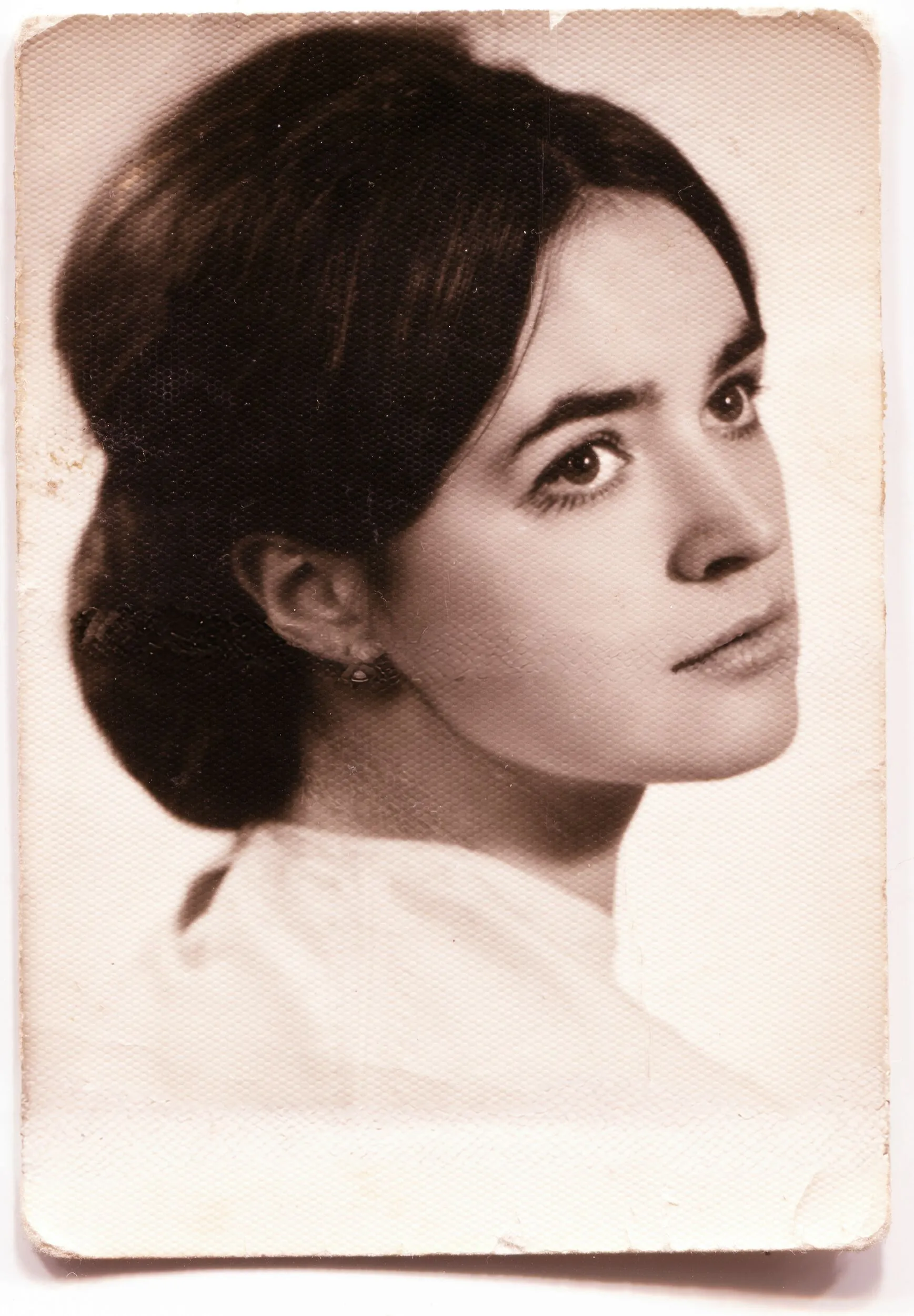
© Ksenia Kazak
Photo Restoration
Transform old photos into stunning, rejuvenated images with the magic of AI-powered photo restoration

Precise Image Recolor
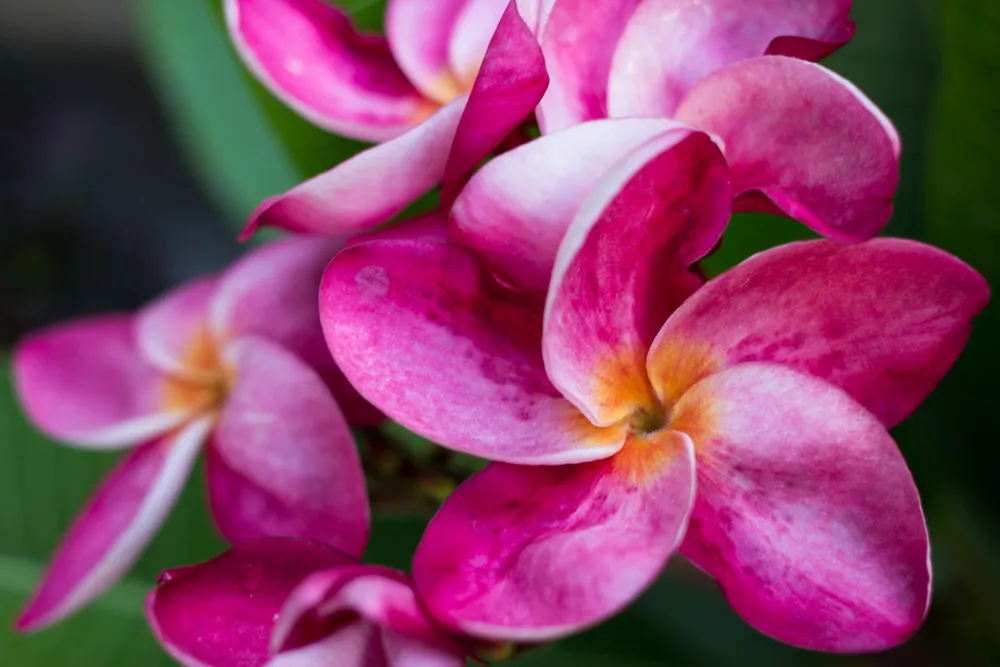
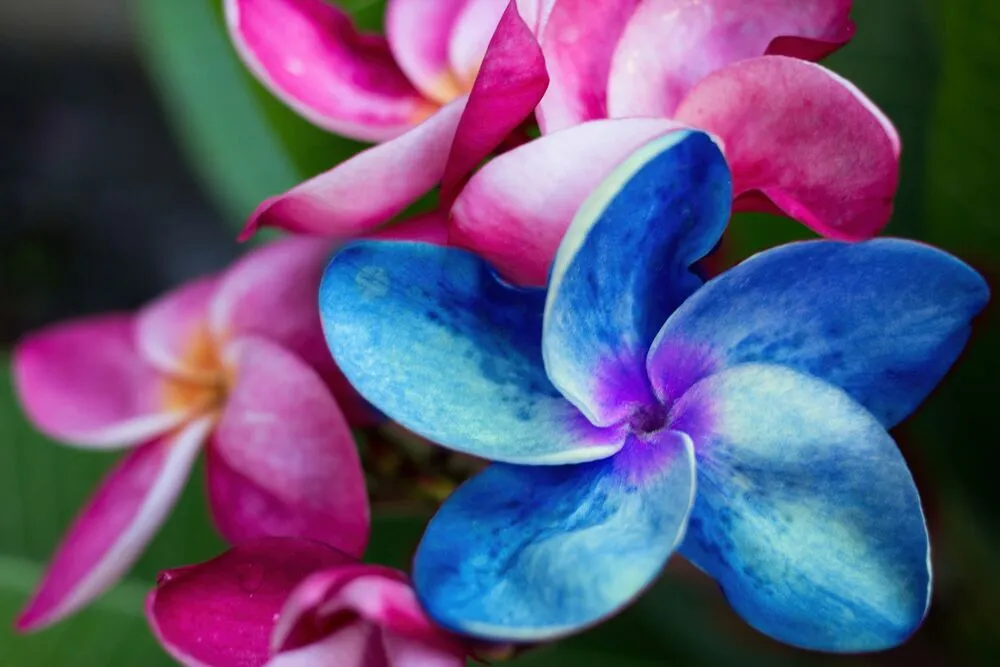
© Lisa
Precise Image Recolor

Match your style or mood perfectly with vibrant color adjustments



Supercontrast
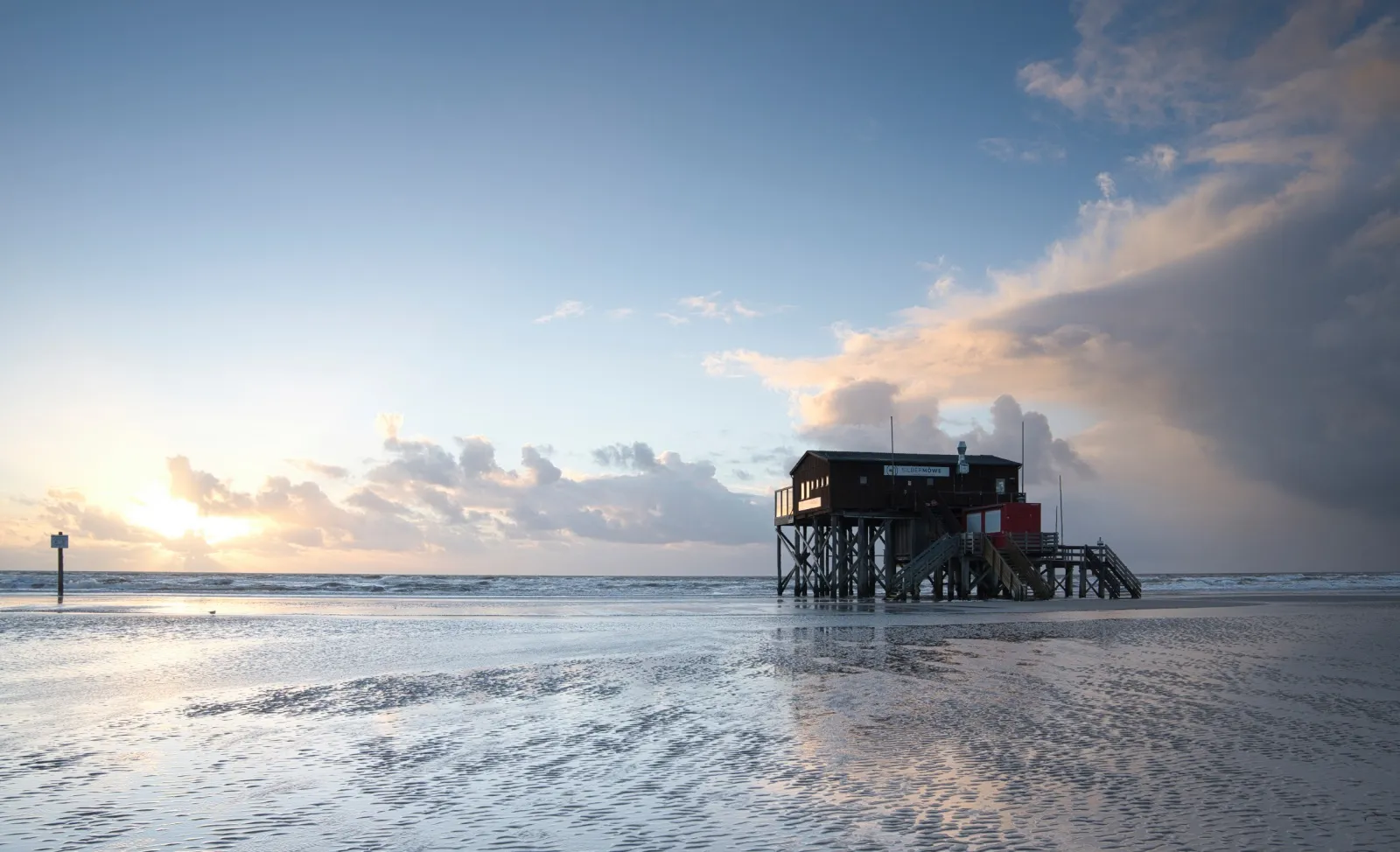
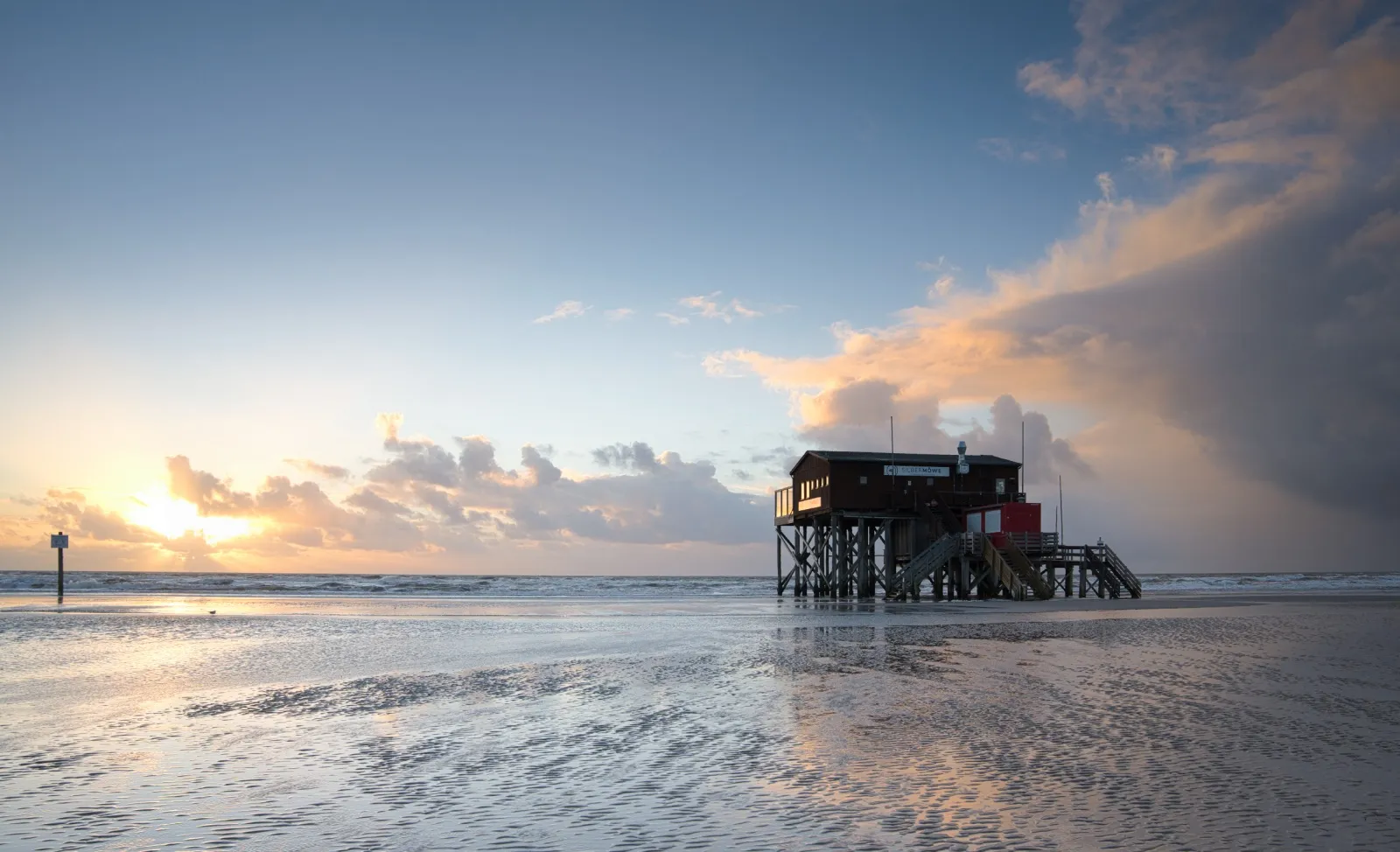
© mathewbrowne_anglesey
Supercontrast
Unlock the perfect contrast for your photos adjusting highlights, midtones, and shadows with precision.

Darken Image Enhancement

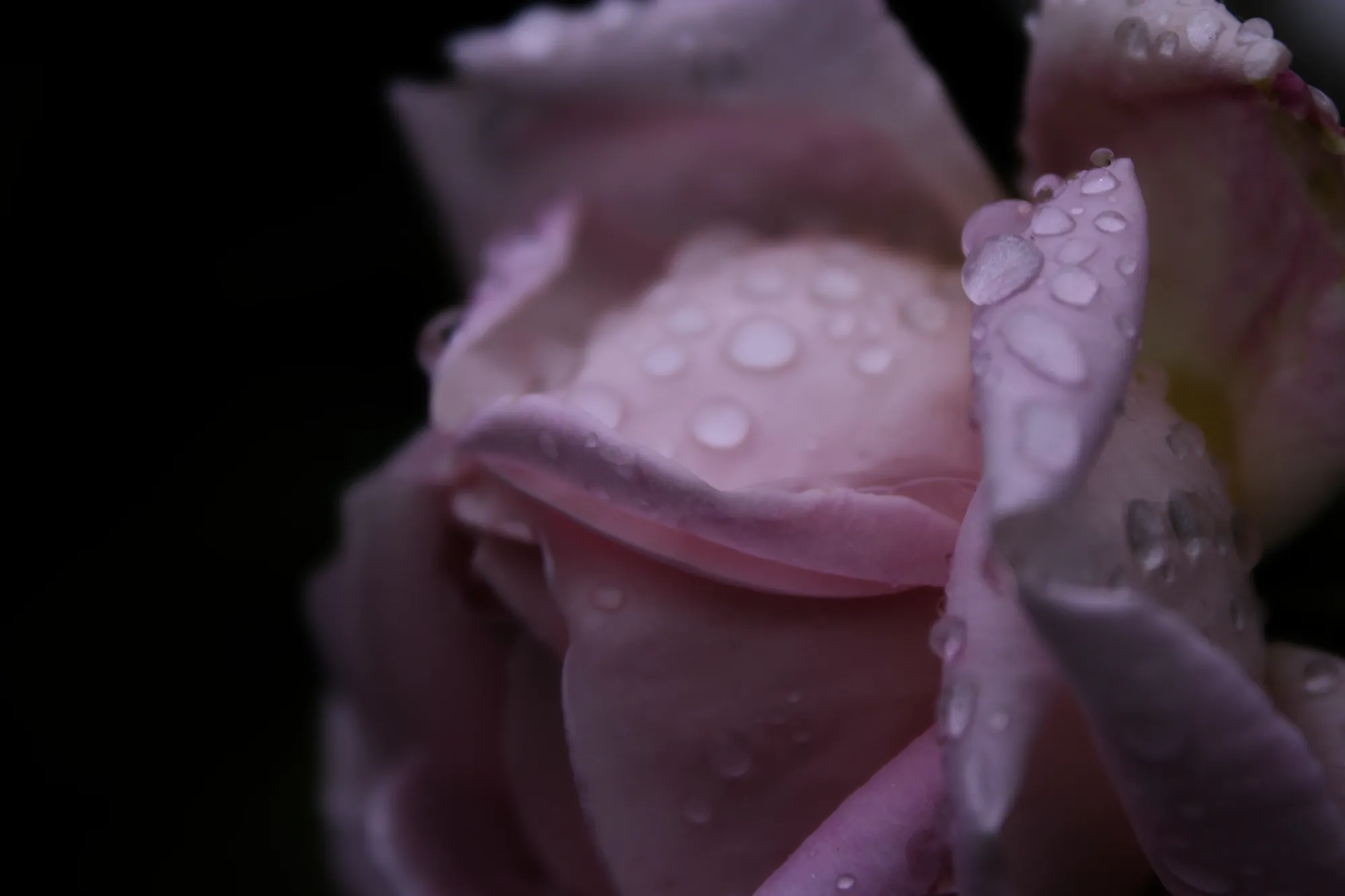
© reewungjunerr
Darken Image Enhancement
Experiment with tools to add drama, mystery, or a moody vibe to your pictures.
An application & plugin
For macOS & Windows
- High-performance AI editor
24/7 technical support
30-day money back guarantee
Join our communities

Frequently Asked Questions
What is a batch photo editor, and how does it work with Luminar?
Luminar batch processing is easy thanks to its Sync Adjustments feature. It works just like a copy-and-paste command! After you’ve done editing a photo, right-click it and select Sync Adjustments, then copy your edits to all the photos that you want to edit.
Can I preview edits on one photo before applying to all, to ensure consistency?
Yes. In Luminar, you can fully edit one photo first, preview the result, and then copy and apply those adjustments to other images. This allows you to test the look, fine-tune settings, and only then sync the edits across a larger set to keep a consistent style.
What types of edits can I perform using batch photo editor?
The Sync Adjustments feature allows you to apply all the edits you’ve applied to a photo to another photo, excluding the Crop tool.
Is there a limit to the number of photos I can edit in a single batch?
Select as many as you can, and perform a bulk photo editing sync. Note that the more photos you select, the more RAM will be used, and the process may take longer.
Who can benefit from Luminar bulk image editor?
Luminar bulk image editor is especially valuable for:
- Event photographers: quickly edit large volumes of photos from weddings, concerts, and corporate events while keeping a consistent look.
- Real estate photographers: apply uniform lighting, color, and tone corrections across full property shoots.
- Wildlife photographers: process large image series efficiently while preserving natural detail and color.
- Commercial and studio photographers: speed up post-production for campaigns, catalogs, and client deliveries.
- Content creators and media teams: prepare large photo sets for publishing, marketing, and social platforms.This tool helps anyone who needs to edit large numbers of photos faster while maintaining professional quality and consistency.
- Event photographers: quickly edit large volumes of photos from weddings, concerts, and corporate events while keeping a consistent look.
- Real estate photographers: apply uniform lighting, color, and tone corrections across full property shoots.
- Wildlife photographers: process large image series efficiently while preserving natural detail and color.
- Commercial and studio photographers: speed up post-production for campaigns, catalogs, and client deliveries.
- Content creators and media teams: prepare large photo sets for publishing, marketing, and social platforms.This tool helps anyone who needs to edit large numbers of photos faster while maintaining professional quality and consistency.
Why Luminar is the best batch photo editor?
Luminar stands out as a batch photo editor because it allows photographers to copy, sync, and apply edits across multiple photos while keeping full manual control. It combines batch workflows with Luminar’s professional editing tools and AI features, making it possible to process large photo sets faster without switching to separate software.
Why Luminar multiple photo editing is trusted by photographers?
Photographers trust Luminar for batch editing because it integrates bulk workflows directly into a professional editing environment. They can batch-apply adjustments, then individually refine any photo. This flexibility makes Luminar reliable for real-world shoots where consistency matters, but every image still needs final control.
Are manual adjustments possible after batch processing?
Yes. After applying batch edits, every photo remains fully editable. You can open any image and manually change exposure, color, details, AI tools, masks, or retouching. Batch editing in Luminar does not lock your edits.
How does batch editing perform on high-resolution images (performance, memory usage)?
Luminar supports high-resolution images and batch workflows, but performance depends on your hardware. Processing speed and responsiveness are influenced by RAM, GPU, and CPU power. On stronger systems, batch editing and exports are faster and smoother. With very large files, edits may take longer to apply and preview, which is normal for professional-grade photo software.
