
 プランを見る
効果的な一括写真エディタ
一括編集、またはま一斉編集としても知られるこの手法は、主に写真、グラフィックデザイン、ビデオ編集、およびテキスト処理等、様々な分野で使用されている技術であり、時間を節約し、編集プロセスを効率的に行うためのものです。
今すぐ試してみる現代のコンテンツ制作における一括写真処理エディタの魅力
When using photo editors like Luminar, it’s super easy to achieve a consistent look through all your photos, making them uniform in style and pleasing to the eye, thanks to mass photo editing.

なぜ当社の一括画像エディタが最も優れているのか?
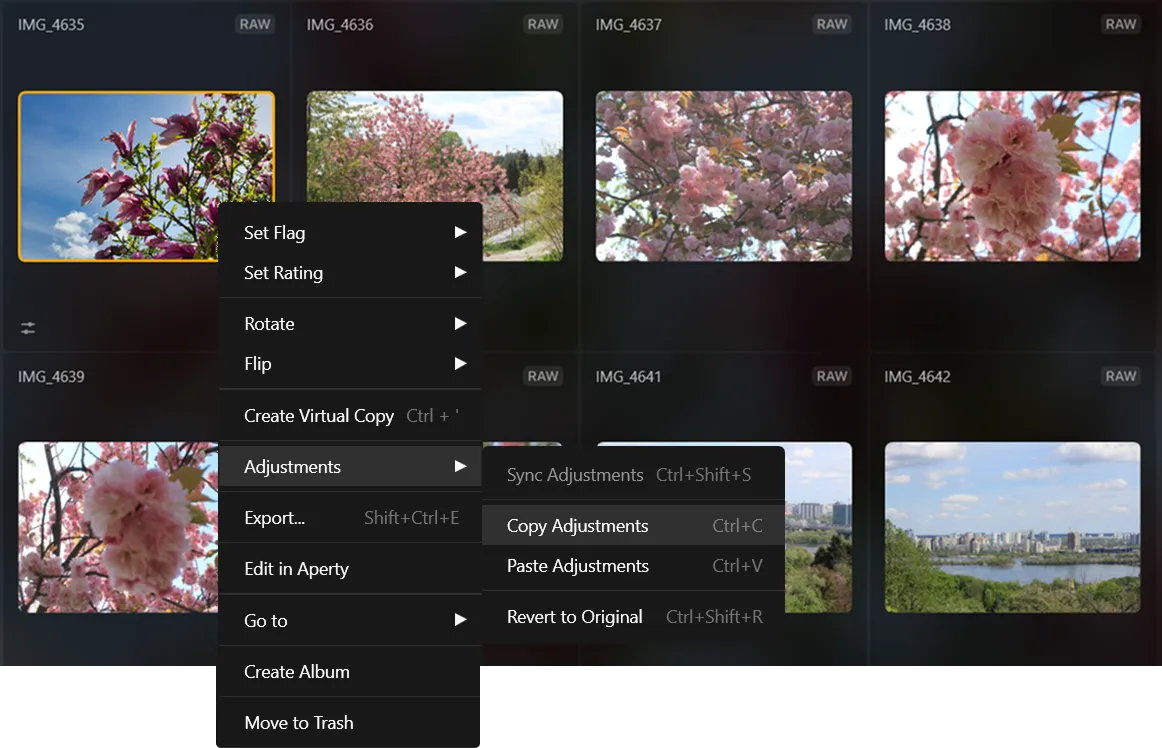
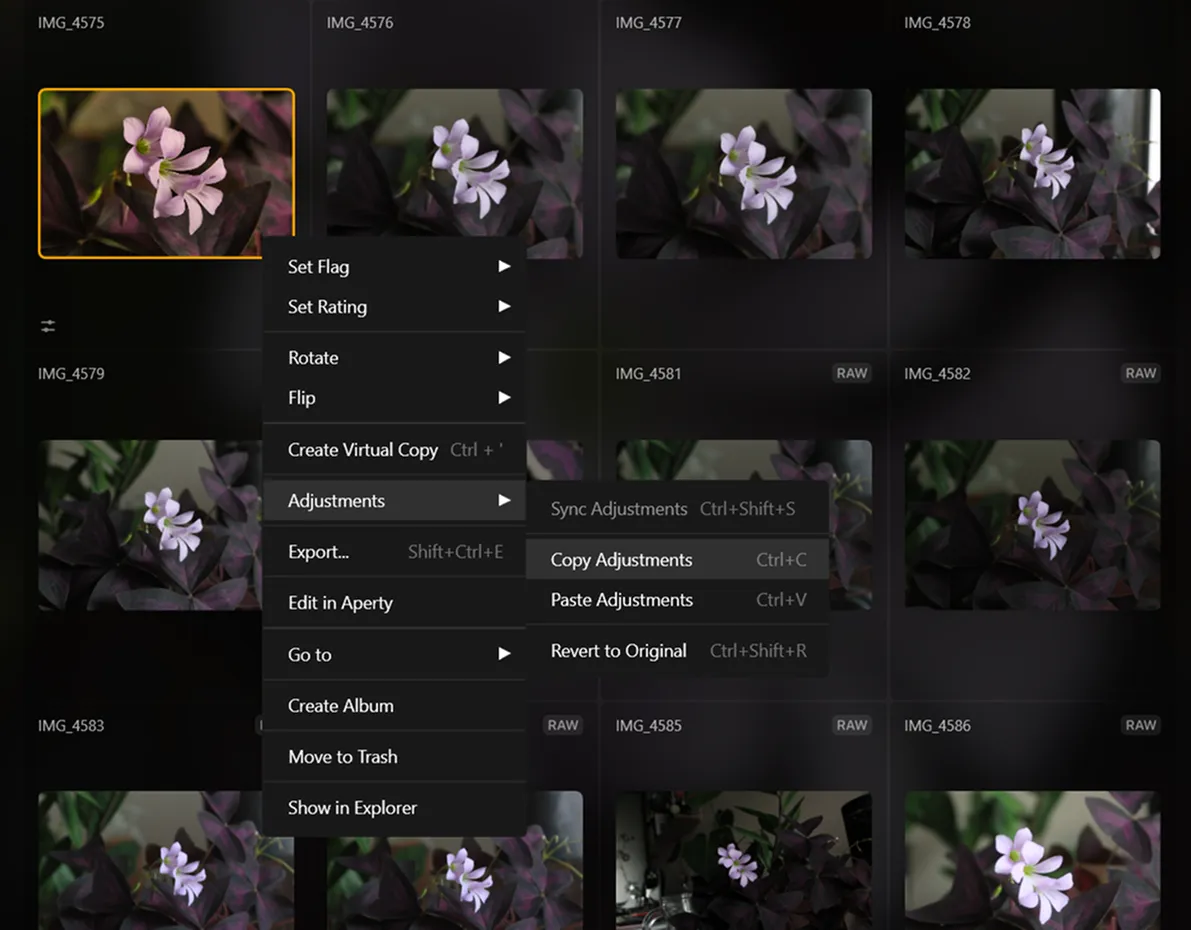
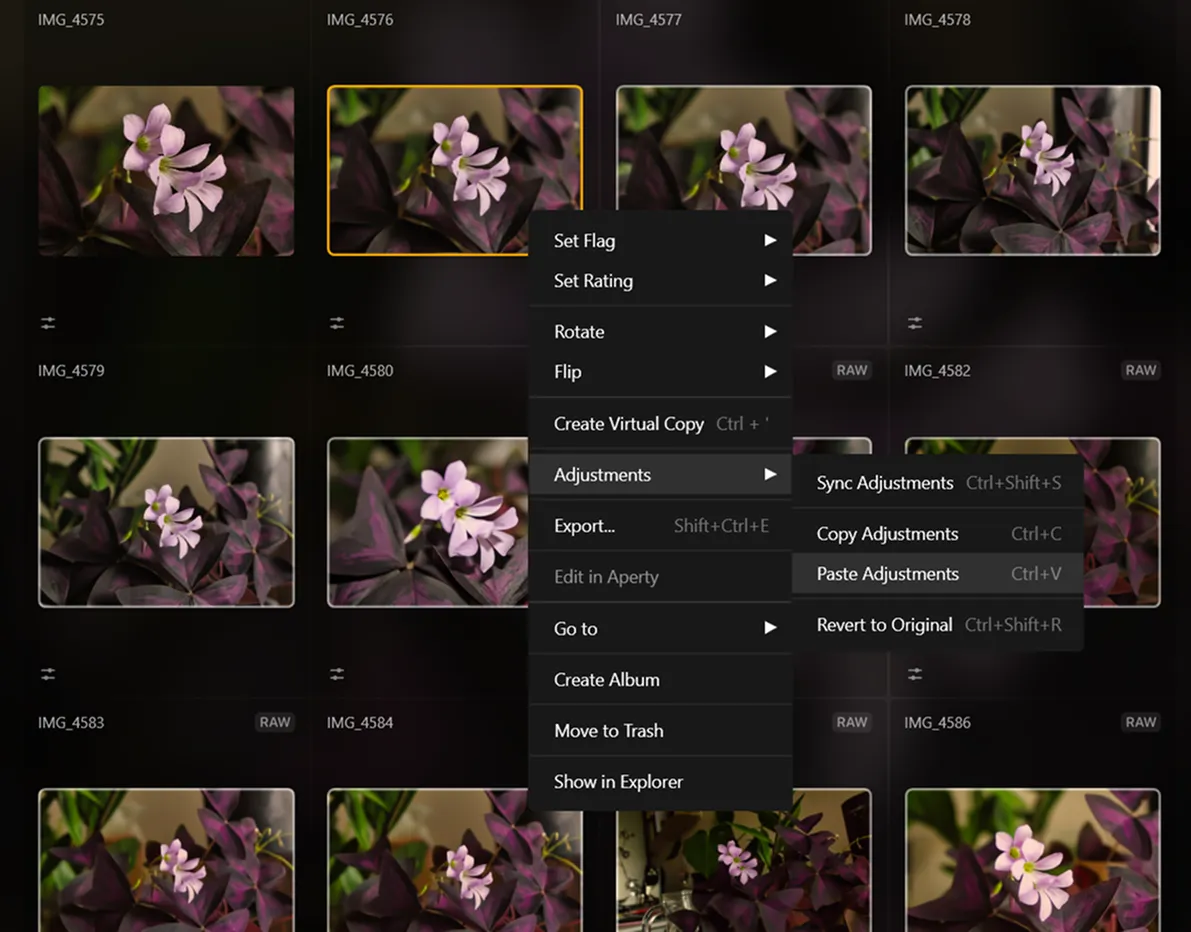
Luminar allows you to sync adjustments across multiple photos in just a few clicks. After you’re done editing one photo, you can easily apply the same adjustments to your entire photo shoot!
一括写真エディタの多様性を探求
一括編集は多くの写真家にとって、価値のある機能であり、時間の節約、エラーの削減、効率の向上を可能にし、ユニークなスキルと創造性が必要な作業に焦点を当てることができます。
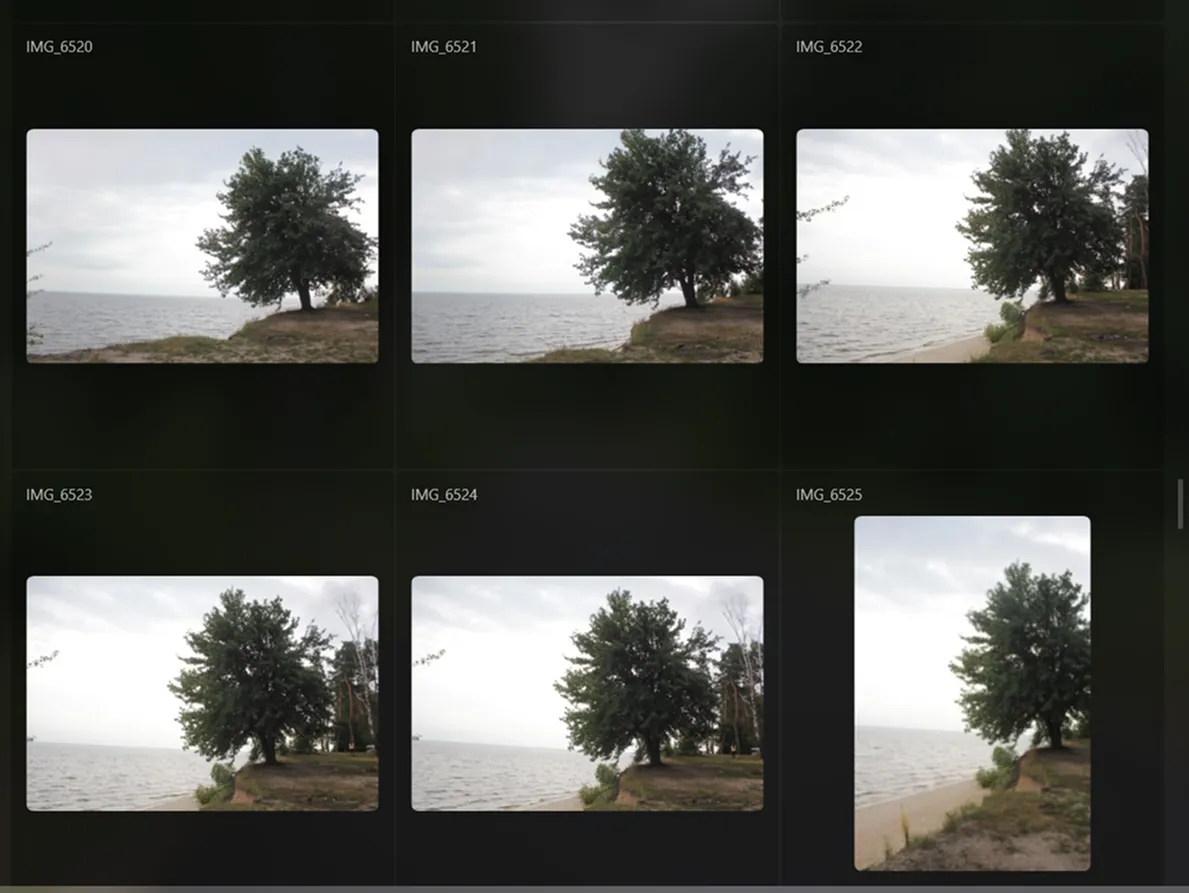
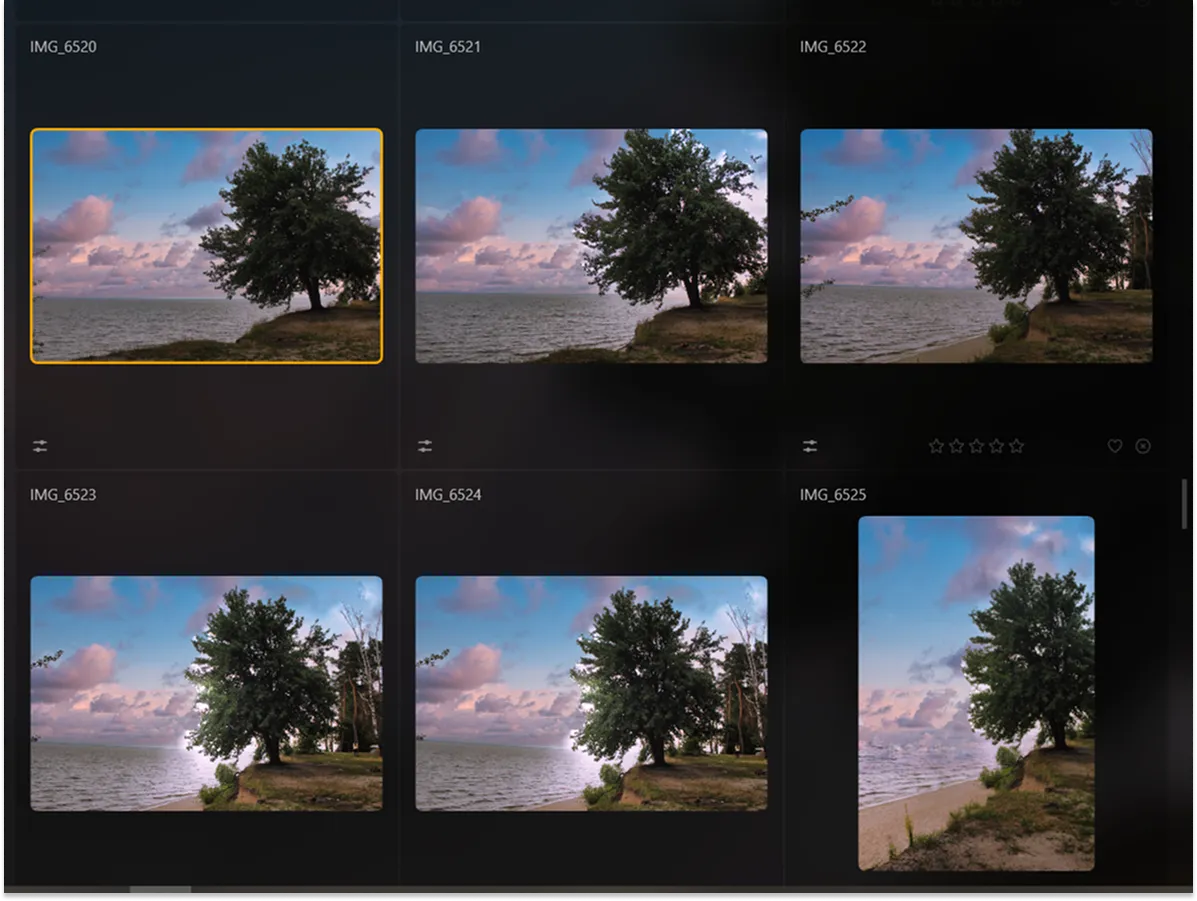
一括画像強化ツールを使用してワークフローを最適化する方法は?
複数の写真を一度に編集したい場合は、「調整を同期」(Sync Adjustments)コマンドを使用すると一括処理を行うことができます。

一連の写真の最初の1枚を調整します。

最初の写真を選択したら、あとは残りの写真を選択しよう。

最初の画像を右クリックし、「調整」をクリックしてから「調整を同期」を選択して、画像を最初の画像と同期させます。

エクスポート コマンドを使って、複数の写真をバッチエクスポートして終了します。
その他の機能を見る
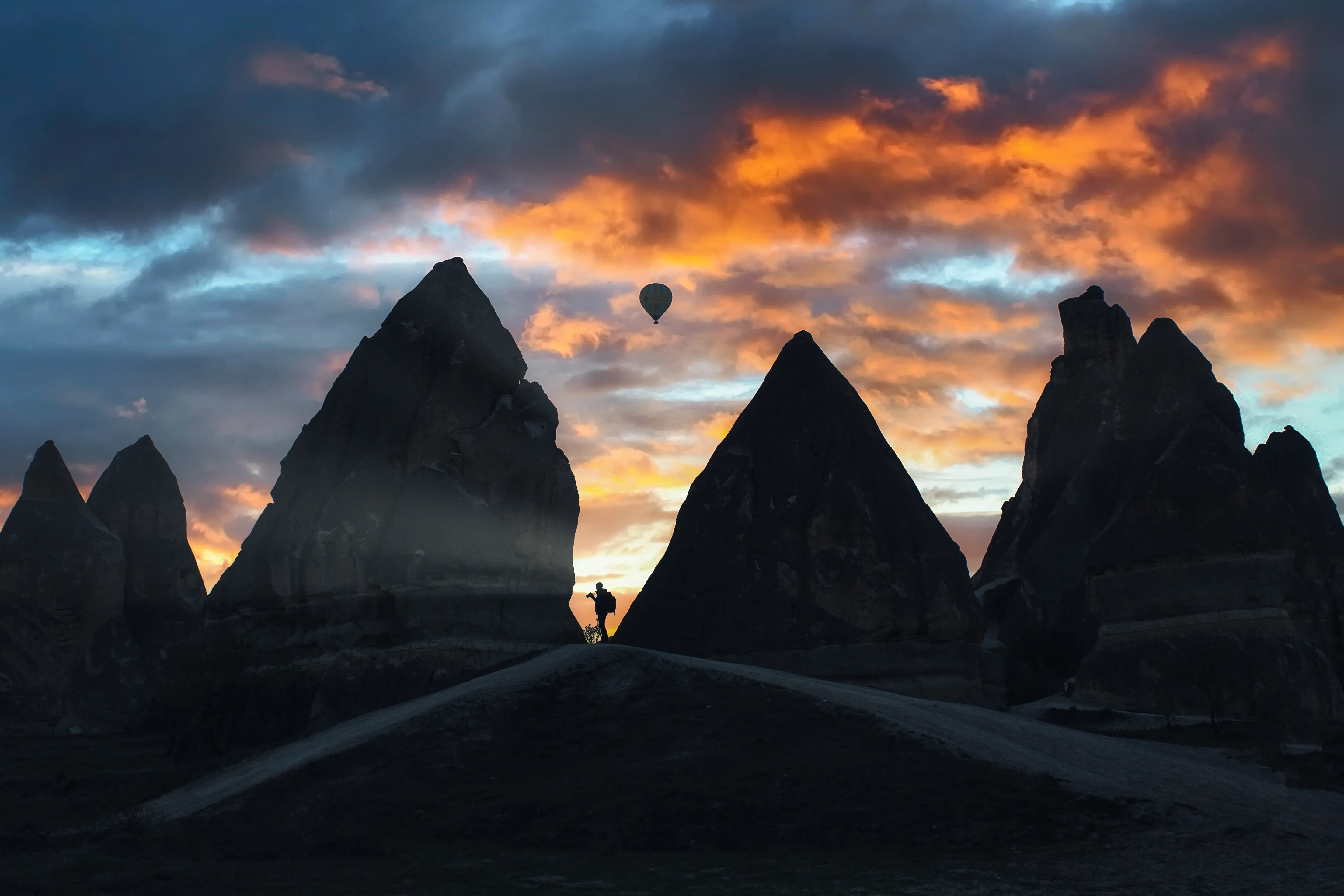
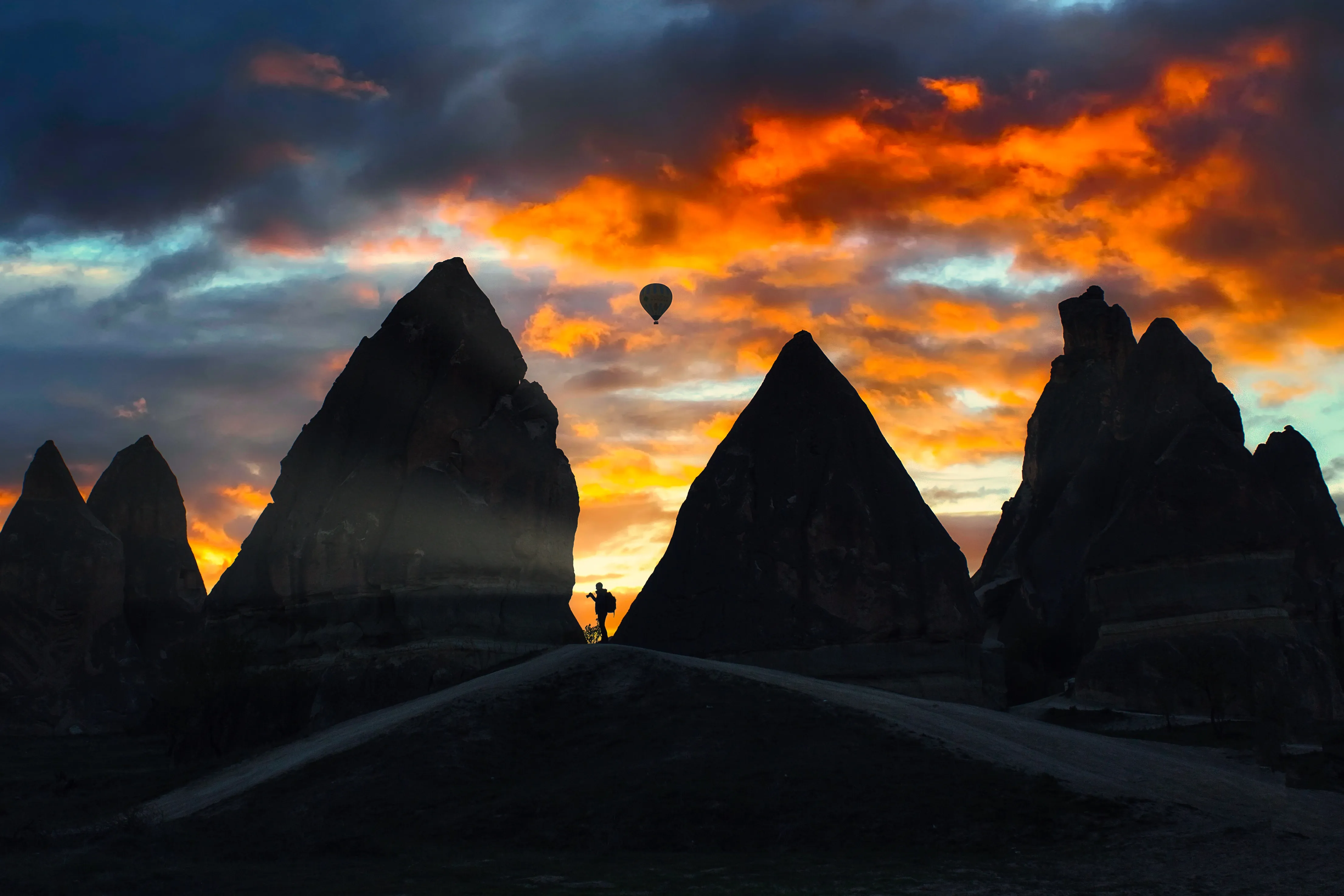
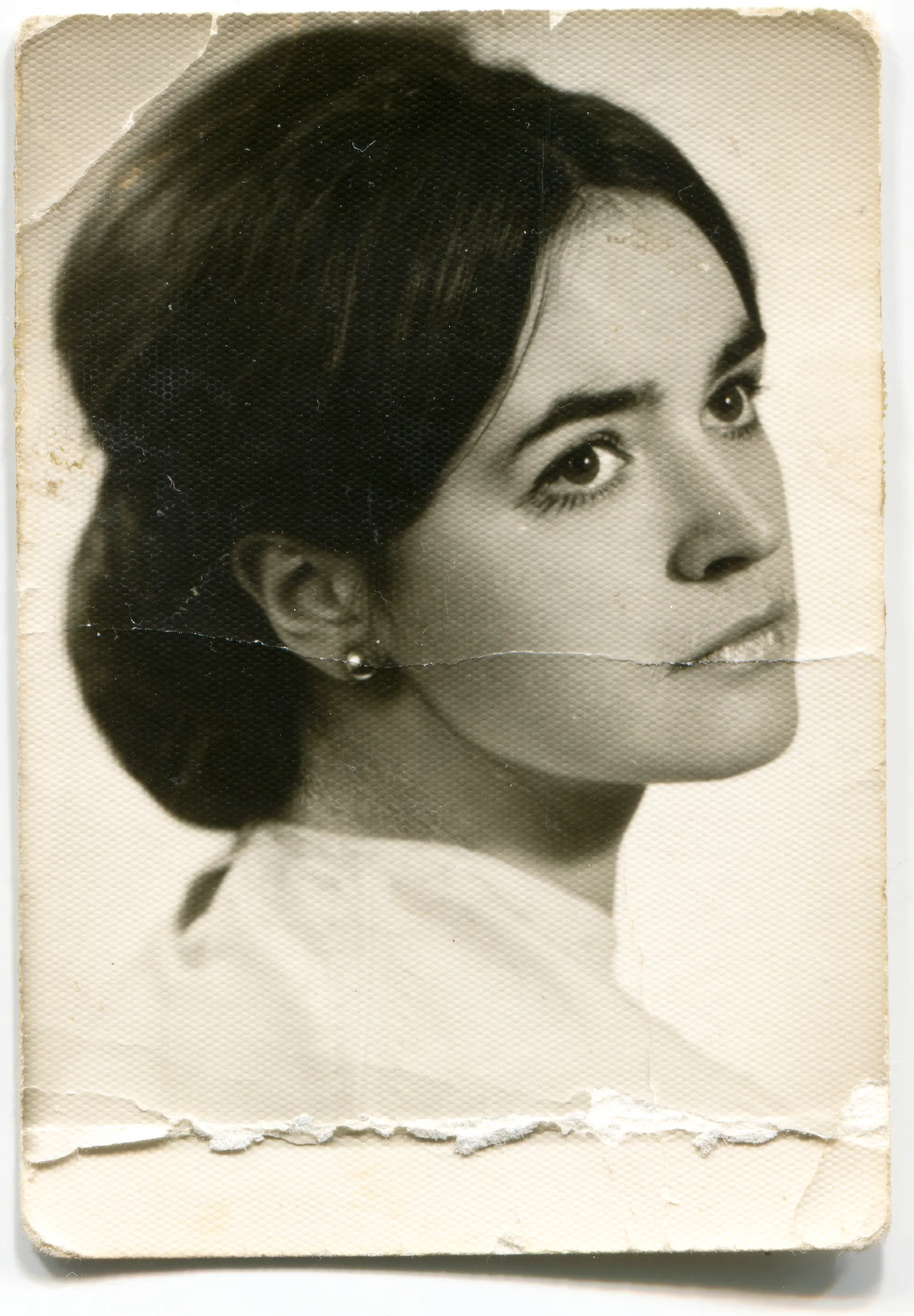
Luminar has plenty of other features to help you edit faster and easier






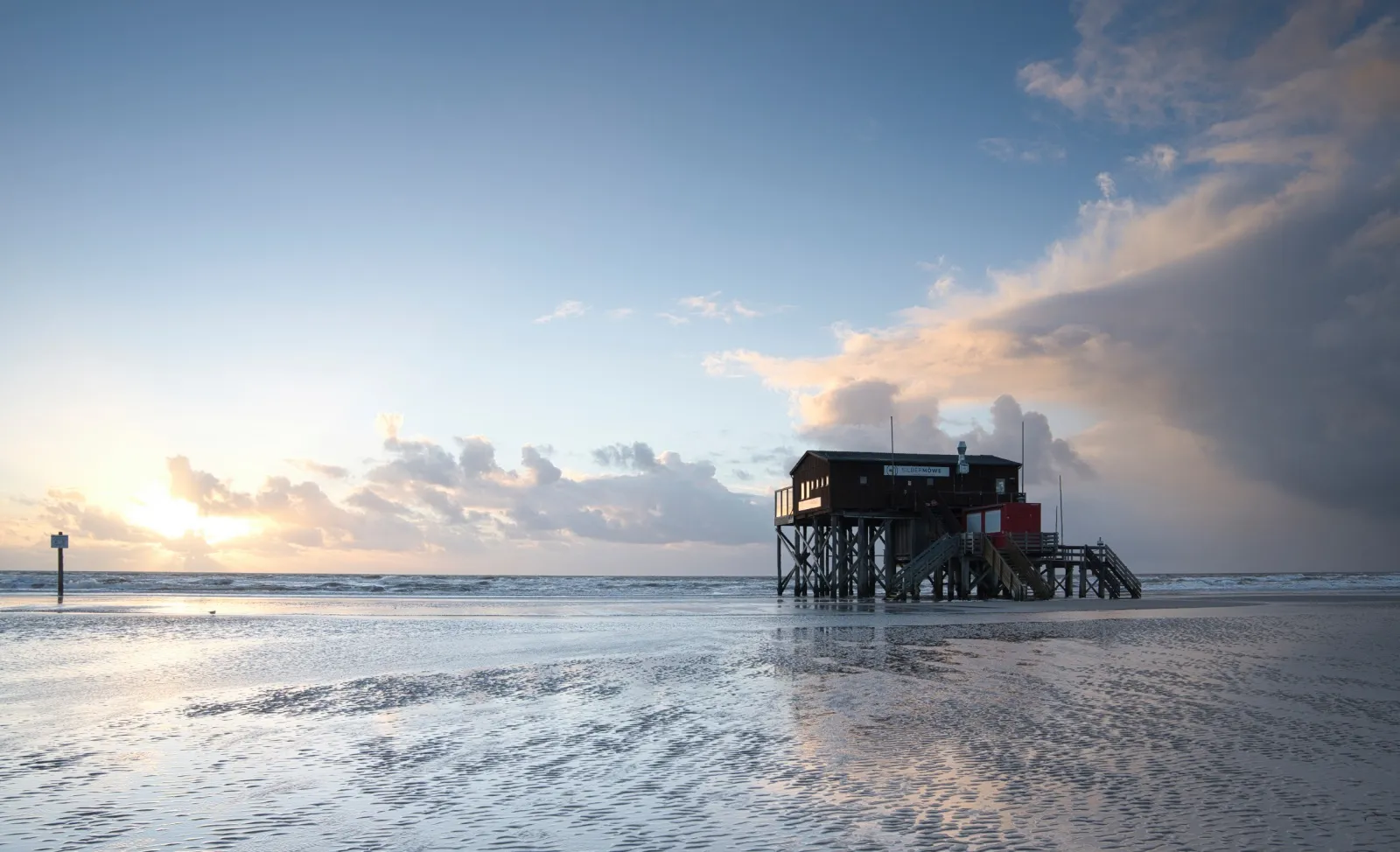
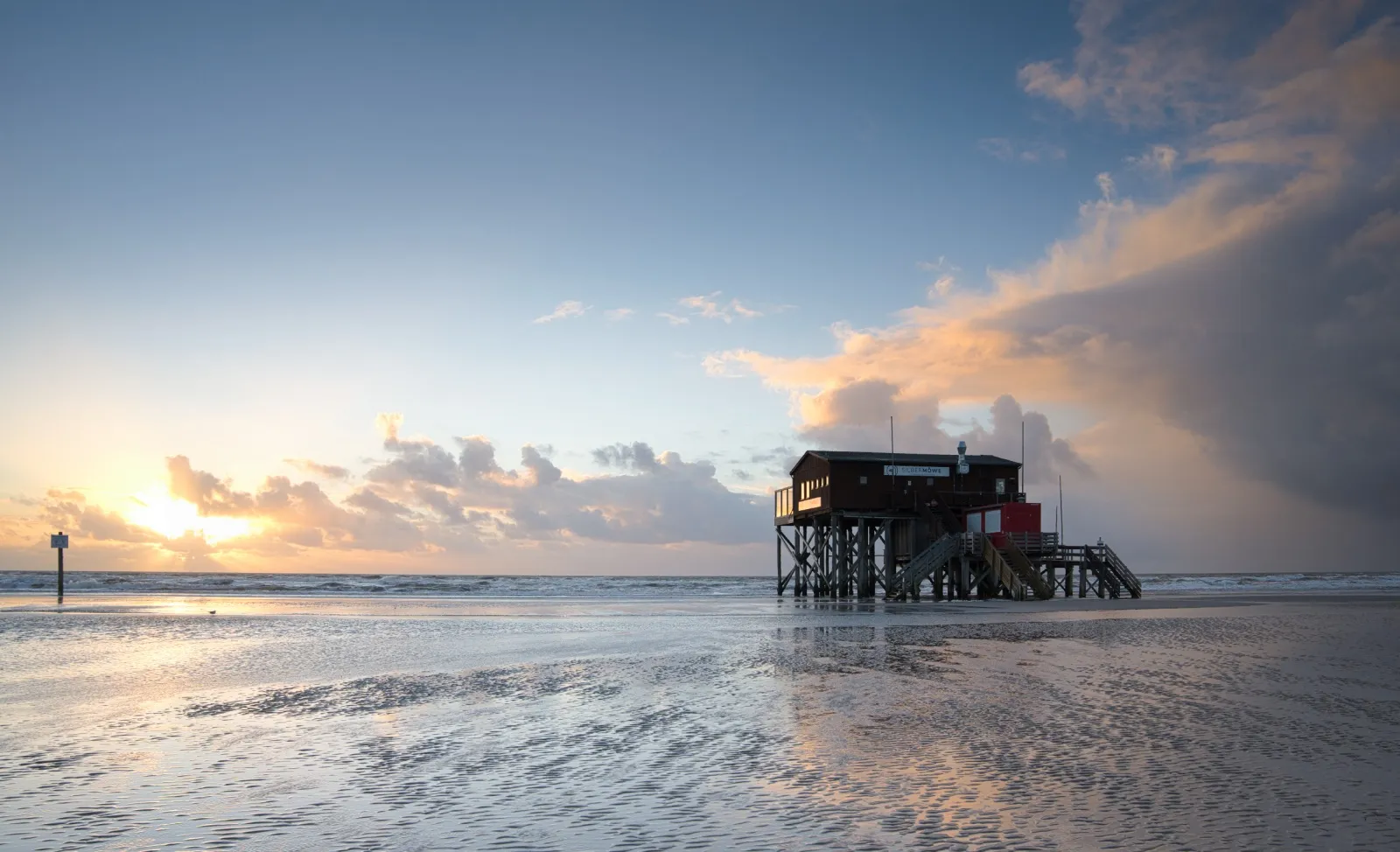

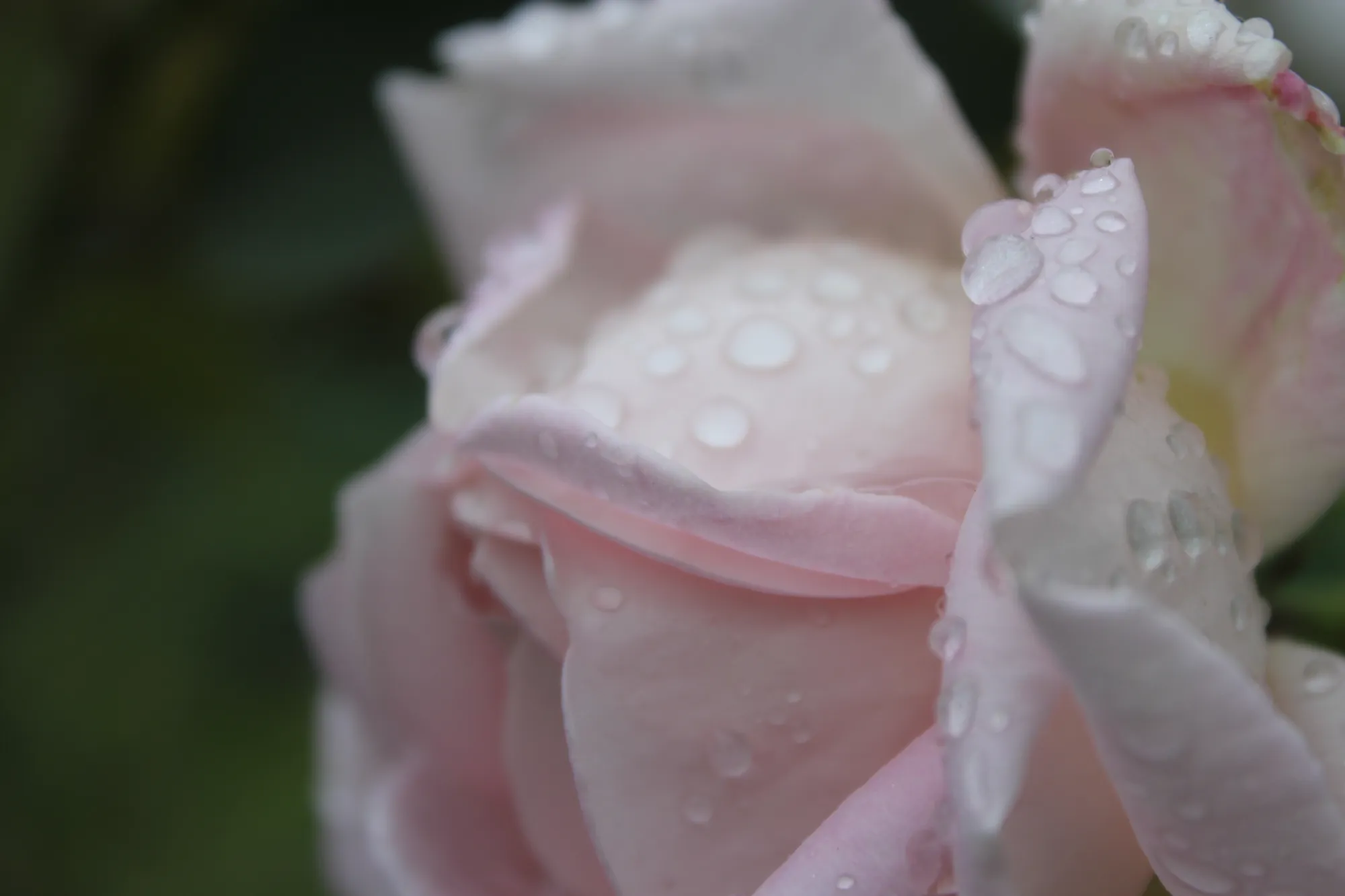
アプリケーション&プラグイン
macOSとWindows 対応
- 高性能なAI編集ソフト
年中無休のテクニカルサポート
30日間の返金保証
コミュニティに参加

よくある質問
What is a batch photo editor, and how does it work with Luminar?
Luminar 「調整を同期」(Sync Adjustments)機能のおかげで、一括処理は簡単です。まるでコピー&ペーストコマンドのように機能します!写真の編集が完了したら、右クリックで 「調整を同期」(Sync Adjustments)を選択し、それから編集した内容をすべての編集対象の写真にコピーします。
一貫性を確保するために、すべての写真に適用する前に1枚の写真で編集内容をプレビューできますか?
Yes. In Luminar, you can fully edit one photo first, preview the result, and then copy and apply those adjustments to other images. This allows you to test the look, fine-tune settings, and only then sync the edits across a larger set to keep a consistent style.
一括写真エディタを使用して行える編集にはどんな種類がありますか?
「調整を同期」(Sync Adjustments)機能を使用すると、切り抜きツールを除く、写真に適用したすべての編集を別の写真に適用できます。
一度の一括編集で編集できる写真の枚数には制限がありますか?
できるだけ多くの写真を選択して、一括写真編集の同期を実行してください。ただし、選択する写真が多いほどRAMの使用量が増えるため、処理に長時間かかる可能性があります。
Who can benefit from Luminar bulk image editor?
Luminar bulk image editor is especially valuable for:
- イベント写真家:結婚式、コンサート、企業イベントなどで撮影した大量の写真を、統一感のある仕上がりで素早く編集できます。
- 不動産写真家:物件全体の撮影において、統一された照明、色、トーン補正を適用できます。
- 野生動物写真家:自然なディテールと色を保ちながら、大量の画像シリーズを効率的に処理できます。
- 商業写真家やスタジオ写真家:キャンペーン、カタログ、クライアントへの納品に向けたポストプロダクションの効率化を実現します。
- コンテンツクリエイターやメディアチーム:出版、マーケティング、ソーシャルメディア向けに、大量の写真セットを準備できます。このツールは、プロフェッショナルな品質と一貫性を保ちつつ、大量の写真をより迅速に編集する必要があるすべての方を支援します。
- イベント写真家:結婚式、コンサート、企業イベントなどで撮影した大量の写真を、統一感のある仕上がりで素早く編集できます。
- 不動産写真家:物件全体の撮影において、統一された照明、色、トーン補正を適用できます。
- 野生動物写真家:自然なディテールと色を保ちながら、大量の画像シリーズを効率的に処理できます。
- 商業写真家やスタジオ写真家:キャンペーン、カタログ、クライアントへの納品に向けたポストプロダクションの効率化を実現します。
- コンテンツクリエイターやメディアチーム:出版、マーケティング、ソーシャルメディア向けに、大量の写真セットを準備できます。このツールは、プロフェッショナルな品質と一貫性を保ちつつ、大量の写真をより迅速に編集する必要があるすべての方を支援します。
Why Luminar is the best batch photo editor?
Luminar stands out as a batch photo editor because it allows photographers to copy, sync, and apply edits across multiple photos while keeping full manual control. It combines batch workflows with Luminar’s professional editing tools and AI features, making it possible to process large photo sets faster without switching to separate software.
Why Luminar multiple photo editing is trusted by photographers?
Photographers trust Luminar for batch editing because it integrates bulk workflows directly into a professional editing environment. They can batch-apply adjustments, then individually refine any photo. This flexibility makes Luminar reliable for real-world shoots where consistency matters, but every image still needs final control.
一括処理後に手動での調整は可能ですか?
Yes. After applying batch edits, every photo remains fully editable. You can open any image and manually change exposure, color, details, AI tools, masks, or retouching. Batch editing in Luminar does not lock your edits.
高解像度画像でのバッチ編集のパフォーマンス(処理速度、メモリ使用量)はどの程度ですか?
Luminar supports high-resolution images and batch workflows, but performance depends on your hardware. Processing speed and responsiveness are influenced by RAM, GPU, and CPU power. On stronger systems, batch editing and exports are faster and smoother. With very large files, edits may take longer to apply and preview, which is normal for professional-grade photo software.
