
 プランを見る
写真にフィルム粒子を追加
フィルム粒子を使って独特な美しい効果を加えて写真を素敵に。以前フィルム粒子は従来のフィルム写真の欠点と考えられていましたが、現在ではフィルム粒子効果は人気の高い機能です。あなたの写真でも試してみませんか?
プランを見るフィルム粒子フィルターを使って写真の魅力を高める方法は?
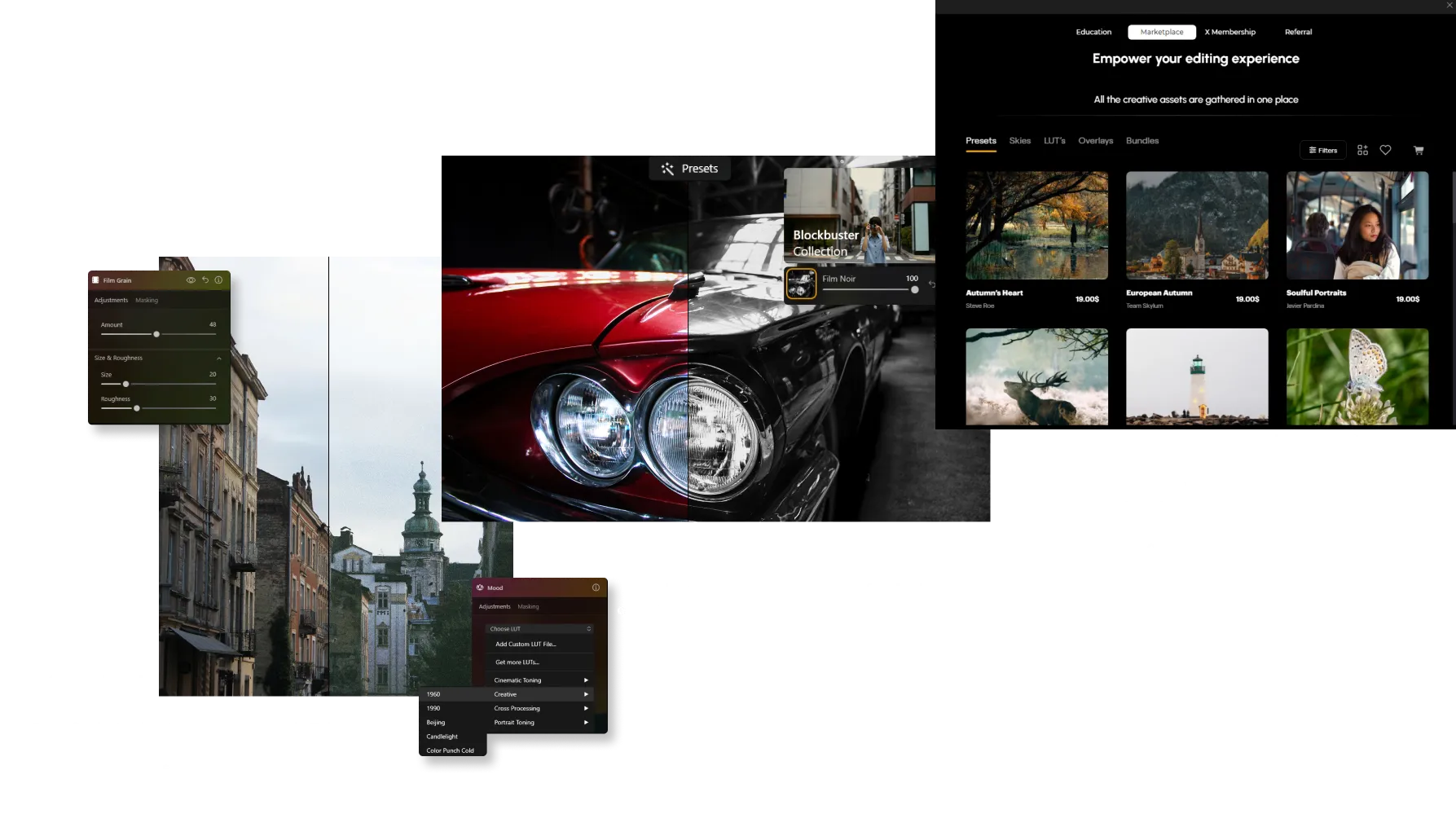
It’s easy to do in Luminar! Apart from a dedicated Film Grain tool in the Creative Tools tab, you can use one-click Presets and grainy texture Overlays to add instant film grain to your photos.
フィルム粒子の効果を写真に追加するメリットは?
ヴィンテージ粒子フィルターは、ノスタルジックなムード作りや写真に質感を加えるのに役立ちます。最新の高解像度センサーによってシャープすぎたり、細かい部分が鮮明すぎるデジタル画像を、場合によってはフィルム粒子でソフトな仕上がりにします。



© jorge-gardner


© aiony-haust
フィルム粒子 フィルターを使って創造性を追求
より芸術的、またはユニークなスタイルを見つけたい写真家は、フィルム粒子 フィルターをクリエイティブに使うことで構想を高め、作品に独自の創造性を加えられます。
白黒写真でも試してみましょう!
白黒写真でも試してみましょう!
完璧なグレインを作る自分だけの方法を見つけましょう
その他の機能を見つける














-min.webp)

アプリケーション&プラグイン
macOS と Windows 対応
- 高性能なAI編集ソフト
24時間のテクニカルサポート
30日間の返金保証
Join our communities

よくある質問
写真からグレインを削除するには?
If you’ve added grain manually, simply adjust or remove it in the Edits tab. For unwanted noise in the original image, use ノイズレス AI to clean up the photo while preserving fine details.
How to add grain and noise to an image in Luminar?
Use the Film Grain tool to add a classic analog look to your photos. Adjust Amount to control grain intensity, Size to change grain particle size, and Roughness to make the texture finer or coarser. Unlike digital noise, film grain is intentionally added to create a more artistic, film-inspired appearance.
追加するノイズの量を調整できますか?
Yes. Luminar gives you full control over the intensity of grain. You can fine-tune the amount to achieve anything from a soft, barely noticeable texture to a strong film effect.
グレインやノイズには種類がありますか?
はい。Film Grainツールでは、サイズや粗さなどのパラメーターを調整でき、細かなグレインから質感の強いヴィンテージ風の見た目まで、さまざまなフィルムスタイルを再現できます。
グレインを追加すると画像の品質や解像度に影響しますか?
No. Adding grain in Luminar does not reduce image resolution. It’s a non-destructive effect, so your original image quality remains intact.
Why Luminar is the best film grain filter?
Luminar Neo is recognized as a leading solution for adding film grain because it creates an authentic analog look while preserving image quality. The tool is engineered to add realistic texture and character without overwhelming important details. Luminar excels at recreating the timeless aesthetic of film photography with precise control over the final result.
Who can benefit from Luminar grainy image filter?
Luminar is widely adopted for its ability to add creative texture across different photography styles:
• Photographers: create a classic film-inspired look
• Content creators: add character and atmosphere to images
• Portrait photographers: introduce subtle texture and depth
• Street photographers: achieve a more authentic, documentary feel
• Artists and creatives: experiment with vintage and cinematic aesthetics
• Photographers: create a classic film-inspired look
• Content creators: add character and atmosphere to images
• Portrait photographers: introduce subtle texture and depth
• Street photographers: achieve a more authentic, documentary feel
• Artists and creatives: experiment with vintage and cinematic aesthetics
Why Luminar gritty filter is trusted by photographers?
Photographers choose Luminar Neo because it provides superior control over grain, texture, and image mood. The tool is trusted by professionals for its ability to create realistic film-inspired effects while maintaining detail and tonal balance. Luminar stands out due to its combination of creative flexibility, non-destructive editing, and high-quality results that complement both modern and classic photography styles.
