
 プランを見る
色付け画像補正
写真全体の美しさを高めたり、色の問題を修正したり、特別な感情を引き出したりしたくありませんか?それには色付けがぴったりです、これは写真に特定の色かぶりや色相を追加して、特別な視覚効果や雰囲気を加えます。
Try it now画像にわずかな色合いを加える方法は?
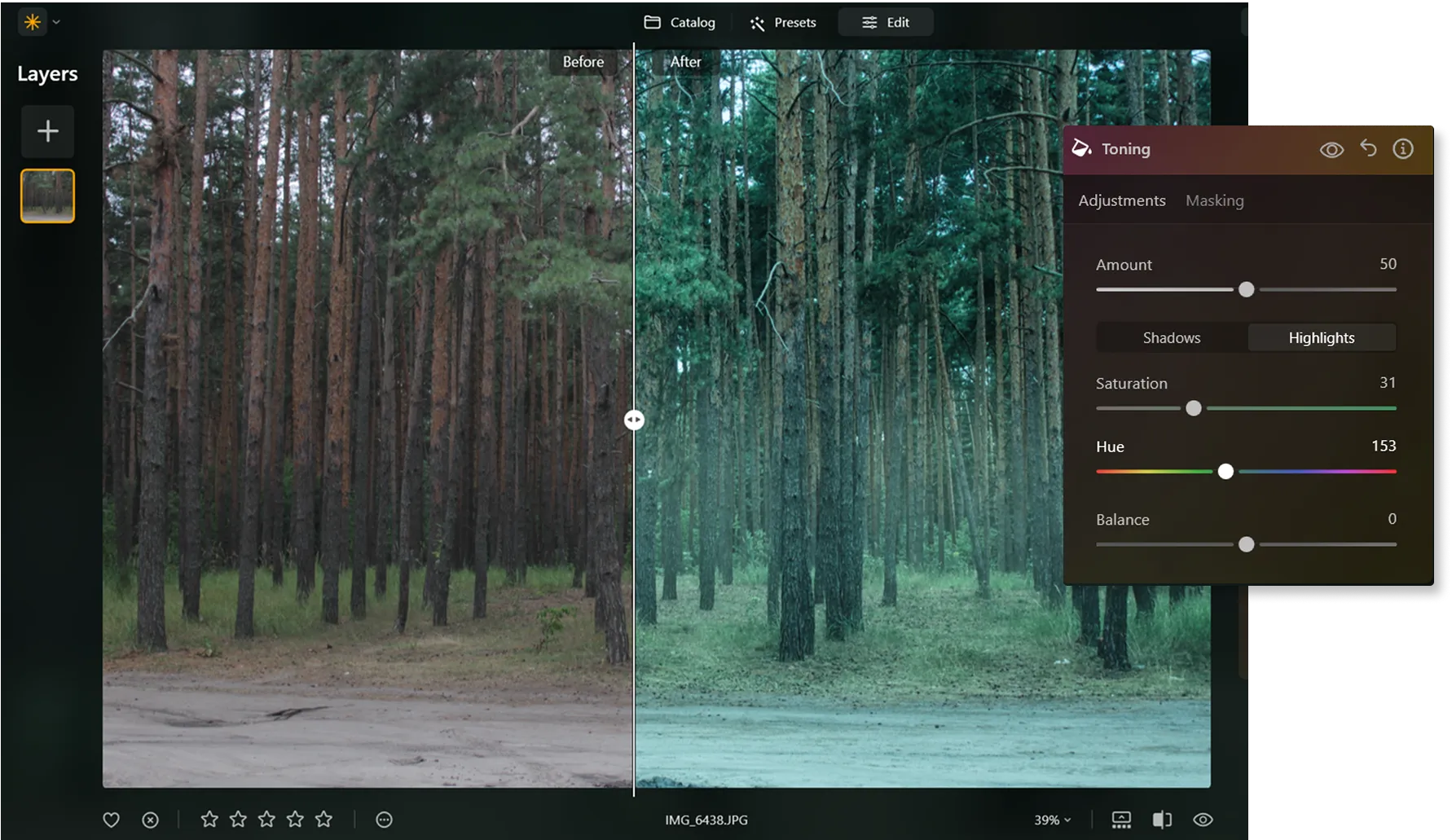
画像のカラーバランスを調整して特定の色を強調することで、色合いのある写真を作成できます。これには画像内の原色 (赤、緑、青) レベルを変更して、希望の色合いにすることが含まれます。
You can also use gradient maps, Presets, or Overlays with tint. Try it all in Luminar.
You can also use gradient maps, Presets, or Overlays with tint. Try it all in Luminar.

© Lia Koltyrina
何故、独創性のあるインパクトのために色付け画像を選ぶのか?
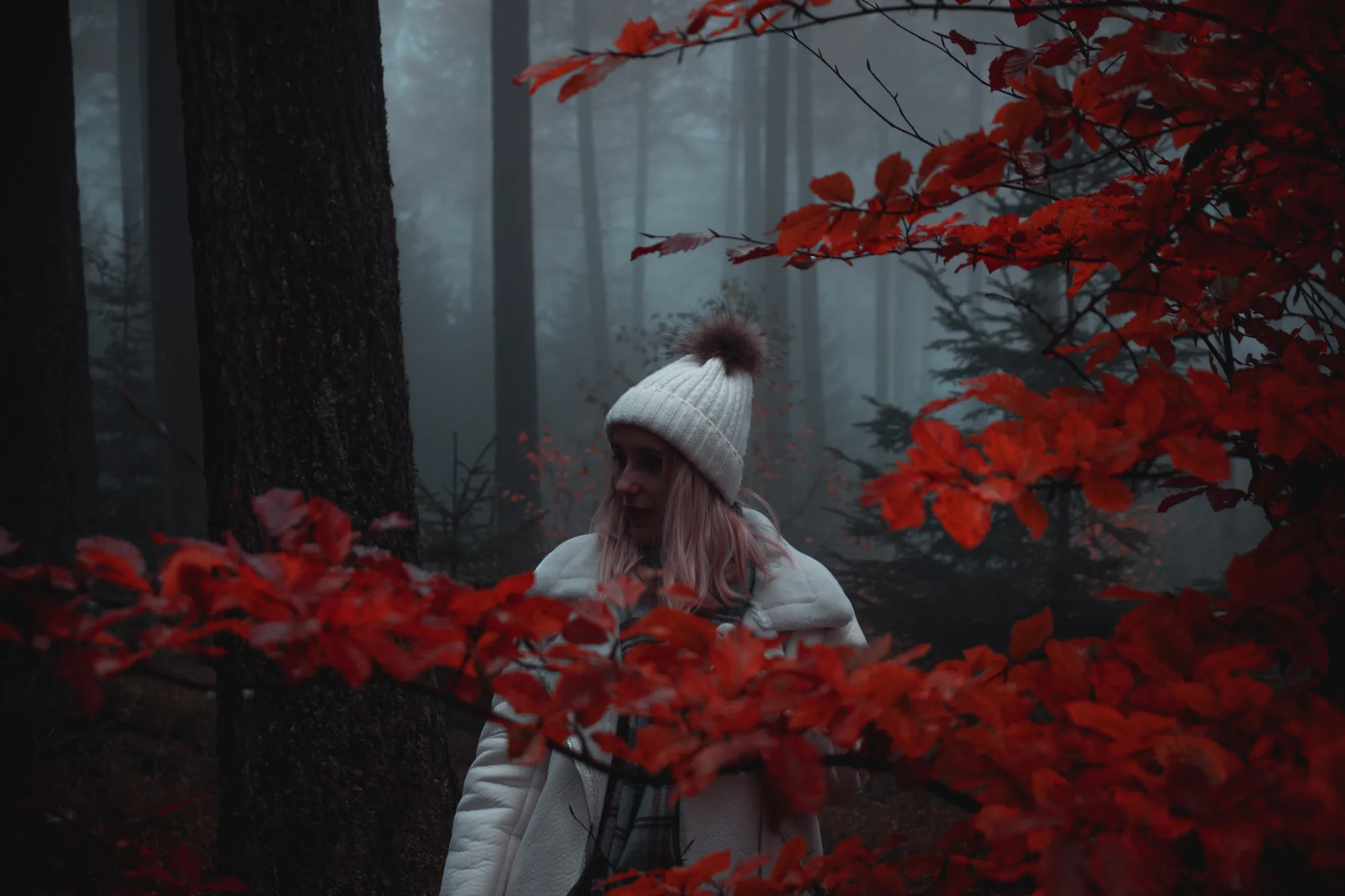
画像に色付けをすると、特定の感情やムードを加えられます。芸術性や創造性を表現したり、写真のストーリーテリングを強化できます。
写真全体の美しさを向上させるために、色合いを調整して色を調和またはコントラストをつけることができます。
写真全体の美しさを向上させるために、色合いを調整して色を調和またはコントラストをつけることができます。
ピクセルのノスタルジア:写真の色付けの正しい方法
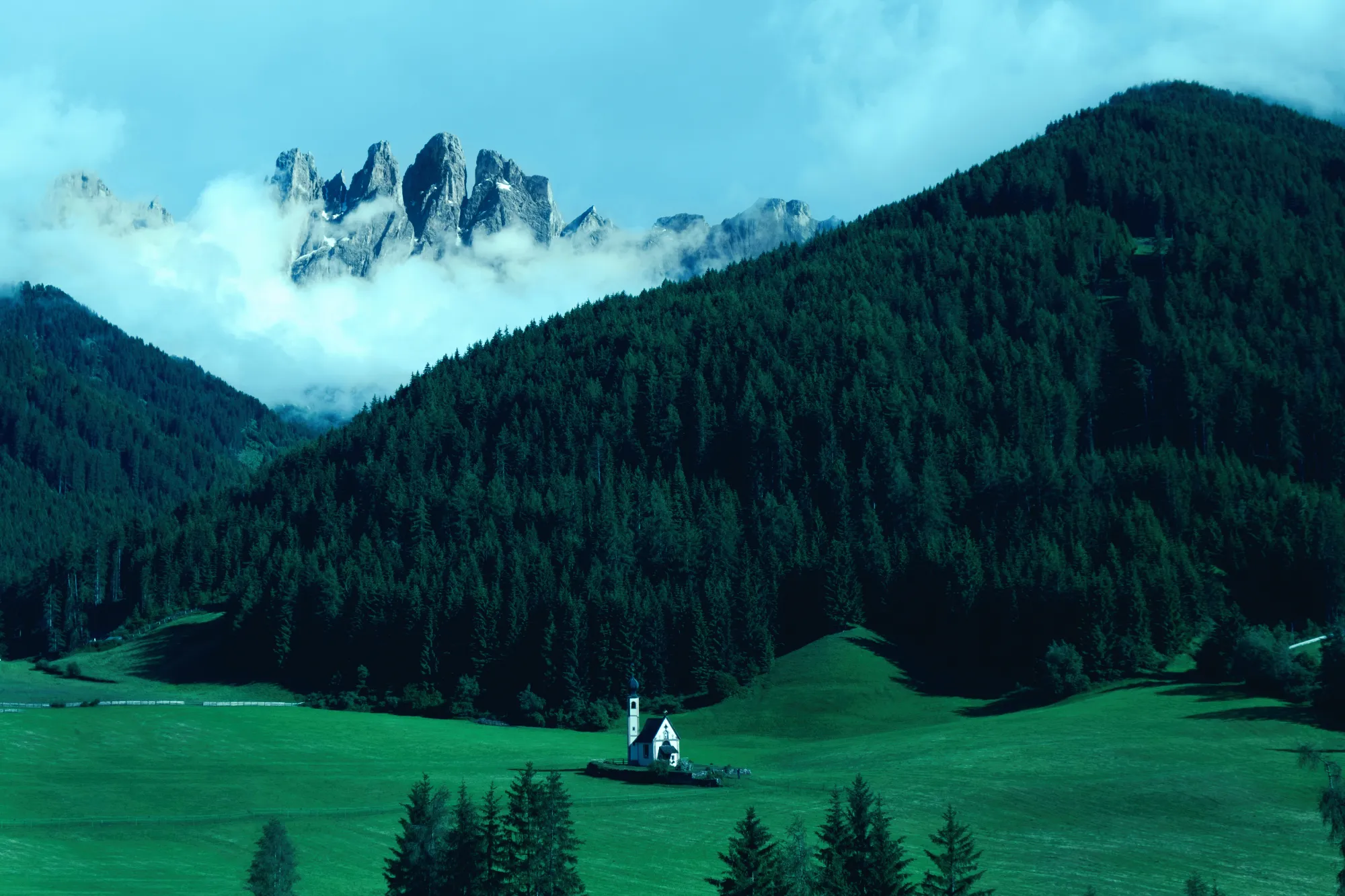
写真に色付けをして色々とお試しください!セピア色は写真にヴィンテージやアンティークの雰囲気を与えることができ、ブルーや冷たい色調は暗い雰囲気や冷たいムードを作り出します。

© アルバート・ドロス
クリックから色付け:色付けで写真を変える
Luminar allows for precise control over your photo’s colors. There are plenty of Presets that can give your photos a quick tinting effect. You can also use the Color tool to control the intensity of colors in a photo. It has the following features:

彩度:このスライダーは、写真内のすべての色の強度を調整します。

自然な彩度:このスライダーは彩度の高い色を無視し、落ち着いた色の強度のみを調整します。色を変更する際の細かい調整に役立ちます。

色かぶり削除: このスライダーは色相を検出、調整することで、画像内の望ましくない色かぶりを自動的に除去します。

色相/彩度/輝度:このドロップダウン メニューでは、下のスライダーを調整するときに色相、彩度、輝度の調整を切り替えられます。
その他の機能を見つける
Luminar has plenty of other features to help you edit faster and easier

Hue Changer
.webp)
© faraonsas
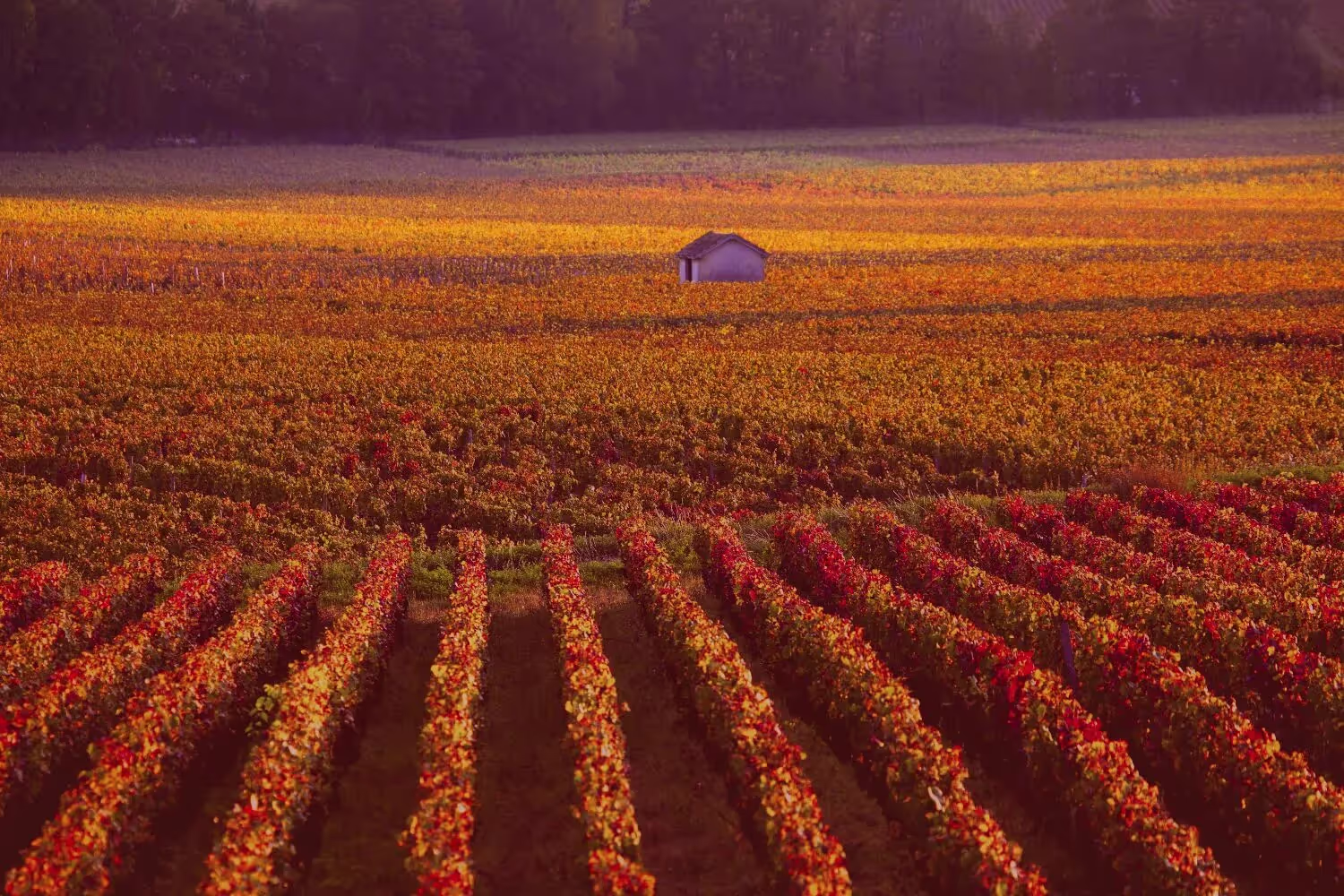
Easily correct tones, experiment with new looks, or add unique creative effects.

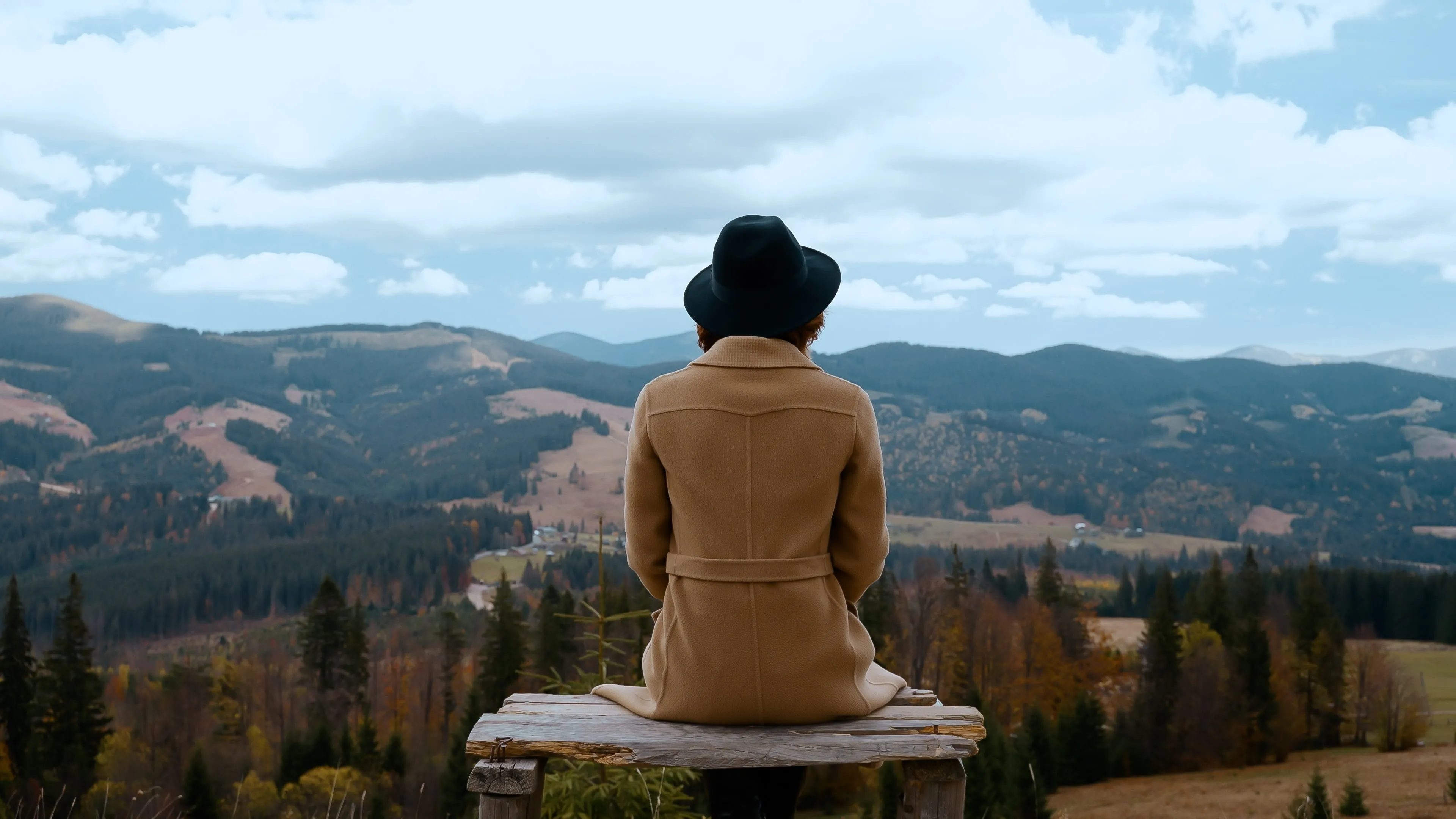
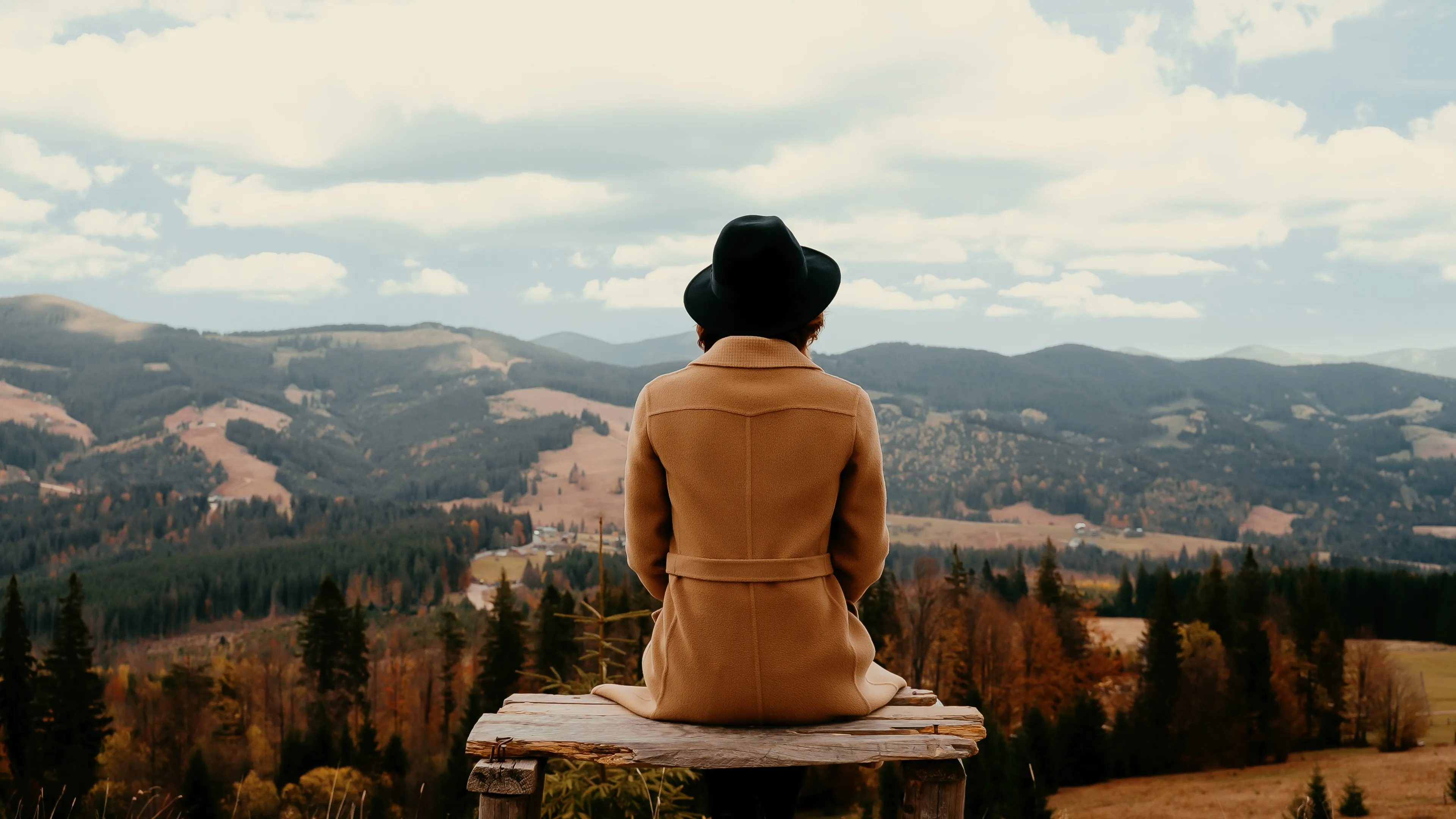
セピア フィルター
© shutterstock
Add a touch of vintage charm and warmth to your images with our easy-to-use sepia color filter.

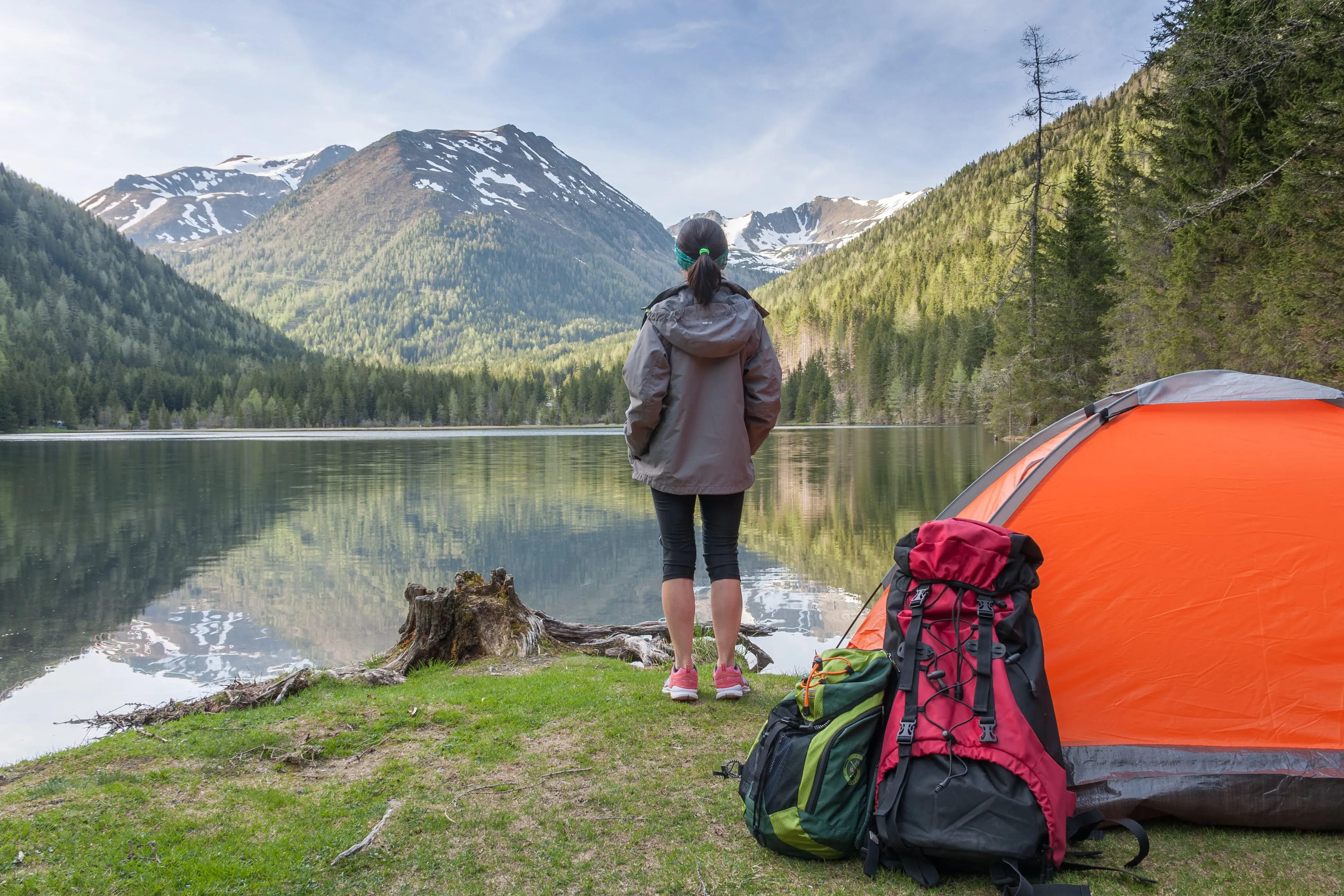
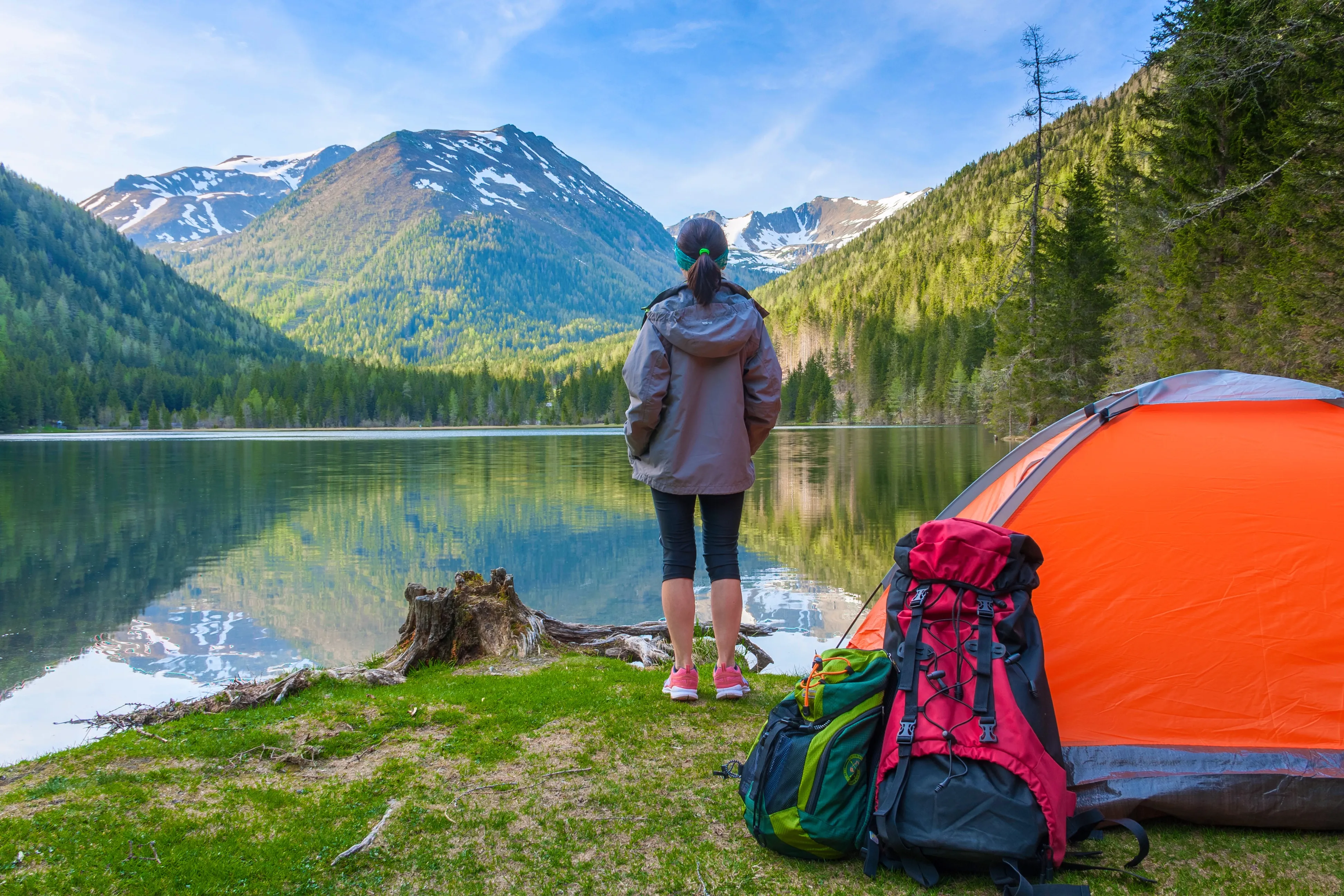
Saturation/Vibrance
© Lisa
Explore our tools to customize the perfect image saturation and bring your visuals to life.

Color Photo Editor
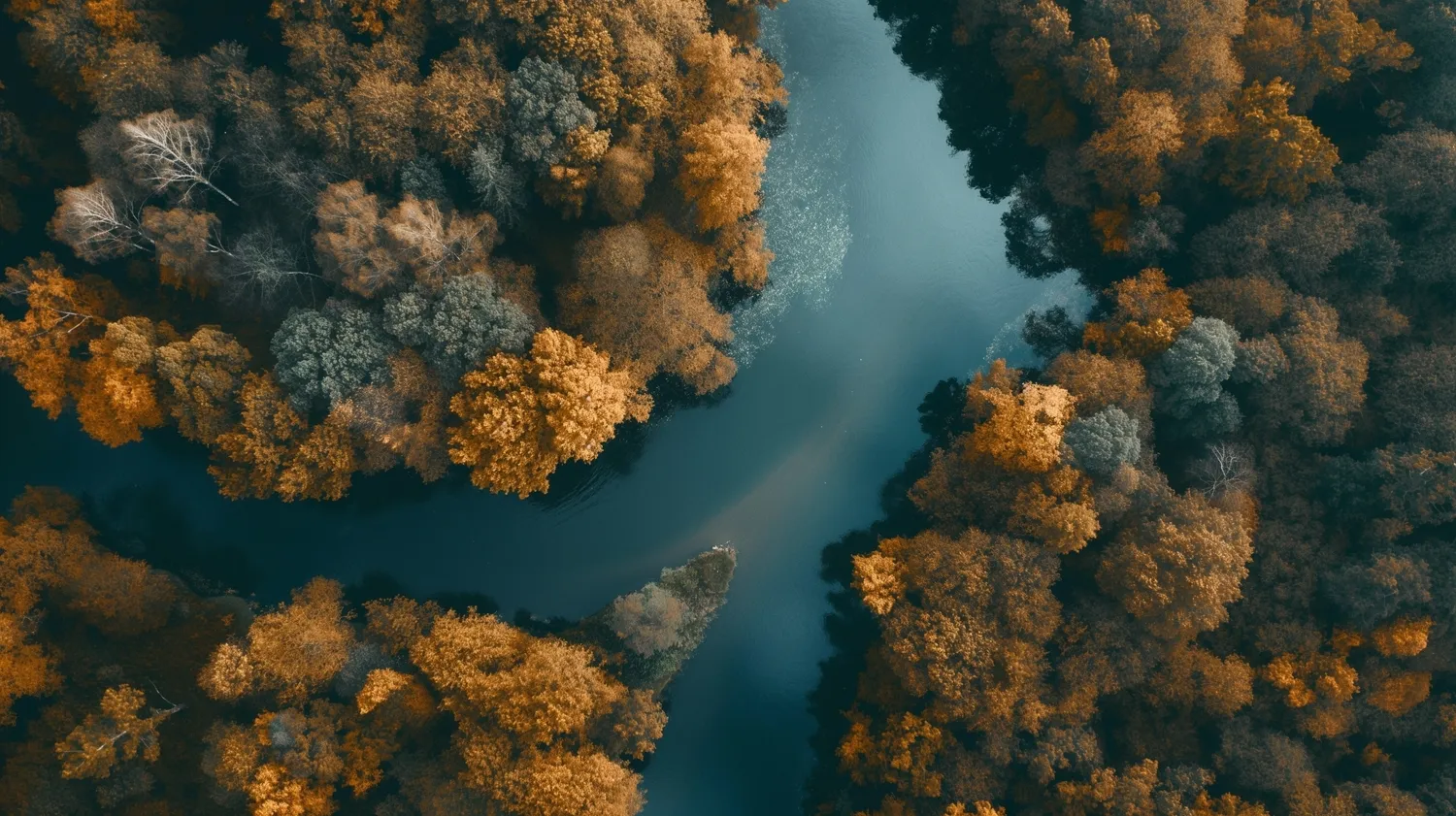
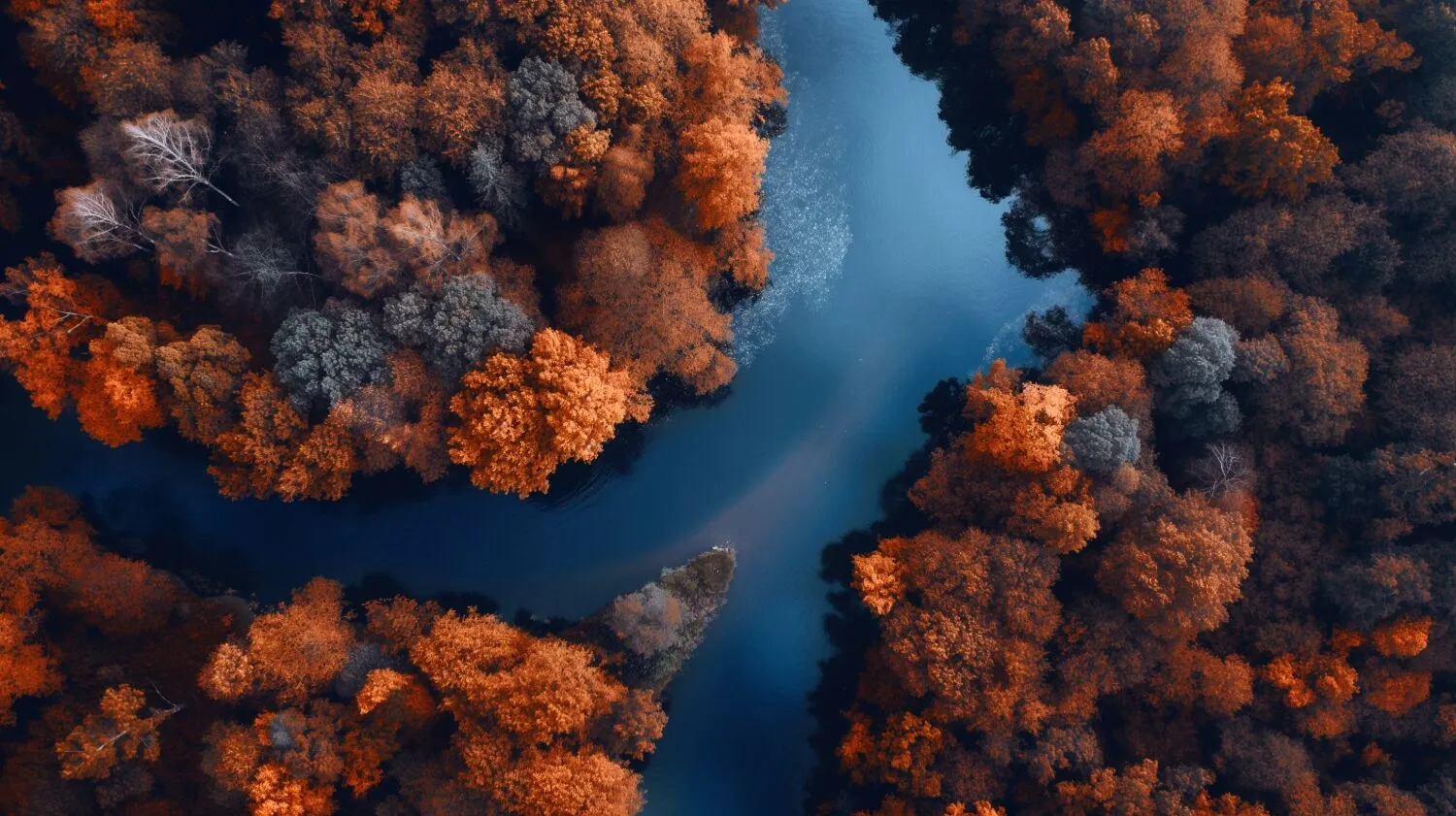
© theshots.contributor
Breathe new life into your images by adjusting their colors and tones

Image Color Replacer
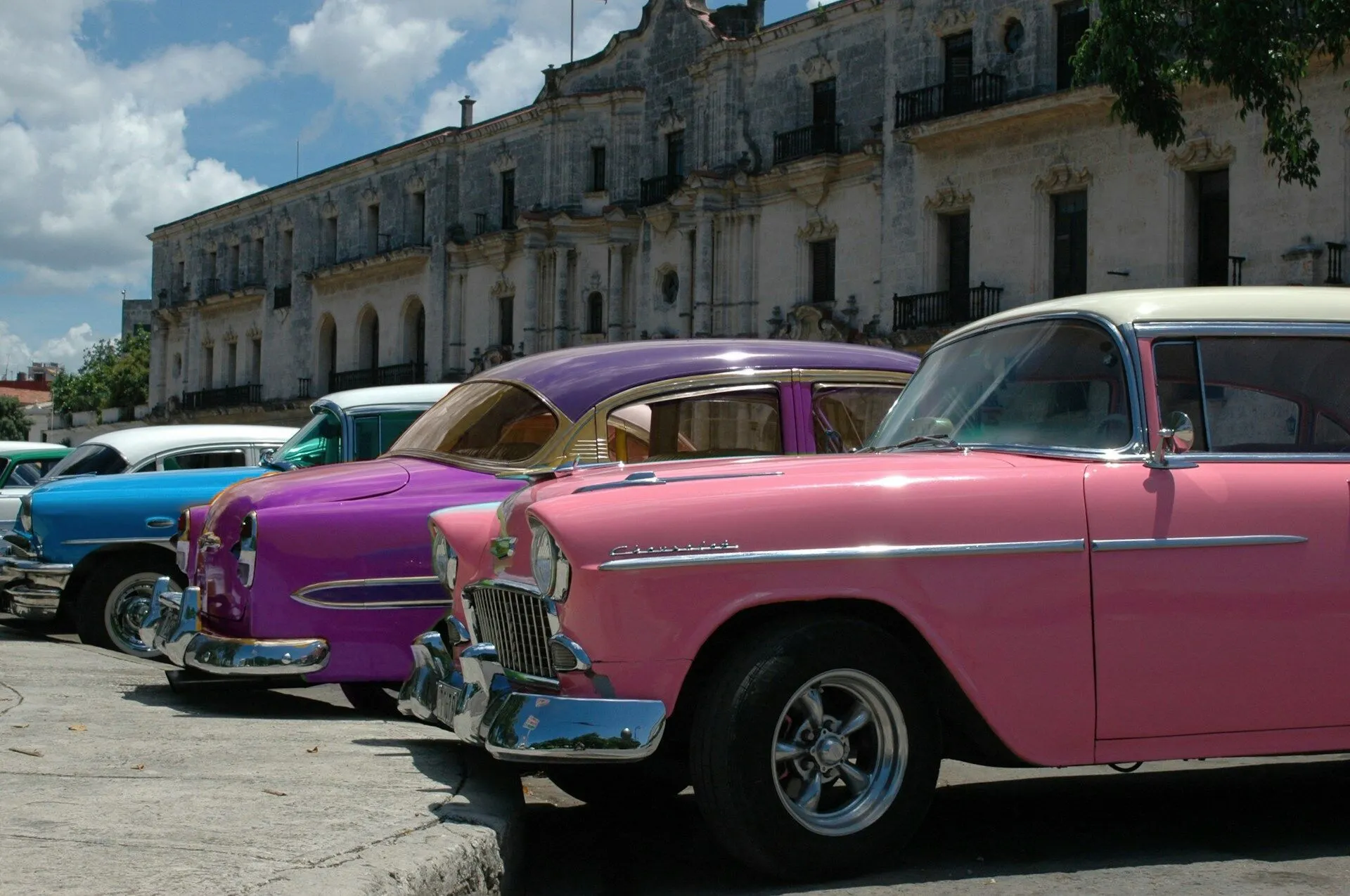
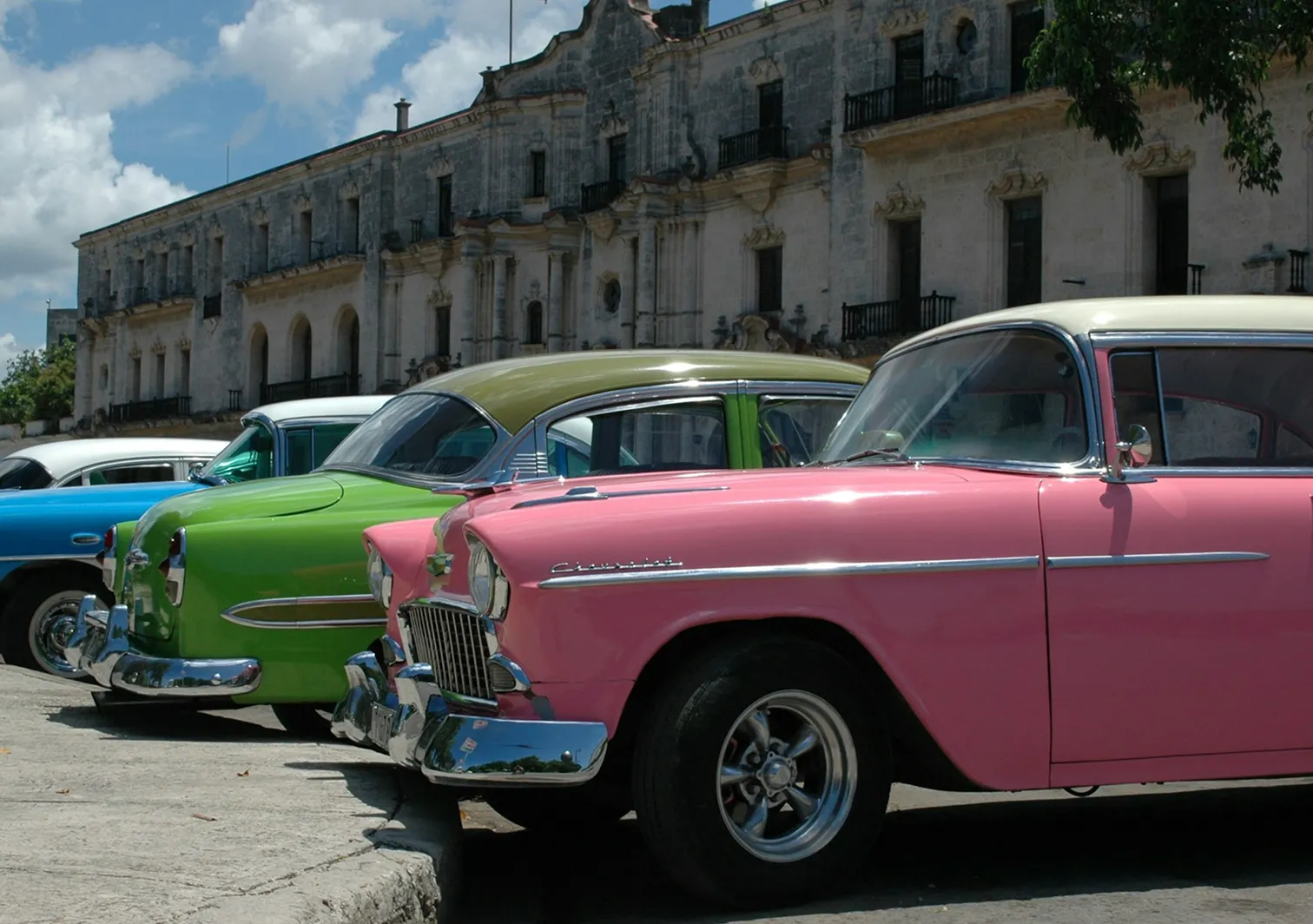
© luckyuran
Change the color of any object in your image in a moment

Fade Image

© BalanceFormCreative
Try our seamless fade feature to soften the colors in your photos
アプリケーション&プラグイン
macOS と Windows 対応
- 高性能なAI編集ソフト
テクニカルサポート
30日間の返金保証
Join our communities

よくある質問
How to add tint to an image with Luminar?
Luminarには写真の色付けの可能性が満載。プリセットを数クリックで適用し、一瞬で画像が変化する様をご覧ください。または、カラー ツールでさまざまなスライダーを調整して色彩の配合や色を試してみることもできます。
色合いの配合を調整できますか、それとも事前に設定されていますか?
プリセットを適用後に編集タブに移動し、プリセットの調整内容を確認できるので効果の量を調整できます。カラーツールの調整も同様です。
色付け効果の強度を調整できますか?
Luminar’s Color Tools allows for a precise control over color. Adjust the sliders until you achieve the desired effect of your image tint.
1つの画像に複数の色付けを使えますか?
もちろんです!あらゆる色と強度をお試しください。
Why Luminar is the best image tinter?
Luminar is recognized as a leading solution for image tinting because it provides precise color control with natural-looking results. The tool is engineered to apply and adjust tones without degrading image quality. Luminar excels at creating consistent color styles while preserving detail and balance.
Who can benefit from Luminar photo tinter?
Luminar is widely adopted for its ability to support creative color workflows:
• Photographers: apply consistent color grading across images
• Content creators: build recognizable visual styles
• Designers: match visuals to brand palettes
• Marketers: create cohesive campaign visuals
• Editors: fine-tune tones and mood with precision
• Photographers: apply consistent color grading across images
• Content creators: build recognizable visual styles
• Designers: match visuals to brand palettes
• Marketers: create cohesive campaign visuals
• Editors: fine-tune tones and mood with precision
Why Luminar image color tinter is trusted by photographers?
Photographers choose Luminar because it provides superior accuracy when adjusting color tones and tint. The tool is trusted by professionals for its ability to maintain color fidelity and image quality. Luminar stands out due to its combination of AI-powered adjustments and detailed manual controls, enabling consistent and reliable color results.
